

Renovating together
You plan a small renovation of the example flat with two other people: Tom, who draws it with you, and Sara, who only looks. You ask Tom on the plan whether the wall between the kitchen and the bath can move, keep the flat as it is today in a version, watch Tom move the wall, and compare the result with that version.
At the end you have a project shared with an editor and a viewer, a comment answered on the wall, version 1 Before the works, and the draft with the wall moved 40 cm into the bath, compared with it:
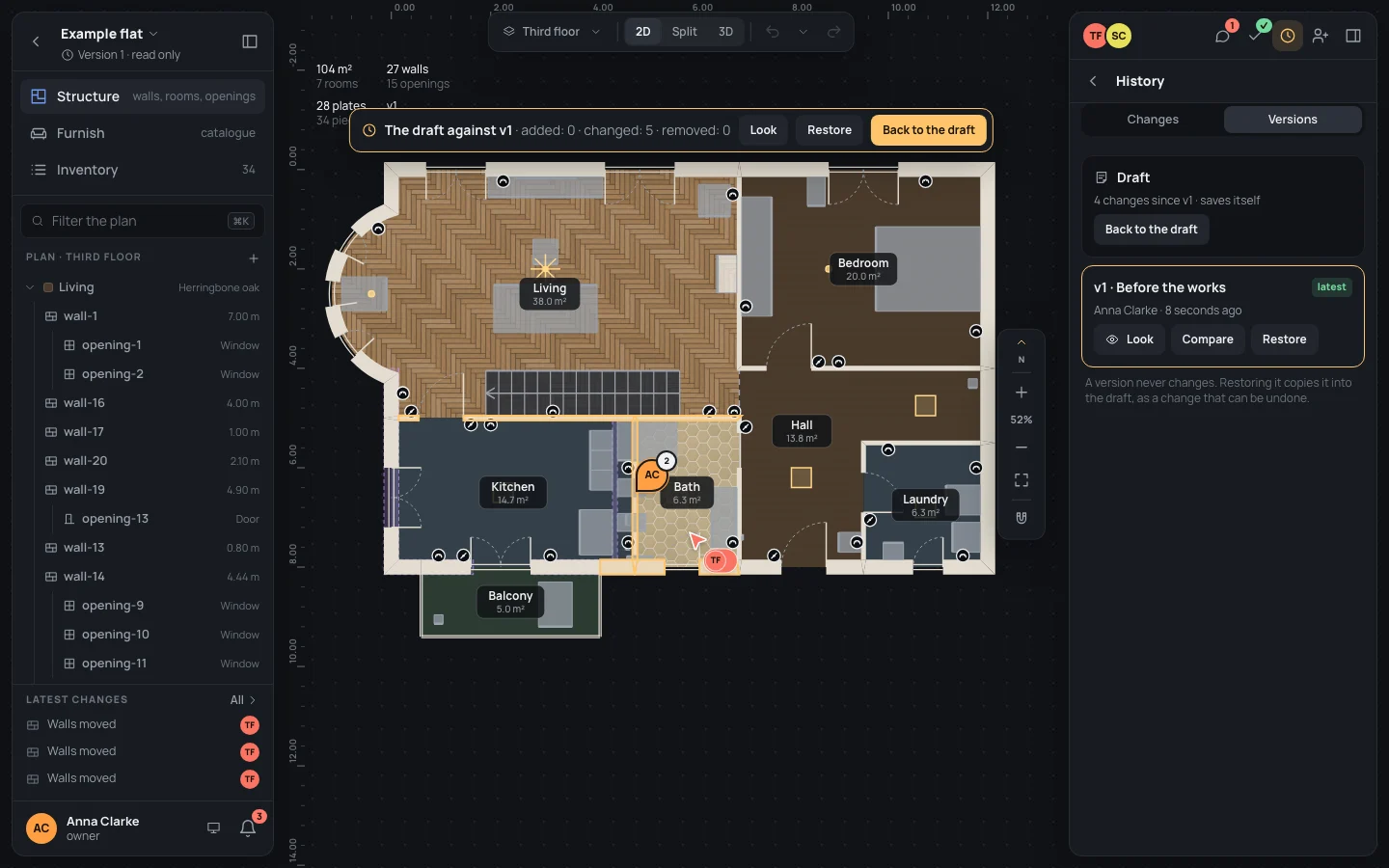
It takes about 20 minutes. You need a second and a third account to play Tom and Sara: two other addresses of yours, signed in from other browsers or private windows.
1. Open the example
Section titled “1. Open the example”- On your projects page click New project. The wizard opens on Start.
- Click Ready in the column of steps, then Open the editor. Then choose Import a home… in the project’s
menu (its name, top left) and pick
finished.home.json(from the files above). - The arrow at the top left (All projects) takes you back to your projects page. In the project card’s ⋯
choose Rename, type Name
Example flatin Name and click Save. - Open it again, and click 2D at the top: the plan alone, as in the pictures.
The wizard is in A new home; renaming in Your projects.
2. Invite an editor and a viewer
Section titled “2. Invite an editor and a viewer”- Click Share, the person with a plus at the top of the right panel.
- In Email of the person you invite type Tom’s address, Email
tom.fisher@example.org, leave Can edit beside it and click Invite. - Type Sara’s, Email
sara.cole@example.org, choose Can view and click Invite.
Both wait under People, invitation pending, until they answer.
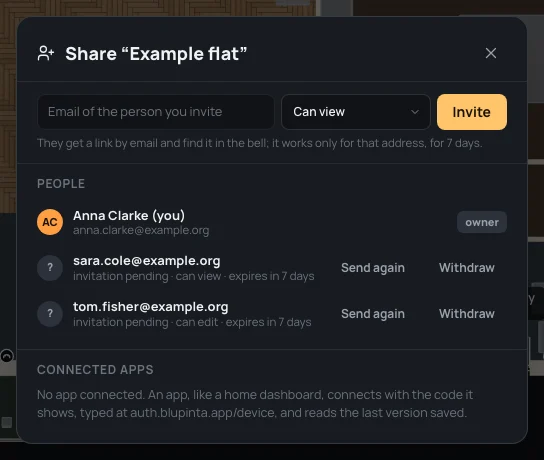
Tom draws, creates versions and comments like you; Sara looks, measures and comments, and changes nothing. What each role can do is in Inviting people.
3. They accept
Section titled “3. They accept”Signed in as Tom, the projects page shows An invitation for you.
- Click Accept. It says Example flat is among your projects.
- Click Open in that message: the project opens in Tom’s editor.
- Do the same as Sara.
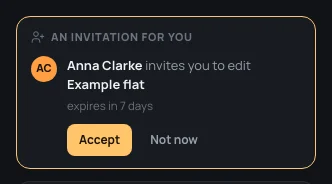
Back in your editor, their faces are at the top of the right panel: they are in the project now.
4. A comment on the wall, for Tom
Section titled “4. A comment on the wall, for Tom”The kitchen wants more room. Ask Tom where the question belongs: on the wall between the kitchen and the bath.
- Press CC (Comment) and click on the wall between the kitchen and the bath. The comment is pinned to the wall: it will follow it if it moves.
- Write Comment
Could this wall move 40 cm towards the bath? - Click @ Mention and choose Tom Fisher: @Tom Fisher goes into the text, and Tom is told in his bell and by email.
- Click Send, or press ⌘↵Ctrl+↵.
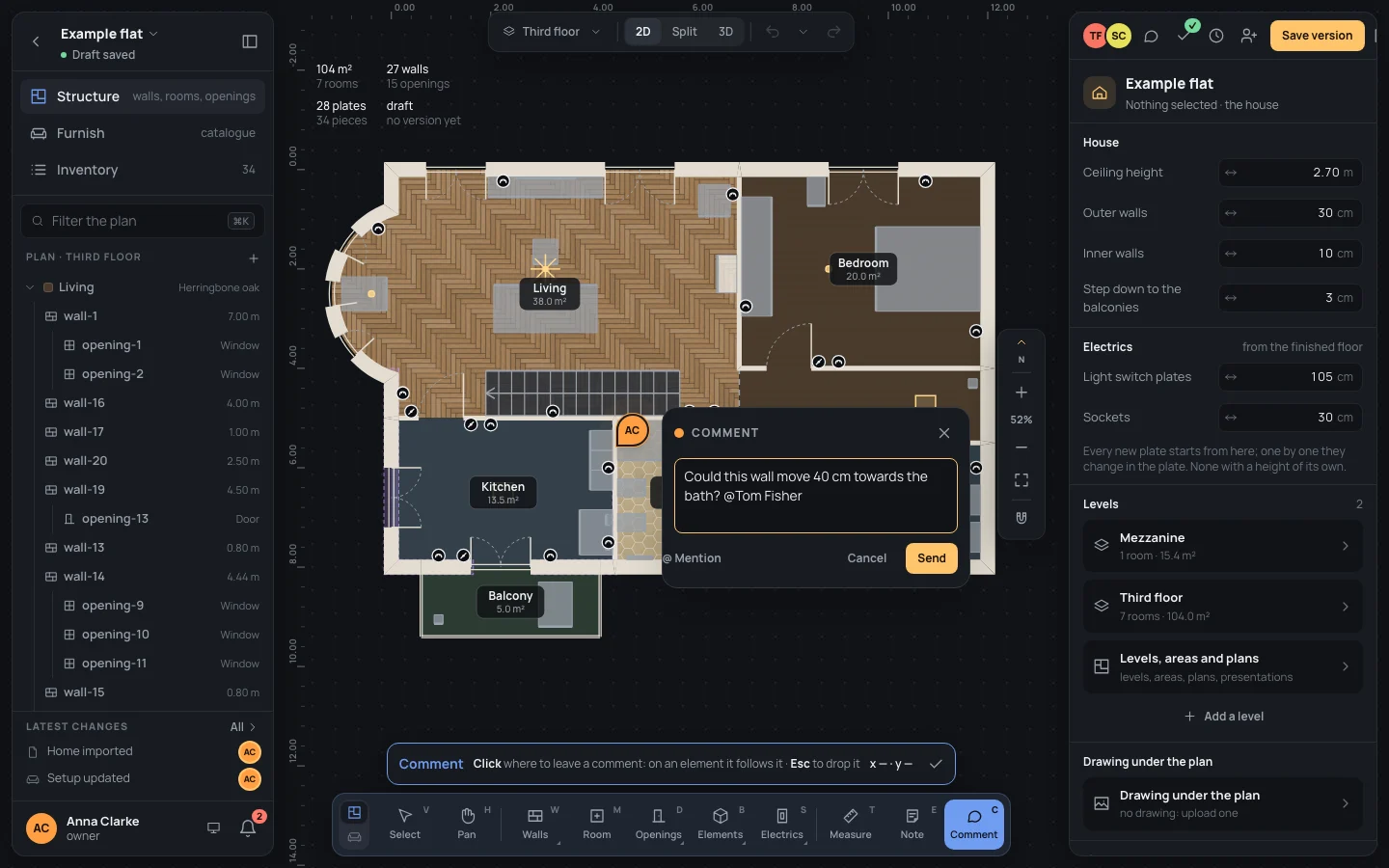
5. Tom answers
Section titled “5. Tom answers”Tom sees the pin appear on his plan as you send it. As Tom:
- Click the pin: the thread opens beside it.
- In Reply… write Reply
Yes: I’ll move it after the version.and press ⌘↵Ctrl+↵. - Close the thread with EscEsc (the reply box is empty again) or its ×.
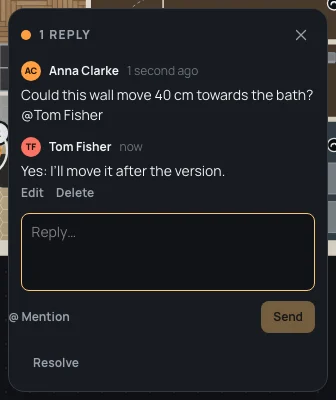
Replying, editing, resolving and the comments panel are in Comments; the tool itself in Comment.
6. A version before the works
Section titled “6. A version before the works”Before anything changes, keep the flat as it is today. A version never changes again: it is what you will compare the works with, and what you can go back to.
- Click Create version, at the top of the right panel.
- What changes lists every element as added: it is the first version. Checks says Walls, rooms and openings in order.
- In Message write Message
Before the works. - Click Create version 1. It says Version 1 created.
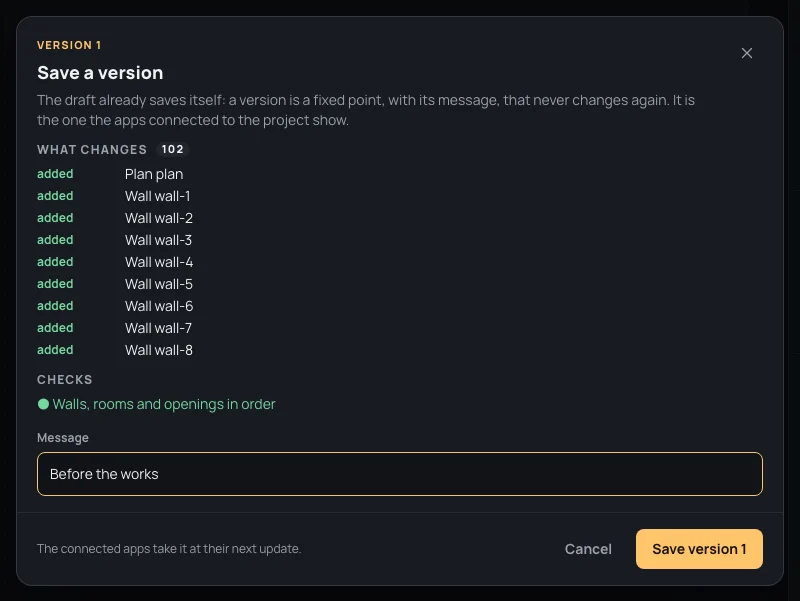
Everything about creating a version, and what keeps it back, is in History and versions.
7. Tom moves the wall, and you see it
Section titled “7. Tom moves the wall, and you see it”As Tom:
- Select the wall between the kitchen and the bath: in the left panel, type
Filter the plan
wall-21in Filter the plan and click its row. (On the plan, the kitchen’s cabinets and the bath’s fittings stand along both its faces, and the comment’s pin sits at its middle.) - Press ⇧→Shift+→ four times: 10 cm east each time, 40 cm in all. The walls joined to it stretch, and the comment’s pin goes with it.
In your editor the wall moves as Tom presses the keys: you see his pointer with his name, and his steps arrive under Latest changes, at the bottom of the left panel (Walls moved, with his face). Nothing to reload or save: every step reaches everyone at once.
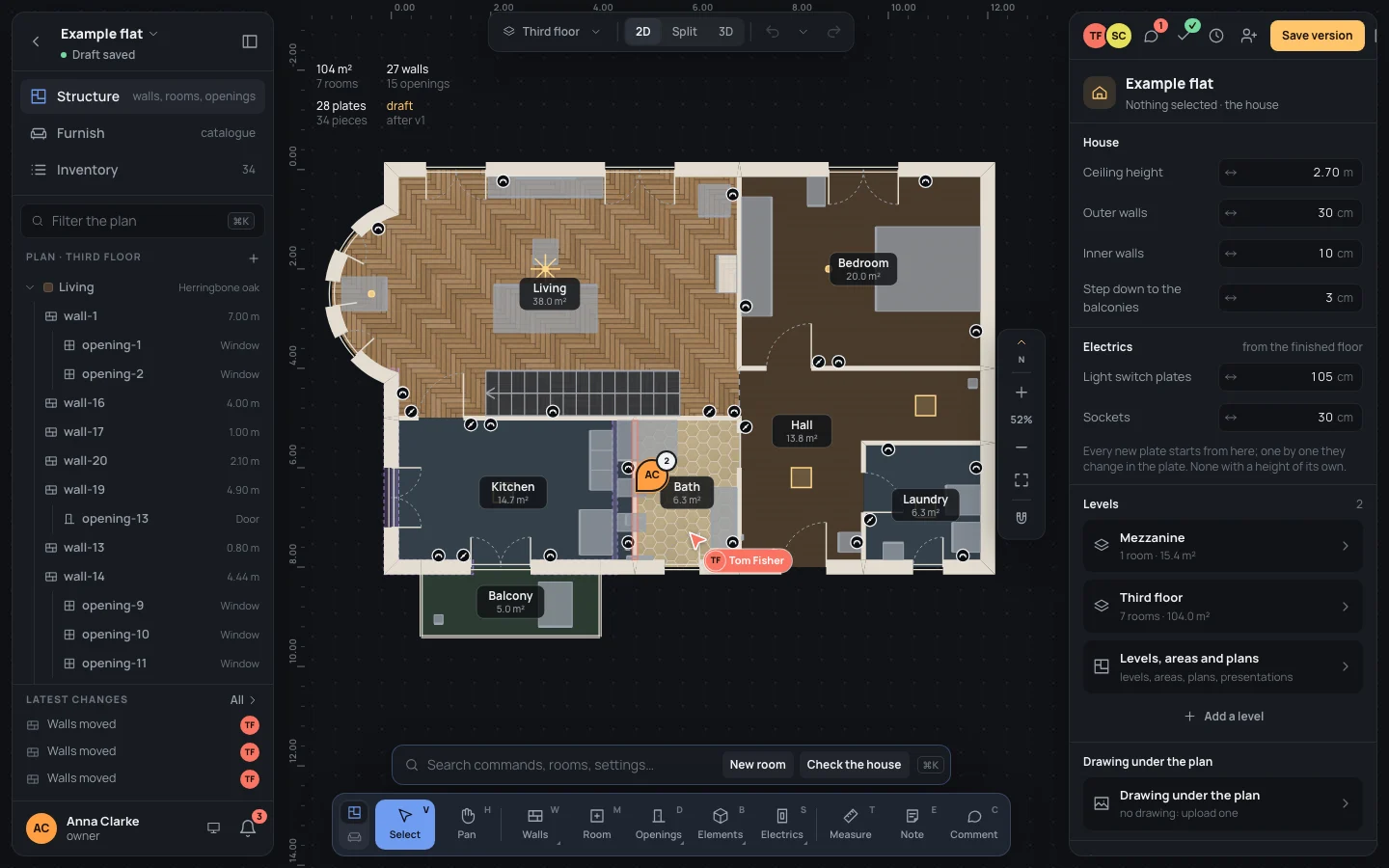
Moving a wall is in Select; pointers, following someone and undoing your own steps in Working together live.
8. Compare with the version
Section titled “8. Compare with the version”- Open the history (⇧⌘HCtrl+Shift+H) on Versions. The Draft comes first, with how many changes it has since v1 (4 changes since v1: Tom’s four steps); then v1 · Before the works.
- Click Compare on v1.
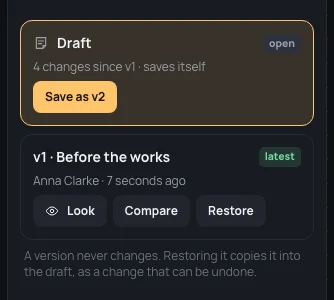
The plan shows the draft with what changed since v1 in the accent colour: the moved wall and the walls joined to it (the picture at the top of this page). The banner over the plan counts them: The draft against v1 · added: 0 · changed: 5 · removed: 0. Look shows v1 itself, read only; Back to the draft goes back to work.
When the works are agreed, save them as v2 the same way: the draft’s changes since v1 are what v2 adds.
9. If the works are called off
Section titled “9. If the works are called off”- Click Restore, on v1 or in the banner. It says v1 is now the draft: ⌘ZCtrl+Z takes it back. The wall is back where it was, for everyone.
- Changed your mind? ⌘ZCtrl+Z takes the restore back, and the wall stands 40 cm east again.
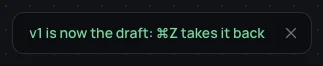
Restoring copies the version into the draft as one step: the version itself doesn’t change, and the comments stay.
What can go wrong
Section titled “What can go wrong”- The invitation didn’t arrive. In Share, Send again sends a new link; with an account, it is in their bell anyway (Inviting people).
- The comment landed on the kitchen, not on the wall. It takes what is under the click. Delete it from the thread and click on the wall’s line itself, zoomed in if needed.
- You press ⌘ZCtrl+Z and Tom’s wall doesn’t move back. Each person undoes only their own steps. Ask Tom, or restore v1.
- Create version stays off. A check fails, or nothing changed since the last version: the window says which (History and versions).
- Sara can’t move anything. She is a viewer: she looks, measures and comments. The owner can make her an editor in Share.