

Your projects
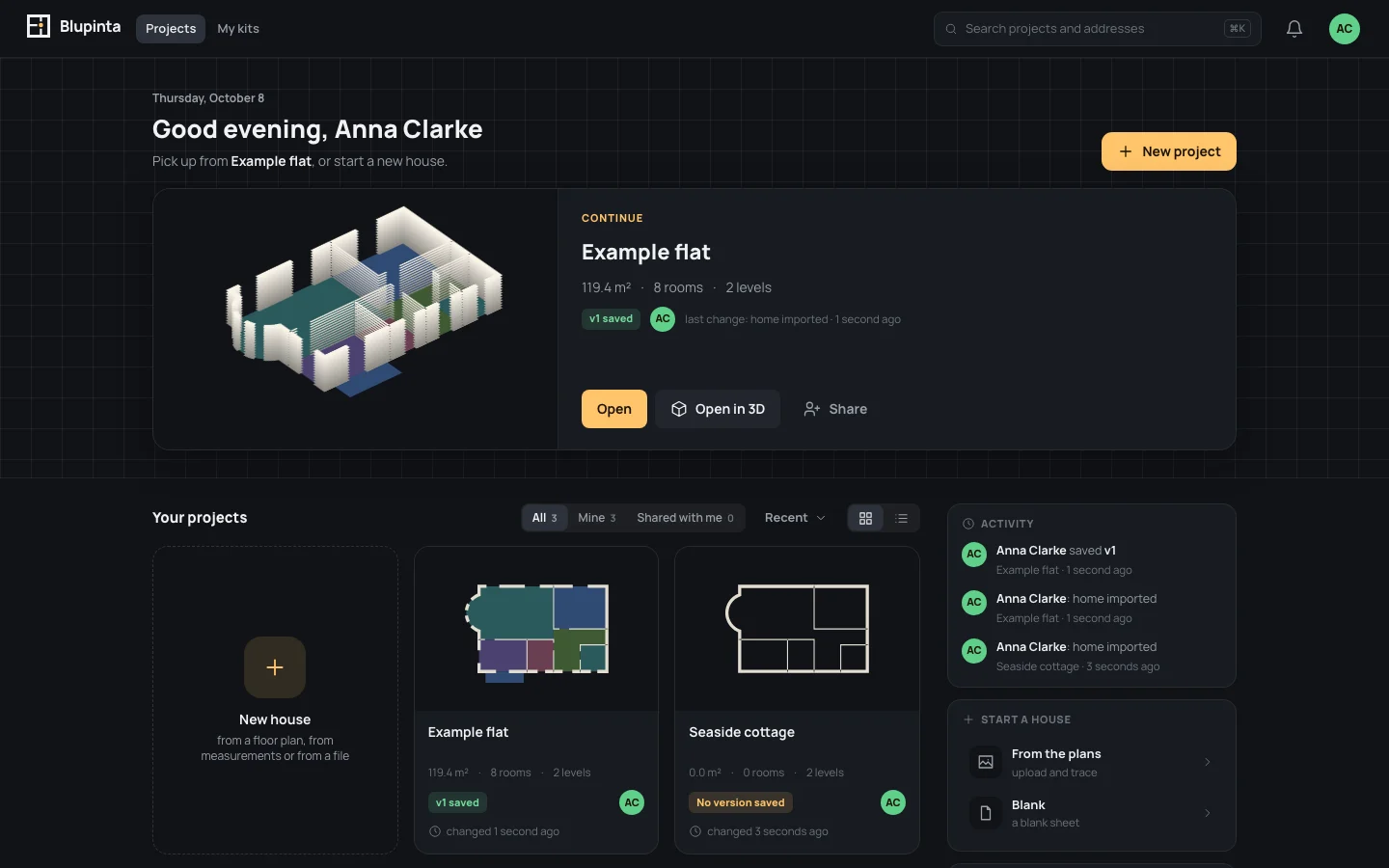
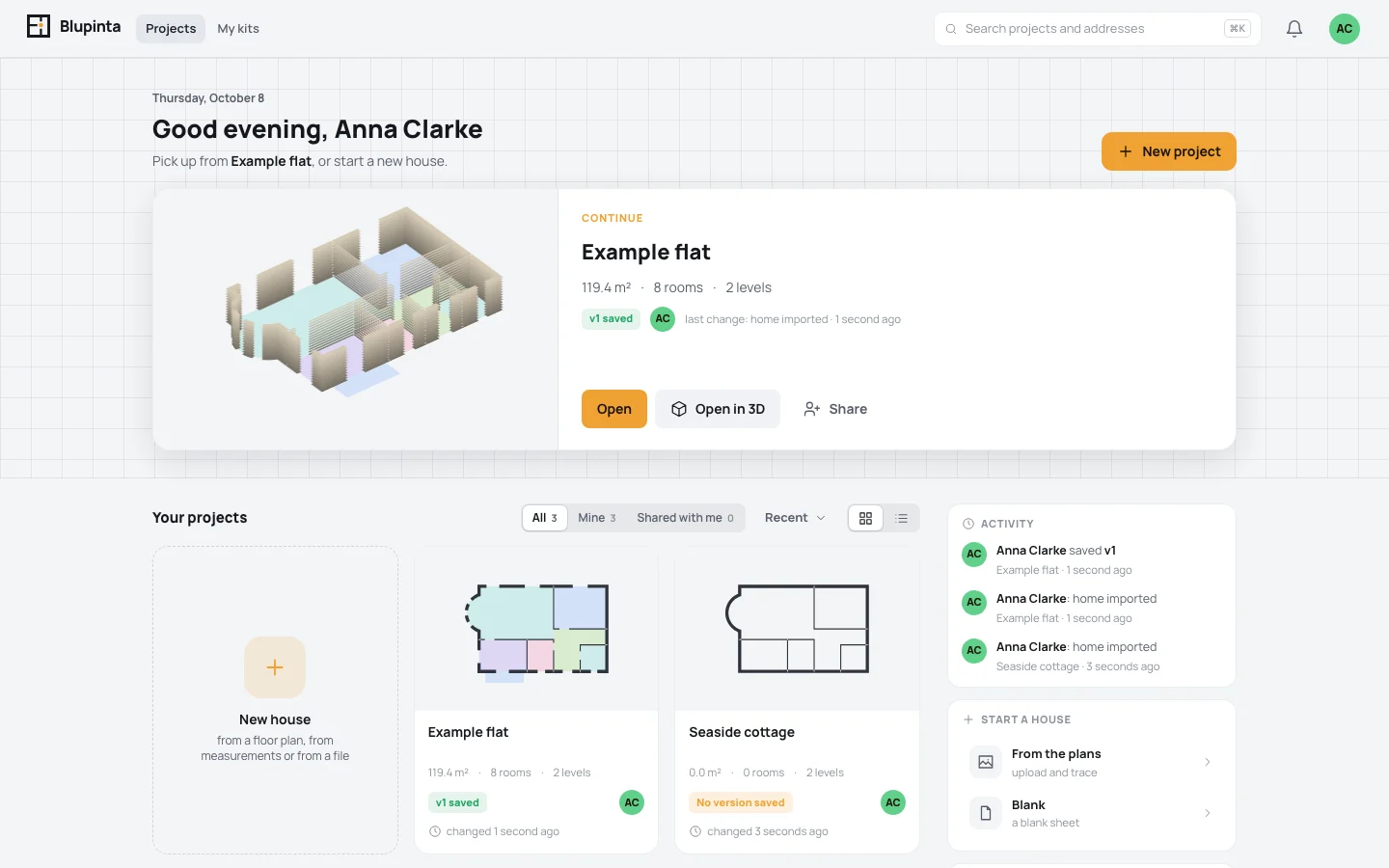
The projects page is where you land after signing in: the house you changed last on top, every project of yours below, and the ways to start a new one beside them.
The top of the page
Section titled “The top of the page”- The greeting, by the hour (good morning until 13:00, good afternoon until 18:00, then good evening), with your name, and what is going on: who is working on which project right now, or Pick up from the project you changed last, or, before your first one, how to start it.
- New project opens the new home’s wizard over your projects. The house becomes a project, with its card and its editor, when you finish the wizard; until then it is called New house, or the name its first step gives it.
- You have a house to finish setting up: a house whose wizard you left waits above your projects, with its name and when you left it. Resume opens its wizard where you were; Delete asks first, then the house and what you chose are gone. You have one at a time: New project while one waits resumes that one. Left untouched for 30 days, it is deleted by itself.
- Continue: the project you changed last, in large. Its house turns slowly in 3D on the left; on the right its name, address, area, rooms and levels, its version, who is in it and its last change. While it has next steps left, a box says how many are done (2 of 6) and which comes next. Open opens its editor on the plan, Open in 3D on the 3D, Share with its Share window open (Inviting people).
Every project
Section titled “Every project”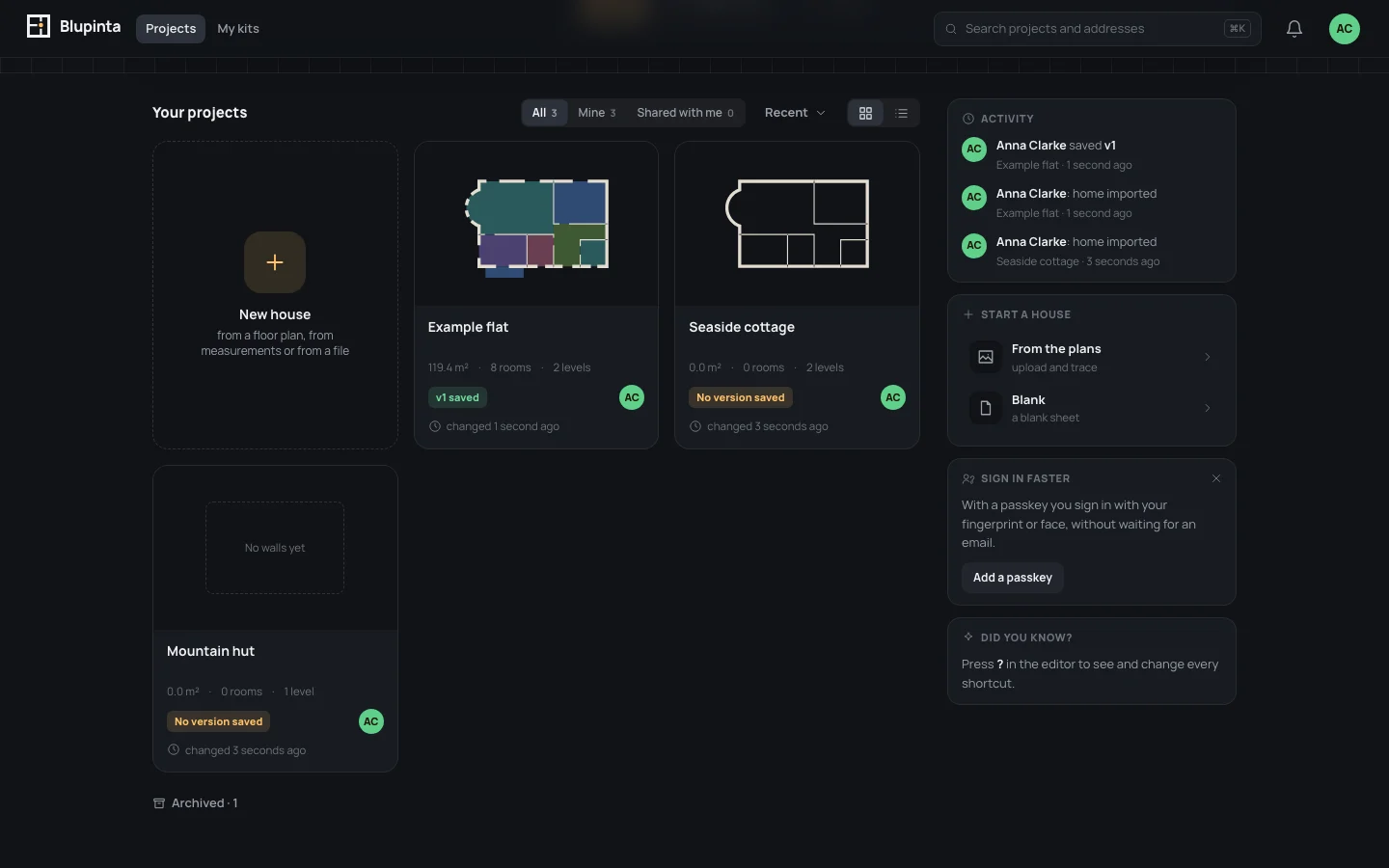
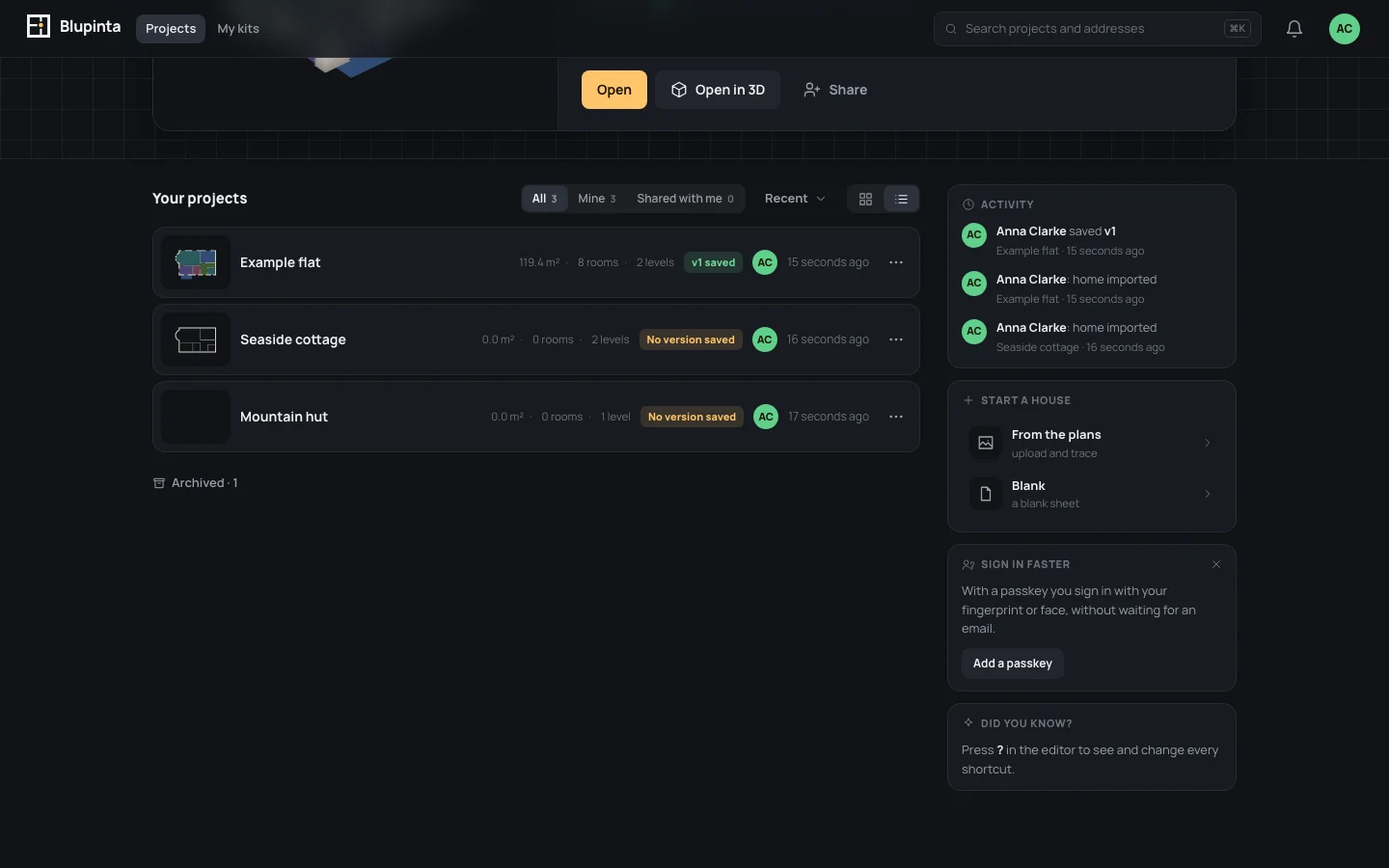
The grid starts with the New house tile (the same as New project), then a card per project. A click anywhere on a card opens the project’s editor, on its draft. Each card shows:
- The house as its plan: its main plan, each room in a colour of its own and the walls as they stand. A house with no walls yet says No walls yet.
- by …, the owner’s name, on a project someone shared with you; … is in it, with a green dot, when someone else has it open now.
- Its name and address, then its area, rooms and levels (119.4 m² · 8 rooms · 2 levels).
- Its version: No version yet, v1 created when the draft is that version, or v1 and 3 in the draft when it changed since (History and versions).
- Who works on it, those in it now ringed, and when it last changed (changed 2 hours ago by Marco: who, unless it was you).
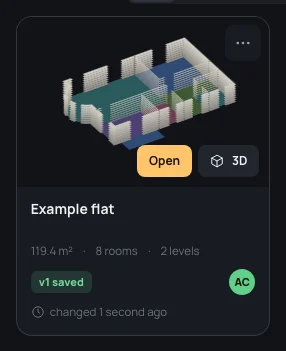
Under the pointer the plan rises in 3D, and two buttons appear on it: Open (the plan) and 3D (the editor on the 3D view).
Finding a project
Section titled “Finding a project”- Whose: All, Mine (yours), Shared with me (other people’s you were invited to), each with how many. With nothing shared yet, No project shared with you says where they’ll come.
- Sort: Recent (the last changed first, to start with), Name (alphabetical in your language), Area (the largest first).
- Grid or List: the buttons beside. The list has a row per project, with the same facts and its menu.
- Search projects and addresses, in the bar at the top: every word you type must be in a project’s name or address; capitals and accents don’t matter. ⌘KCtrl+Kor// takes you to it.
Try Search projects and addressesflat: only the Example flat is left. When nothing matches,
the page says Nothing with “…” and Search by name or address.; Clear the search empties the field.
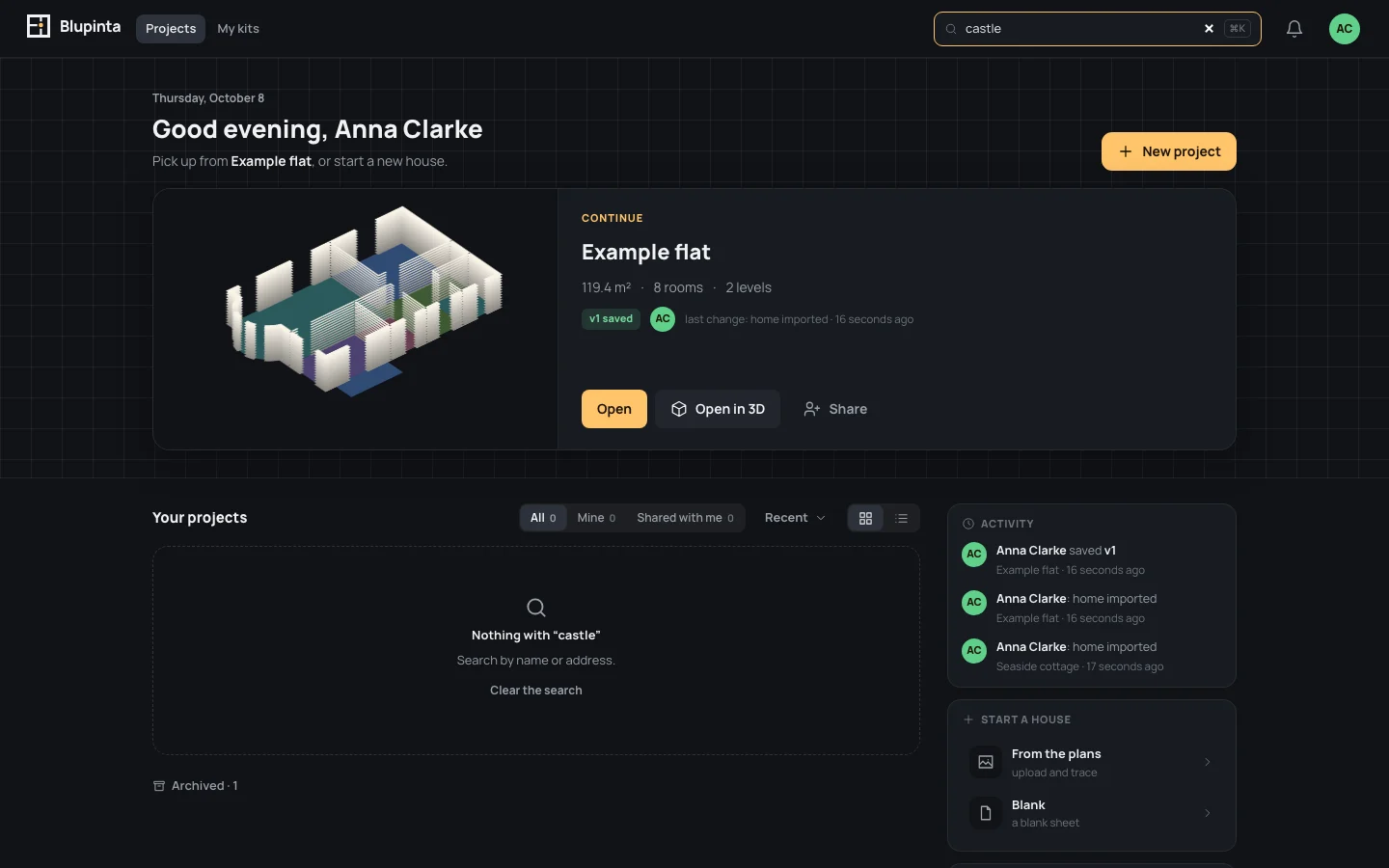
All of these stay in the page’s address: a reload, the browser’s back button or a link you send opens the same view.
A card’s menu
Section titled “A card’s menu”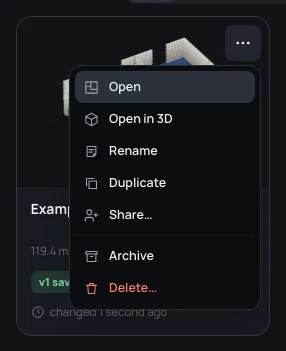
⋯ in a card’s corner (under the pointer, always there on a touch screen) opens its menu. What it holds depends on your role in the project:
| item | what it does | who has it |
|---|---|---|
| Open | the editor, on the plan | everyone |
| Open in 3D | the editor, on the 3D | everyone |
| Rename | its name and address | the owner and editors |
| Duplicate | a copy that is yours | everyone |
| Share… | the editor, with its Share window open | everyone |
| Archive / Restore | off the list, or back on it | the owner |
| Delete… | gone for good, after asking | the owner |
Renaming
Section titled “Renaming”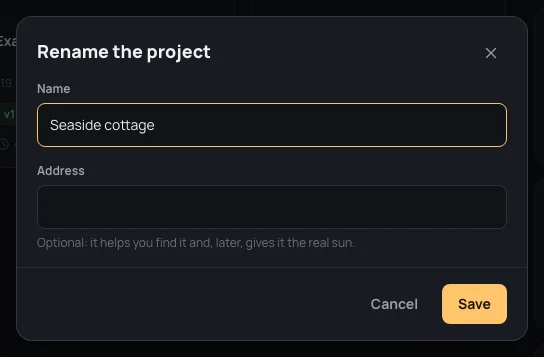
Rename the project has the Name (up to 120 characters; empty, it says Give it a name.) and the
Address (optional, up to 200: it helps you find it and, later, gives it the real sun). Save keeps both.
For example, rename the new project NameExample flat.
Duplicating
Section titled “Duplicating”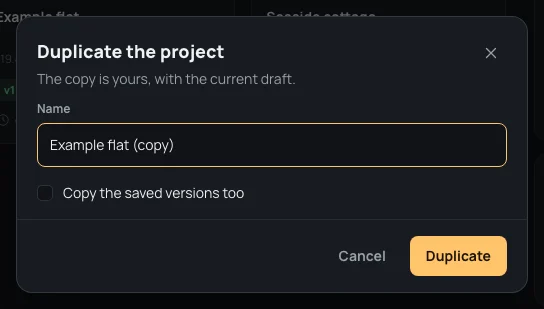
Duplicate the project makes a copy that is yours, with the draft as it is now. Its name starts as the original’s with (copy) after it. A project with saved versions offers Copy the saved versions too (off to start with): without it the copy starts with no versions. Duplicate opens the copy’s editor.
Archiving and restoring
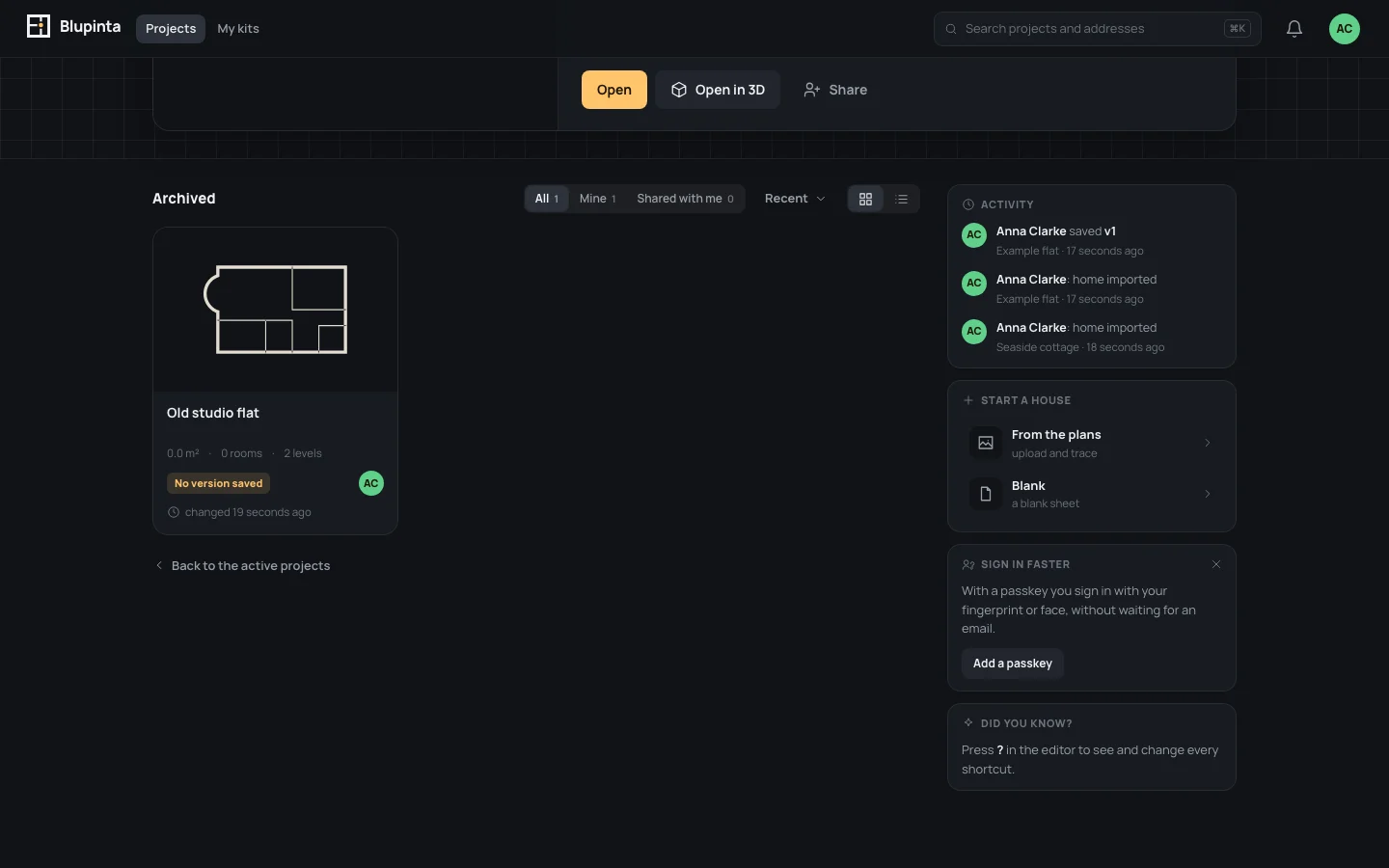
Section titled “Archiving and restoring”Archive takes a project off the list without losing anything: “Example flat” archived. Archived · 1, under the list, shows the archived ones; their menu has Restore (“Example flat” restored.), and Back to the active projects goes back. Nothing archived yet: No archived projects.
Deleting
Section titled “Deleting”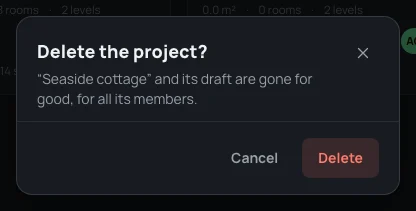
Delete… asks first, saying what goes: the project, its draft and its revisions, for all its members. This can’t be undone: archive a project instead if you might want it back. Only the owner deletes; an editor or a viewer who no longer wants it leaves it.
Beside the projects
Section titled “Beside the projects”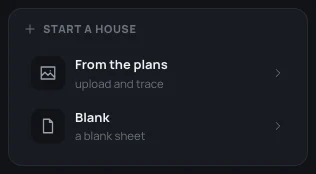
- Invitations waiting for you, when there are some: Accept puts the project among yours, Not now keeps it in the bell (Inviting people).
- Activity: what happened lately in your projects, other people’s work too: a change, a version created, a comment, each with who, the project and when.
- Start a house: From the plans (upload and trace), From a template (a typical home), Blank (a blank sheet). Each opens the new house’s wizard on that choice.
- Sign in faster, while you have no passkey: Add a passkey opens Account in the settings (Your account); the × (Don’t show this again) closes the card for good, on every device. It goes by itself once you have a passkey.
- Did you know?: a tip, such as ?? in the editor for every shortcut.
Coming and going
Section titled “Coming and going”- The Blupinta logo at the top left brings you back here from any page. Projects and My kits beside it switch between this page and your floor and wall tiles kits.
- With Reopen the last project on (Your settings), coming into Blupinta opens the project you worked on last instead of this page: only when Blupinta is the first page of the tab, once, and only if the project is still in your list.
- Old links still work: a project’s old page (
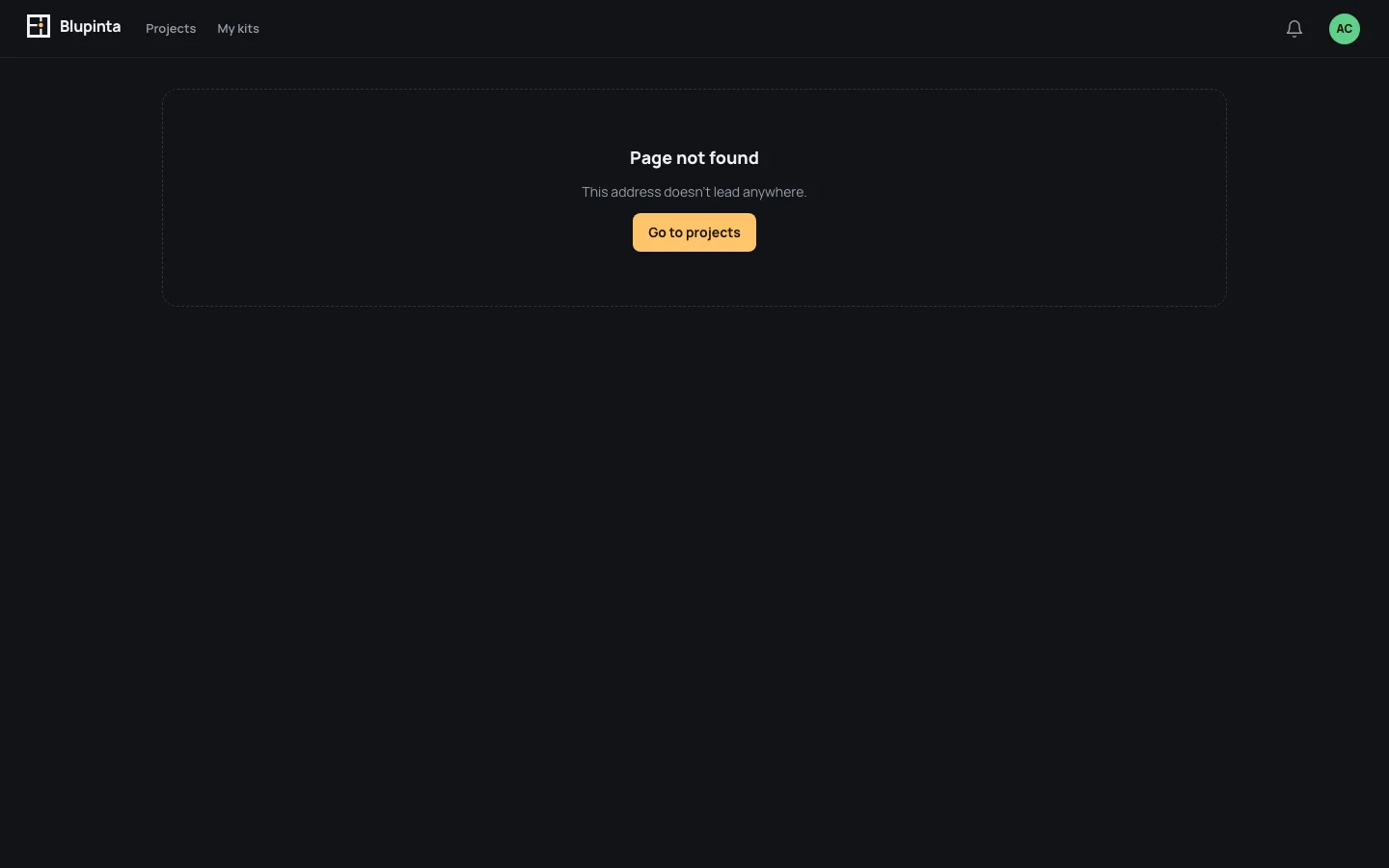
/projects/…) opens its editor, and the old account page opens Account in your settings. - An address that leads nowhere says Page not found; Go to projects brings you here.
- If the projects can’t be loaded (the network, the server), the page says Couldn’t load the projects. with Try again.
An example
Section titled “An example”- Click New project: the wizard opens. Leave it with Leave, I’ll resume later: you are back here, and You have a house to finish setting up waits above the list. Resume it, go to Ready in the column of steps and Open the editor. Back on your projects, the card New house says No walls yet.
- Open the card’s ⋯ and Rename it Name
Example flat, then Save. - Type Search projects and addresses
examplein the bar: only your project is left. Clear the search brings the others back. - Archive it: it leaves the list, and Archived · 1 appears under it. Open Archived · 1 and Restore it from its menu: it is back among the active ones.