

Signing in
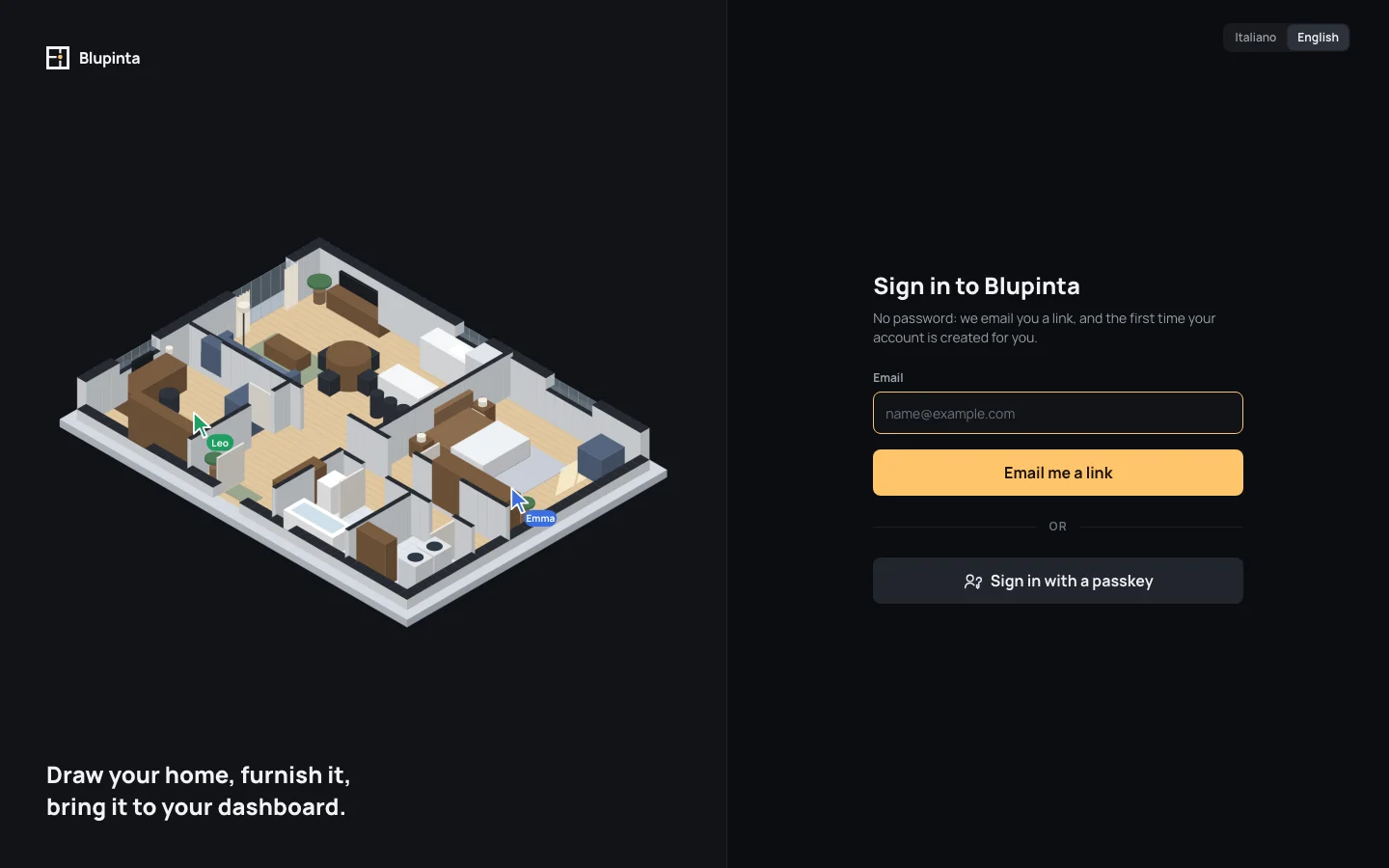
Blupinta has no passwords: you sign in with a link and a code it emails you, or with a passkey once you have added one. The first email you use creates your account.
You always sign in at auth.blupinta.app, Blupinta’s own sign-in page: the editor sends you there and back, and so will the desktop app and the apps you connect (Connecting an app). Signed in there once, the other apps of Blupinta in the same browser let you in without asking again.
The language first
Section titled “The language first”Top right, Italiano and English choose the language of the page. It starts in the language of the app that sent you there, this browser remembers your choice, and a new account starts in it, emails included. Once you are signed in the account’s language wins: change it in the settings, under Language and formats.
With a link and a code by email
Section titled “With a link and a code by email”- Open the sign-in page and type your address in Email, for example Email
anna@example.com. - Click Email me a link. If the address isn’t valid, the field says Enter a valid email address. and nothing is sent.
- The page turns into Check your inbox, with the address the email went to. Its subject is Your link to sign in to Blupinta, and it holds a link and a six-digit code.
- Within 15 minutes, either open the link in the same browser, or type the code in Code from the email and click Sign in with the code. You land on your projects, or on the page you were going to.
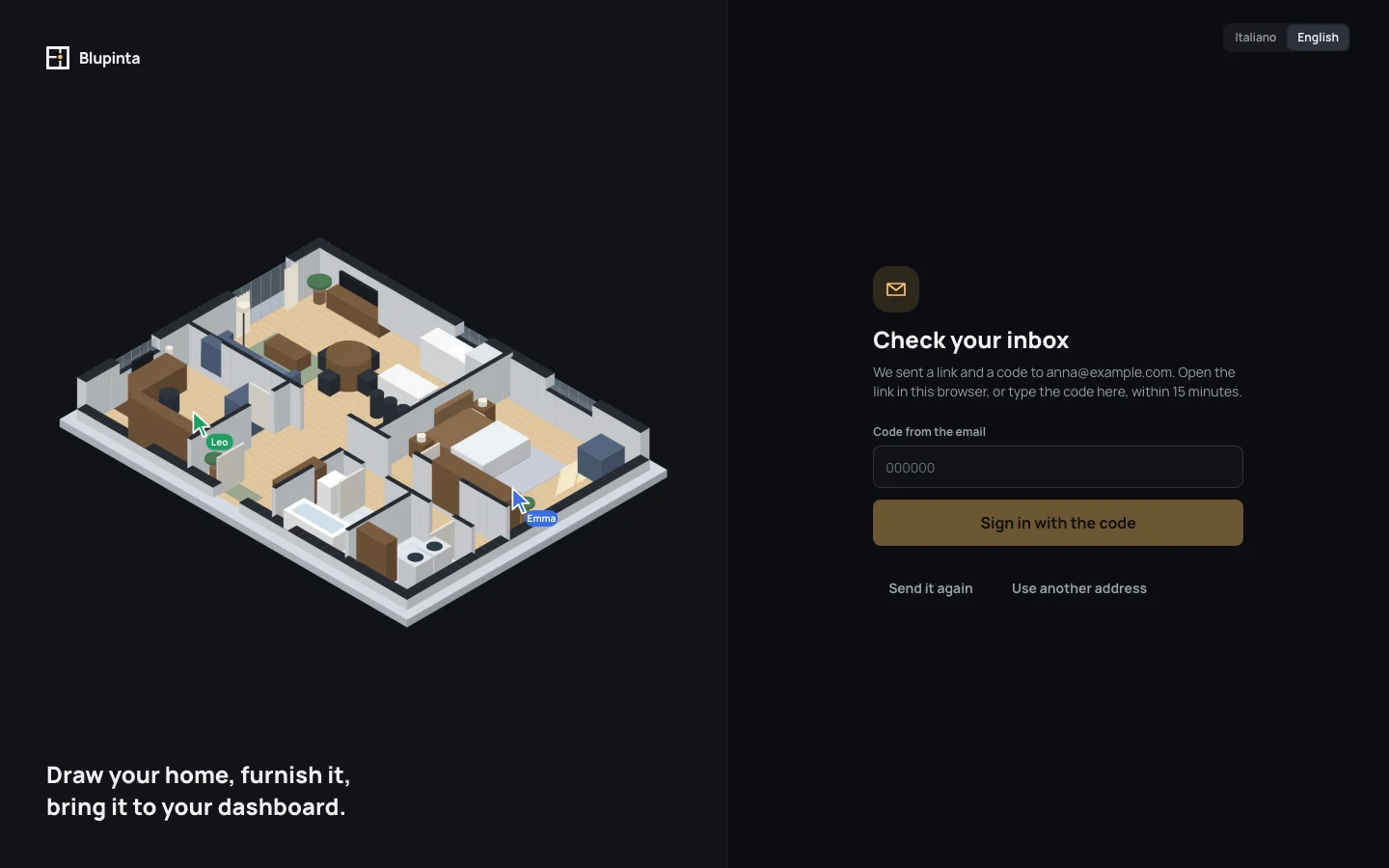
Reading the email on your phone while you sign in on a computer? Don’t open the link on the phone: type the code on the computer. A link opened in a browser that didn’t ask says Go back to where you asked, and that the code goes there.
The first time, there is nothing to fill in: signing in creates the account, with the address as its name until you give it one (Account in the settings, see Your account).
Nothing arrived? Look in the spam, then Send it again (it says Email sent again.): only the latest email’s code counts. A typo in the address? Use another address brings the field back. Each link and code work once, and a code typed wrong five times stops working: ask for a new email. One address can be sent 5 emails an hour, and one connection can try 20 times in 15 minutes; past that the page says Too many attempts: try again in a while.
With a passkey
Section titled “With a passkey”A passkey lets you in with your device’s fingerprint, face or PIN, with no email to wait for. You add one once signed in, from Account in the settings (Your account); after that:
- Sign in with a passkey, under or, opens your browser’s own window: choose the passkey, touch the sensor, and you are in.
- Where the browser can, the passkey is offered straight away in the Email field’s suggestions, as a saved password would be: pick it there and you are in, without clicking anything else.
If you close the browser’s window the page says Passkey sign-in cancelled.; a browser that can’t use passkeys says This browser can’t use passkeys: sign in with the email link. A passkey the server doesn’t recognise (removed from your account, for instance) says The passkey wasn’t recognised. The email always works, with or without passkeys.
When the link doesn’t work
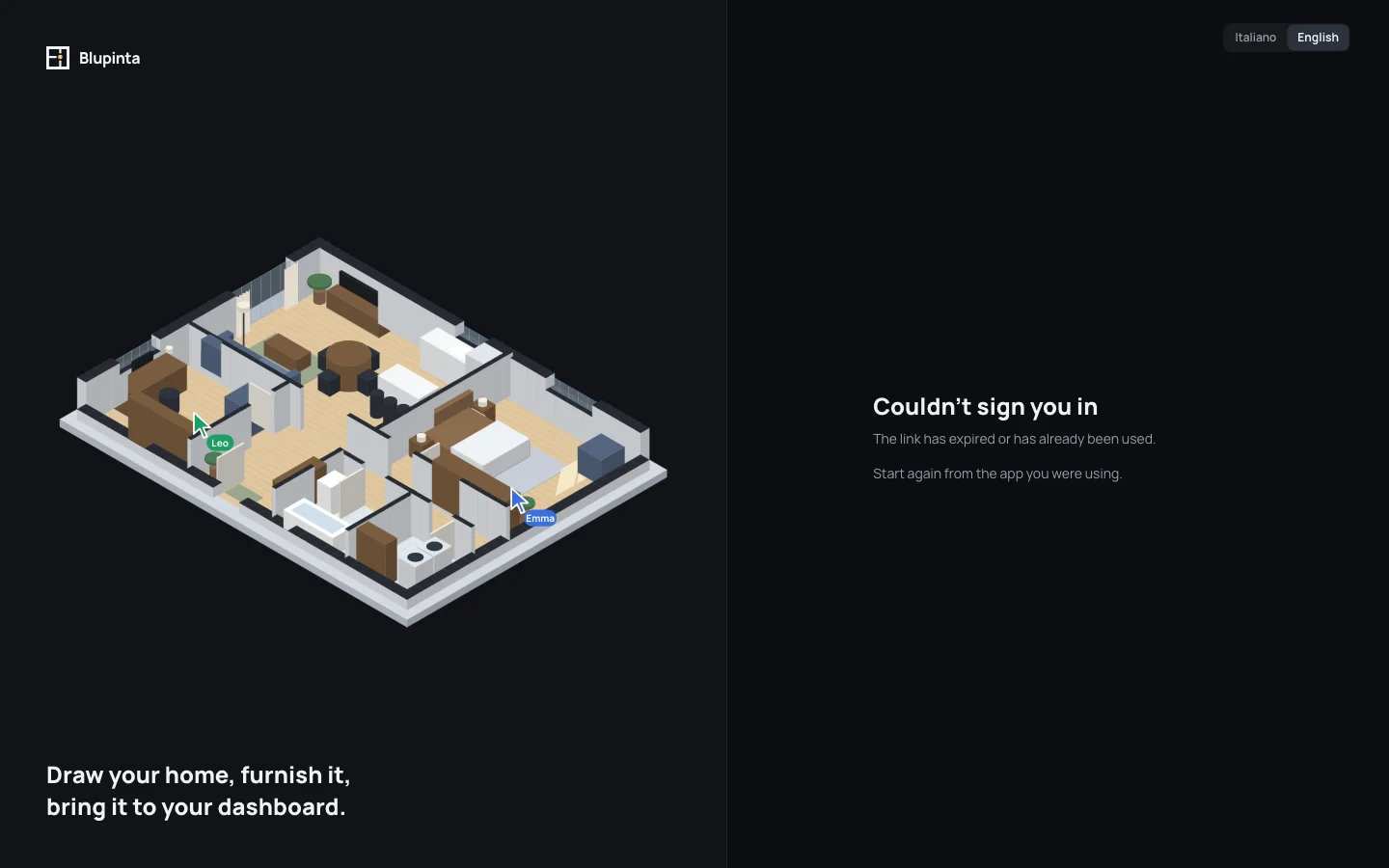
Section titled “When the link doesn’t work”A link opened after 15 minutes, or a second time, shows Couldn’t sign you in and The link has expired or has already been used. Go back to the app you were using and sign in again: it asks for a new email.
Coming back where you were
Section titled “Coming back where you were”A page of Blupinta opened while you are signed out (a project’s link someone sent you, an invitation) takes you to the sign-in page, then back to that page once you are in. An invitation’s Sign in as writes its address in the field for you: sign in with that address to accept it (see Inviting people).
When the session ends
Section titled “When the session ends”Each device stays signed in for 30 days from the last time you used it. When a session ends (it expired, or you signed that device out from another one) the next thing you do takes you to the sign-in page, and back to where you were once you are in again. Your work is not lost: the draft lives on the server.
If the server doesn’t answer when a page opens, the page says The server isn’t answering: check your connection. with Try again. To sign out yourself, use Sign out in your menu (see Your settings): it signs this browser out of auth.blupinta.app too, so the next sign-in asks again.