

The inventory
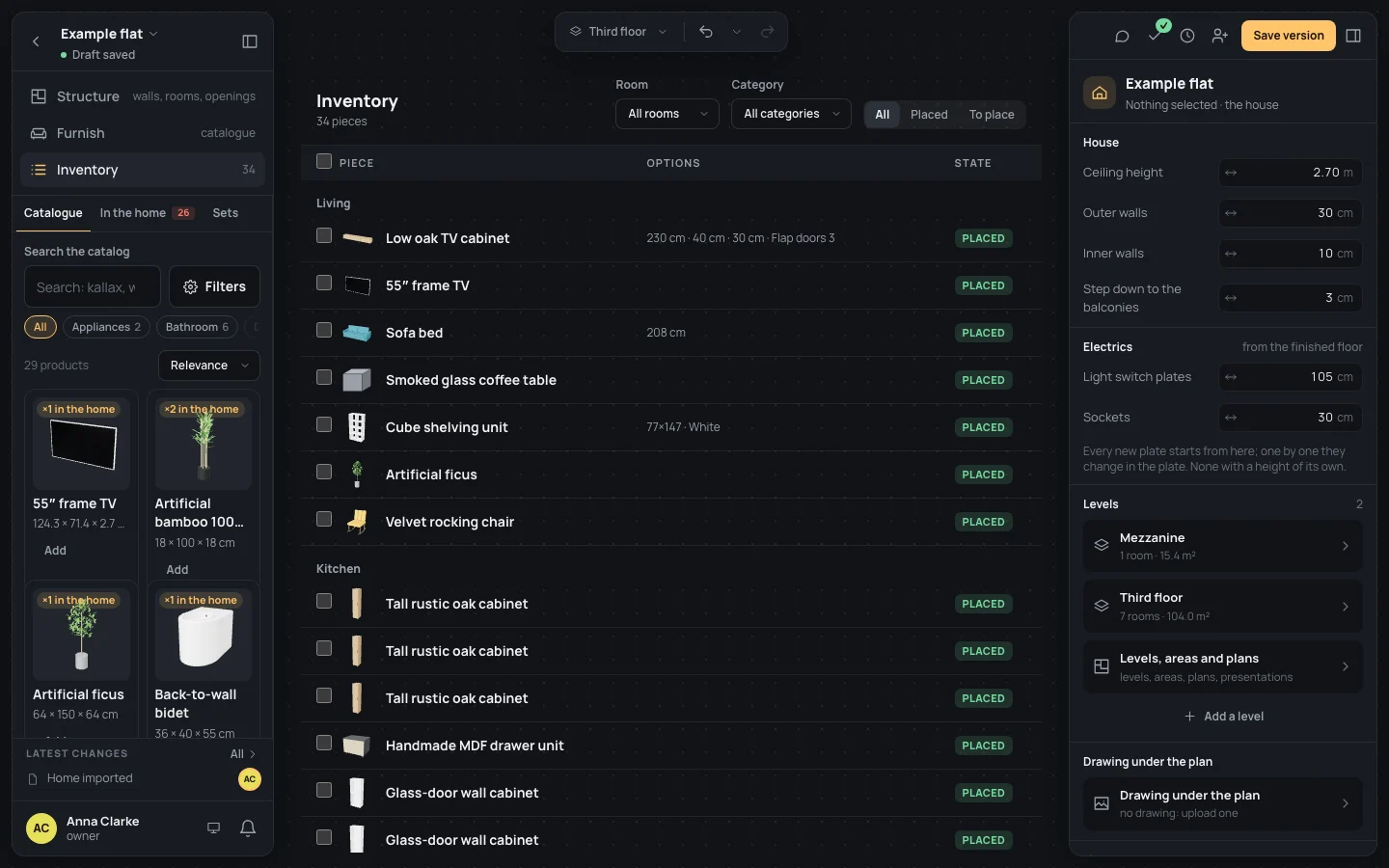
The inventory is the home’s furniture as a list rather than on the plan: everything the home has, placed or still to place, room by room. It is the place to add what is in a house before deciding where it goes, and to change many pieces at once.
Opening it
Section titled “Opening it”Inventory is the third workspace in the left panel; its number is how many pieces the home has. The list takes the middle of the screen, the catalogue stays on the left (The catalogue) and the inspector on the right. A product added from the catalogue here goes in the list, To place: you place it later in Furnish.
The list
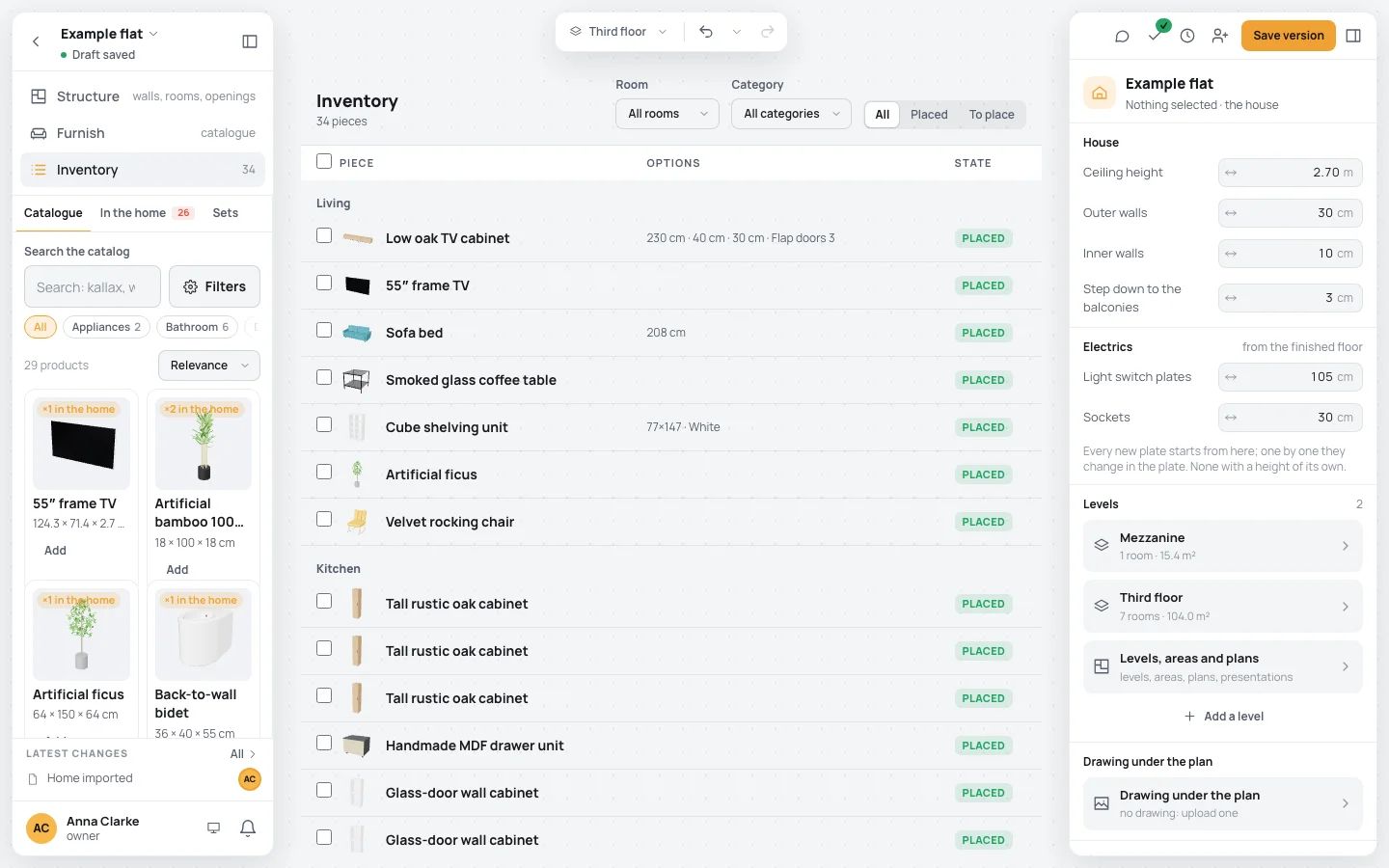
Section titled “The list”At the top, Inventory and how many pieces (34 pieces). Then a section per room, in the home’s order, and the pieces of no room last, under No room (where a deleted room’s pieces go). Each row has:
- a box, to pick it (the one in the header, Select all, picks every row shown, or none);
- the product’s picture, with its options;
- Piece: its name, and the product under it when you gave it a name of your own;
- Options: its options in a few words (77×147 · White, 208 cm);
- State: Placed or To place.
A click on a row selects that piece: the inspector beside the list edits it, as on the plan (the piece’s inspector).
With no piece yet the list says No pieces yet. Add from the catalog what is in the home: you will place it later in Furnish.
Filters
Section titled “Filters”Above the list:
- Room: All rooms, one room, or No room;
- Category: All categories, or one of the categories the home’s pieces are in;
- All, Placed, To place.
With nothing left to show, the list says No pieces match these filters.
Several pieces at once
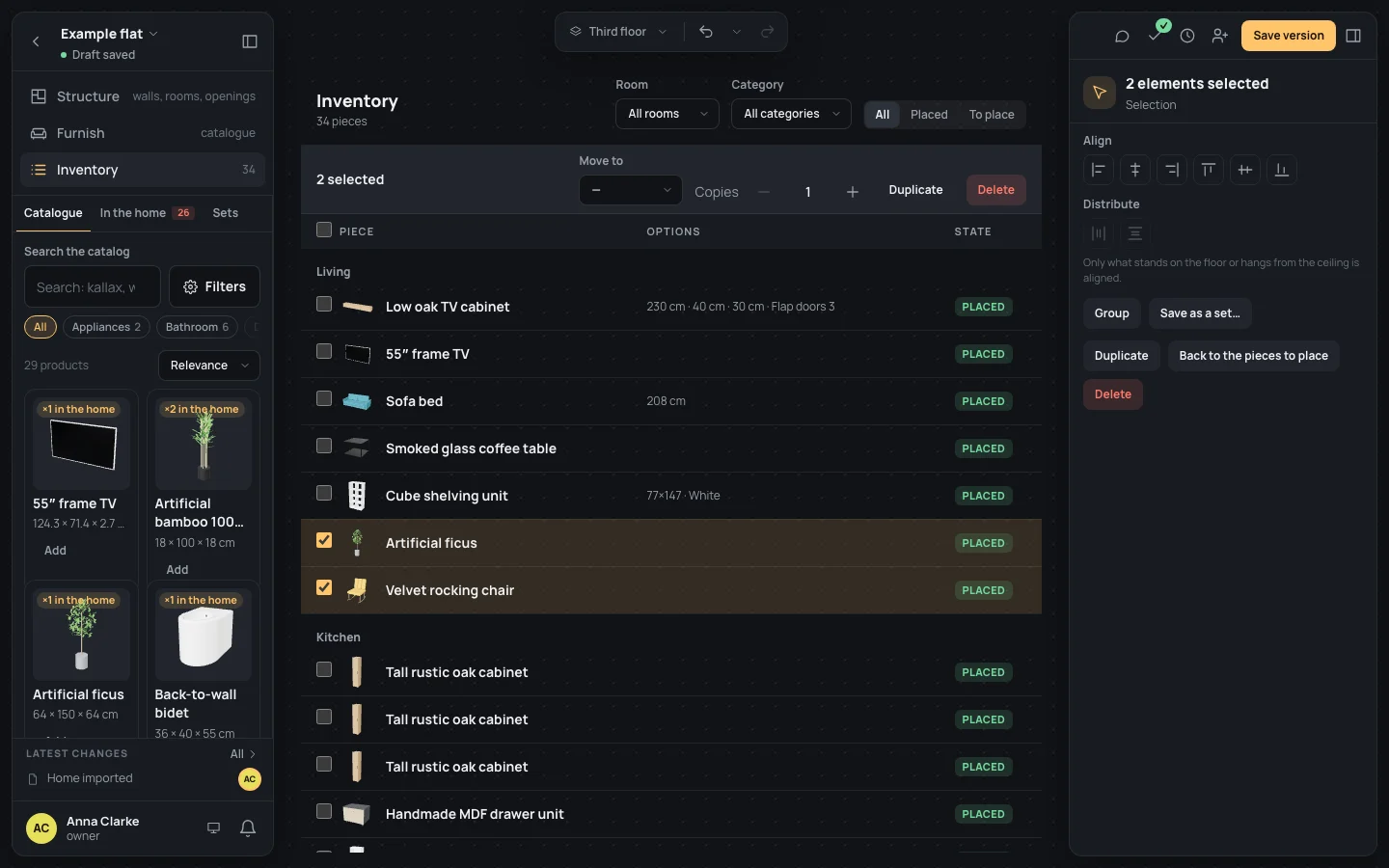
Section titled “Several pieces at once”Tick the boxes of the pieces you want. A bar opens above the list, with how many are picked (2 selected):
- Move to: a room of the home, or No room: they all belong to it from now on (Pieces changed);
- Copies (1 to 20) and Duplicate: that many copies of each piece picked, with its options, name and room, in the home but not on the plan: they wait To place (Piece duplicated);
- Delete: gone from the home (Piece deleted).
The pieces picked are what the editor has selected, so the inspector shows what it offers for several pieces (Arranging).
Example: two more rocking chairs for the balcony
Section titled “Example: two more rocking chairs for the balcony”On the finished example flat:
- Click Inventory.
- In the living room’s section, tick Velvet rocking chair.
- In the bar, take Copies to 2 with + and click Duplicate. The list has two more rocking chairs in the living room, To place (36 pieces).
- Choose To place at the top: only the two copies are left. Tick both, and in Move to choose Balcony.
- In Furnish, the two chairs wait in the tray under Balcony: drag them onto the balcony (Placing).
What can go wrong
Section titled “What can go wrong”- A piece isn’t in the list: a filter is set; choose All rooms, All categories and All.
- Deleted by mistake: nothing asks first; ⌘ZCtrl+Z brings the pieces back.
- The copies aren’t on the plan: copies made here wait in the tray, to be dragged where they go.
- No boxes to tick: you can only look at this project.
See also
Section titled “See also”- Placing: the tray, and dragging pieces onto the plan.
- The catalogue: adding products to the home.