

Your account
Your account is who you are to the people you work with, and the way you sign in. It is the Account section of the settings: open them with ⌘,Ctrl+, and click your name at the top of the list.
Your card
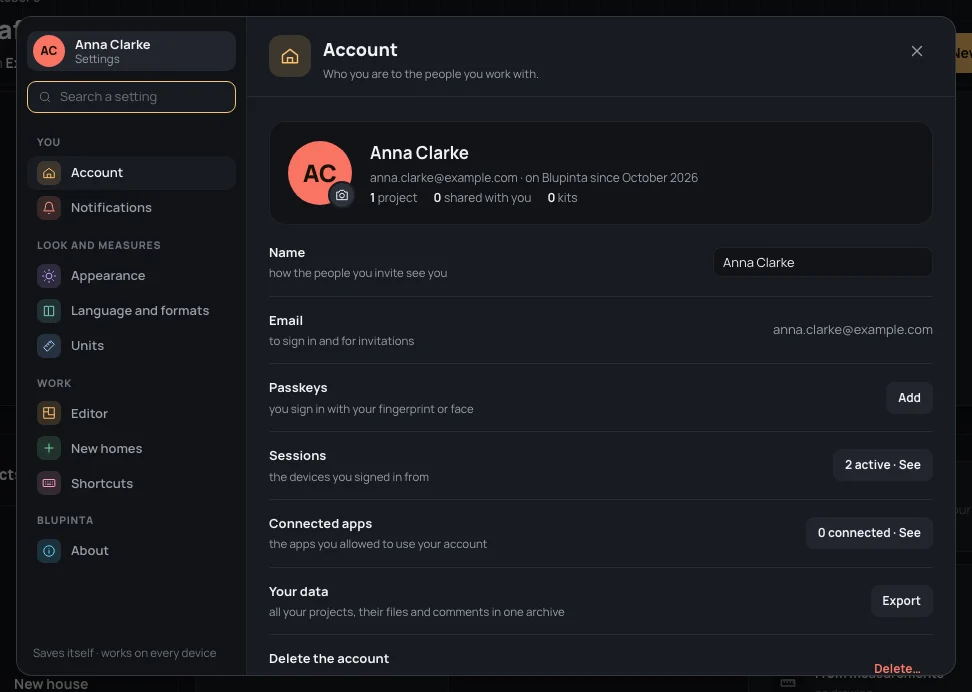
Section titled “Your card”On top, your photo (or your initials), your name, your address and since when you are on Blupinta (on Blupinta since October 2026), then how many projects you own, how many are shared with you (archived projects aside), and your floor kits.
Your name
Section titled “Your name”Name is how the people you invite see you: in the projects you share, in comments, in who is online. Type it in
the field, then press ↵↵ or click elsewhere: it says Saved. EscEsc puts back
what was there. It is up to 80 characters; an empty name isn’t saved. Until you give one, your address stands in
for it. For example: NameAnna Clarke.
Your photo
Section titled “Your photo”The small camera on the photo’s corner is Change photo:
- Click it (with a photo already, choose Choose a photo… in its menu).
- Pick a PNG, JPG or WebP picture. Blupinta cuts a square from its middle and makes it small before sending it, so any photo from a phone will do.
- It says Photo changed., and your photo shows at once wherever you appear.
Remove photo, in the same menu, takes it away: Photo removed: your initials are back. A file that isn’t a picture says This image doesn’t open: try another one. and changes nothing.
Your address
Section titled “Your address”Email is your account: sign-in links and invitations arrive there. It can’t be changed.
Passkeys
Section titled “Passkeys”A passkey lets you sign in with your device’s fingerprint, face or PIN, without waiting for an email (Signing in). The row reads Add while you have none, then 1 passkey · Manage: either opens the list under it.
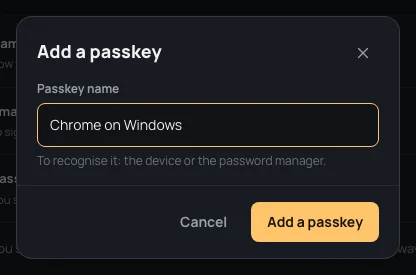
- Click Add a passkey. Its name starts as your browser and system (Chrome on Windows); change it to recognise it later, for example the device or the password manager that keeps it.
- Click Add a passkey in the window: your browser’s own window asks for your fingerprint, face or PIN.
- It says Passkey added., and the passkey is in the list, with when it was added and last used.
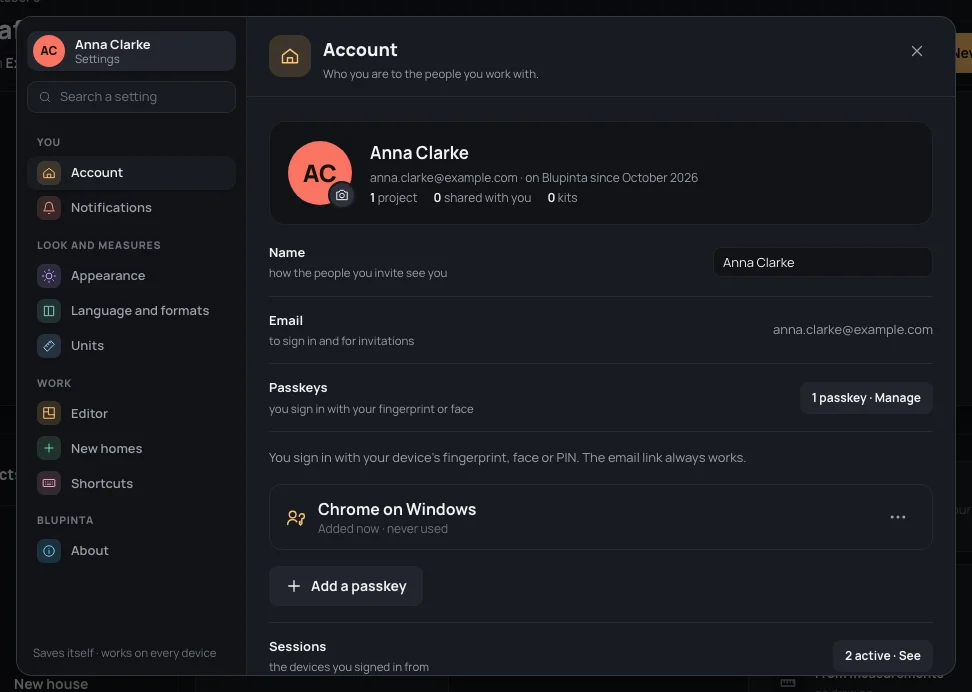
The ⋯ beside a passkey has Rename the passkey and Remove. Removing asks first (Remove the passkey?): that passkey won’t sign you in any more, but it stays on the device until you remove it there too. The email link always works, so removing every passkey never locks you out.
If you close the browser’s window nothing is added. A browser that can’t use passkeys says This browser can’t use passkeys: sign in with the email link.
While you have no passkey, a card beside your projects suggests one, Sign in faster: Add a passkey there opens this section (Your projects).
Sessions
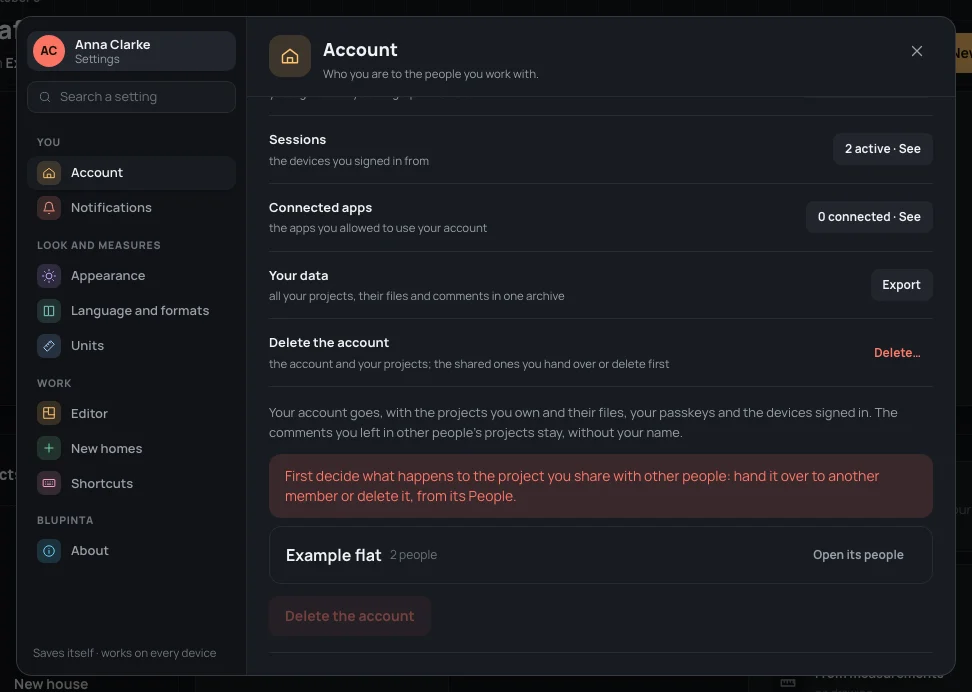
Section titled “Sessions”Sessions lists the devices you’re signed in on (2 active · See): each with its browser and system, how it signed in (with the email link, or with the passkey “…”) and when it was last active. Yours says This device. Each device stays signed in for 30 days from its last use.
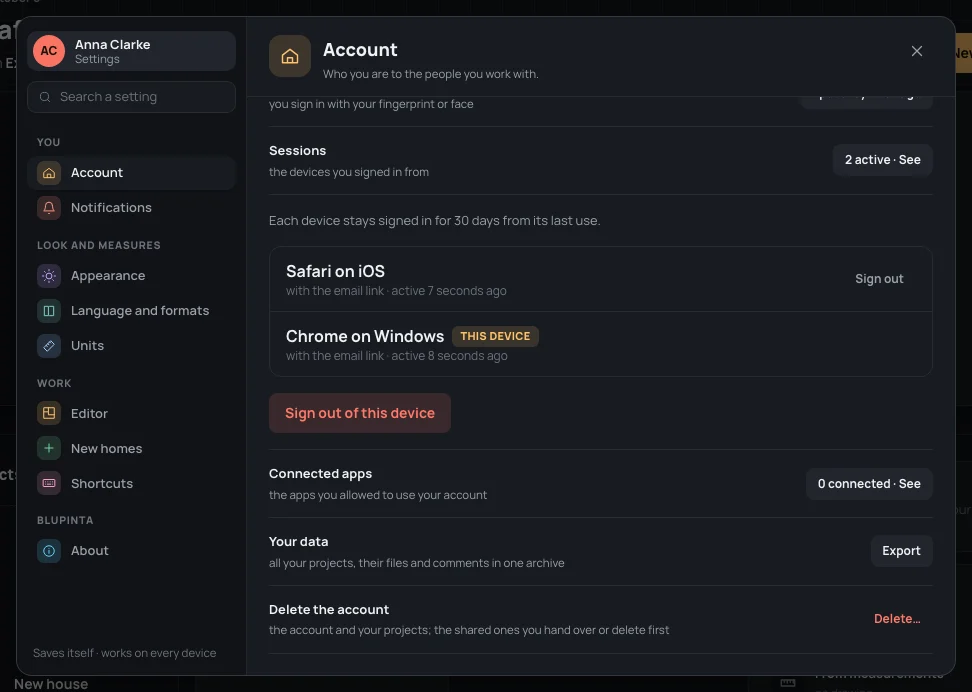
- Sign out, beside another device, signs it out at once: the next thing done there asks to sign in again. Use it for a computer you no longer use, or one that isn’t yours.
- Sign out of this device signs this one out and goes to the sign-in page (the same as Sign out in your menu).
Connected apps
Section titled “Connected apps”Connected apps lists the apps you allowed to use your account (1 connected · See): each with what it may do, the project it reads, who allowed it and when it was last used. Disconnect asks first, then stops it at once. See Connecting an app.
Your data
Section titled “Your data”Export, beside Your data, downloads everything you put in Blupinta as one zip (blupinta-2026-10-07.zip, with the day’s date):
account.json: your address, name, language, settings, your passkeys’ names and your sessions;- your photo, if you have one;
projects/: a folder for each project you own, with its.home.json(the home, which the editor opens again: see The home file), its details and its files (the drawings you imported);memberships.json: the projects other people shared with you, and your role in each;comments.json: the comments you wrote;kits.jsonandkits/: your floor and wall tiles kits and their pictures.
You can export 5 times an hour.
Deleting the account
Section titled “Deleting the account”Delete…, beside Delete the account, opens the steps under its row. Deleting removes your account, the projects you own with their files, your passkeys and the devices signed in. The comments you left in other people’s projects stay, without your name.
- If you own projects other people work on, they are listed first, each with how many people are in it: decide what happens to each, from Open its people (hand it over to another member, or delete it: see Inviting people). Delete the account waits until none is left.
- Click Delete the account. It asks: Delete the account?, with your address.
- Delete for good deletes it. You land on the sign-in page: The account was deleted.
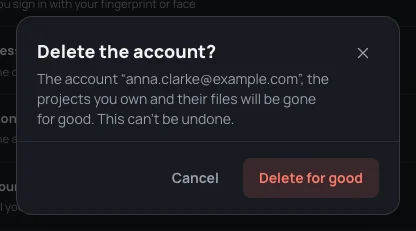
This can’t be undone: take your data with Export first. Cancel leaves everything as it was.