

Finding anything
One search, in the editor, finds what you can do and what is in the home: a command, a room or a wall, a setting, a page of this guide, a product. It grows out of the bar above the dock.
Opening it
Section titled “Opening it”- ⌘KCtrl+Kor//: ⌘KCtrl+K from anywhere, even while typing in a field; // when you aren’t typing in one.
- A click on Search commands, rooms, settings…, the bar above the dock.
- In the left panel: ↵↵ in Filter the plan when the plan has nothing by that name, or Search everywhere under the empty tree, opens it on what you typed; Add (+, beside the plan’s title) opens it on the commands.
EscEsc or a click outside closes it. On the projects page the same keys go to the search of your projects instead (Your projects).
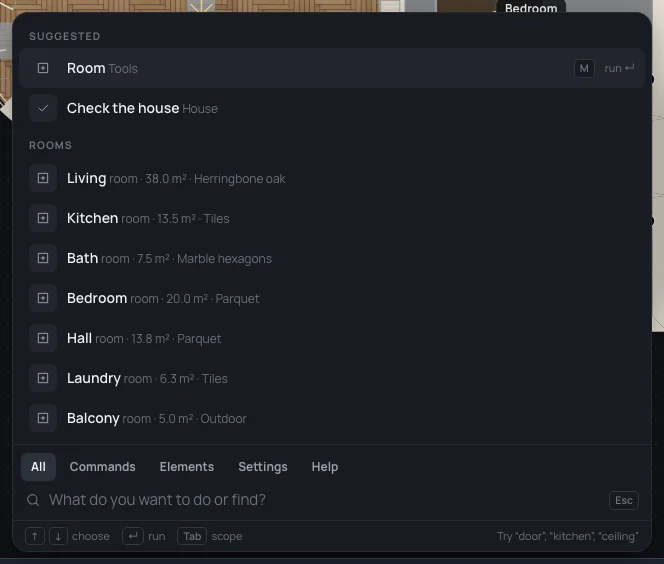
With nothing typed
Section titled “With nothing typed”- Suggested: a few commands for what is selected, titled For and its name (For Kitchen), or for the house when nothing is: the same ones as the command bar (Finding your way in the editor).
- Recent: the last five results you ran, the latest first.
- Rooms: every room of the plan.
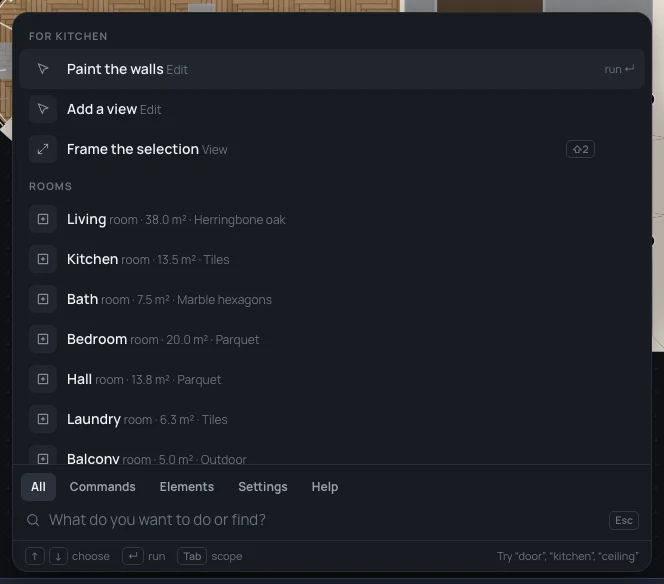
Scopes
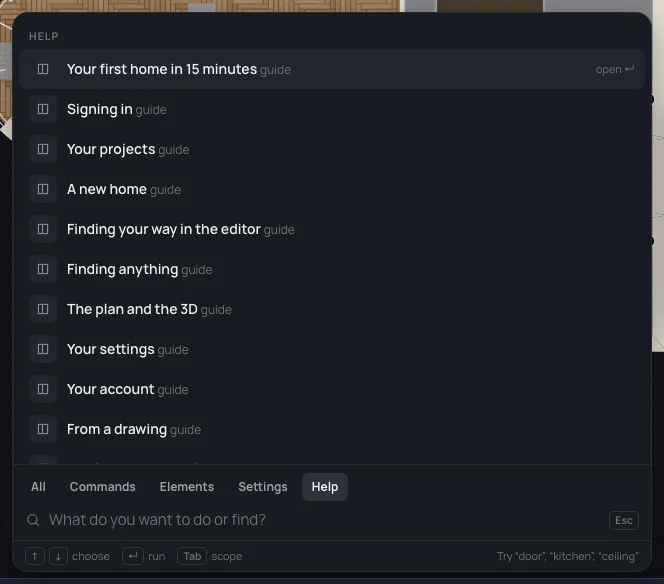
Section titled “Scopes”The tabs between the results and the field: All (the best four of each scope), Commands, Elements, Catalogue (in Furnish and Inventory only), Settings, Help. Once you type, each says how many it finds. TabTab goes to the next scope, ⇧TabShift+Tab back; a click on one works too.
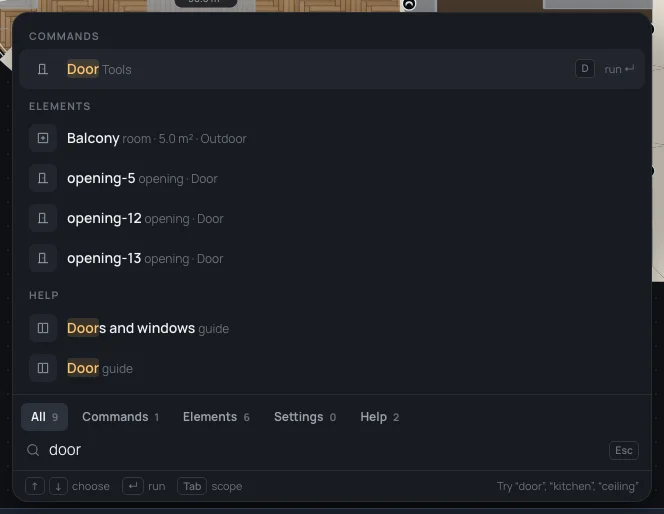
| scope | finds | ↵↵ or a click |
|---|---|---|
| Commands | everything you can do now, by its name, with its group and its key | runs it |
| Elements | rooms, walls, openings, plates and the rest of the plan open, by name, id or kind, with their measures | selects it and frames it on the plan |
| Catalogue | the products, by name and brand | opens the product in the catalogue |
| Settings | the house’s settings (House and their value), the room colours, the visible layers, snapping, and your own settings’ sections (Your settings) | opens it, its field ready |
| Help | the pages of this guide | opens the page beside the plan |
↓↓ and ↑↑ move through the results; the one chosen shows what ↵↵ will do (run, select, open). Only the commands you may run here are there: a viewer’s search has no drawing tools, and a command that only a key does stays with its key.
What a result does
Section titled “What a result does”- A command runs, as from its key or its button.
- An element lights up on the plan while you point at it (or reach it with the arrows); choosing it selects it and frames it.
- A house setting (its name, address, kind, latitude and longitude, ceiling, walls, the step down to the balconies, the plates’ heights, a new room’s floor) opens the house’s settings with its field ready to type in, marked for a moment. Room colours and Visible layers open the left panel there; Snapping opens the magnet’s switches.
- One of your settings (Your settings: Account, Appearance, Units…) opens your settings window on that section (Your settings).
- A page of the guide opens in the right panel; Open in a new tab at its top opens it in the browser.
- A product opens in the catalogue (The catalogue).
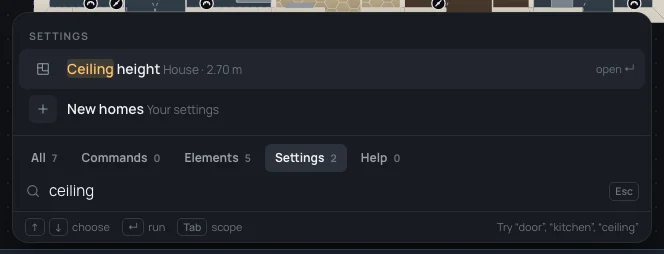
How it matches
Section titled “How it matches”- Capitals and accents don’t matter: perche finds perché.
- Every word you type must be found, in a result’s name or in its detail (the kind, the measures, the group).
- The best first: a name starting with what you typed, then a word of the name starting with it, then a name holding it anywhere, and last what is found only in the detail. The words found are marked.
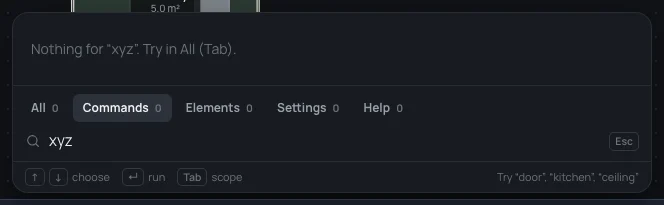
- Nothing found says Nothing for “…”., and in a scope other than All, Try in All (Tab).
An example
Section titled “An example”-
Open the Example flat and press ⌘KCtrl+Kor//.
-
Type What do you want to do or find?
kitchen: the Kitchen is first, with its plates after it; it lights up on the plan.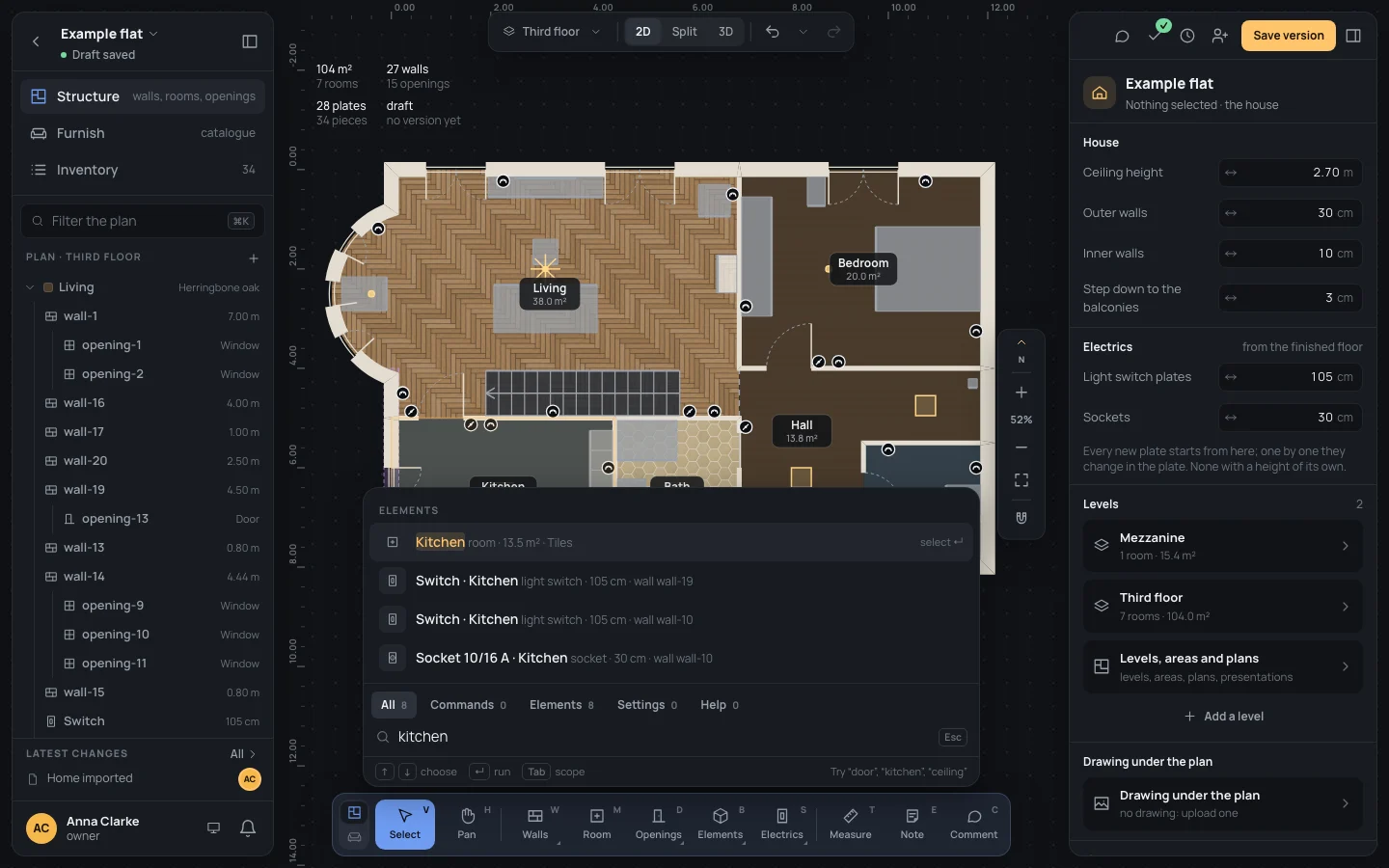
-
Press ↵↵: the Kitchen is selected and framed.
-
Press ⌘KCtrl+Kor// again and type What do you want to do or find?
ceiling, then TabTab until Settings: Ceiling height opens the house’s settings on the ceiling, ready for Ceiling height2.80. ⌘ZCtrl+Z puts 2.70 back.