

Pan
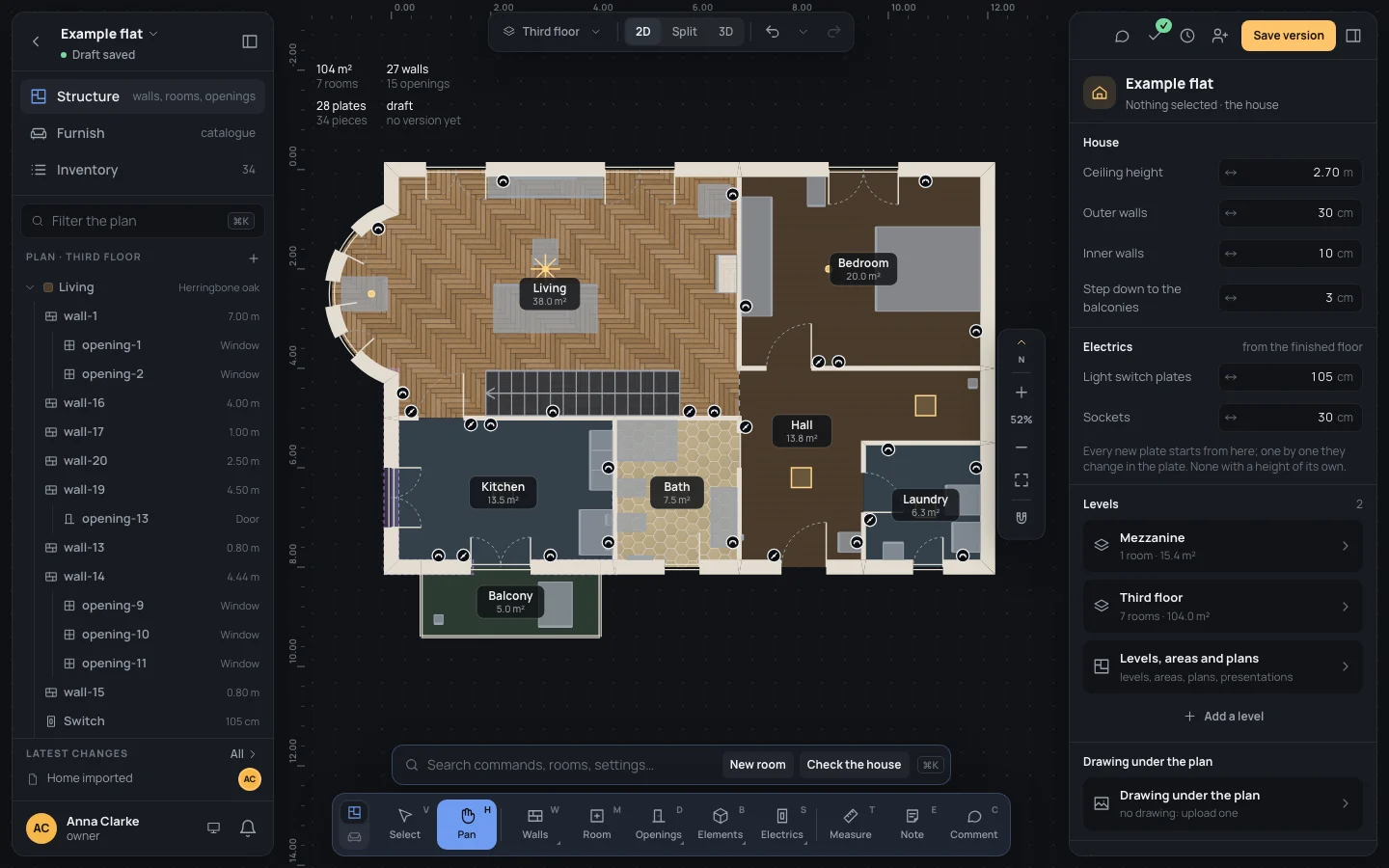
Pan moves the view: drag the plan and it follows the pointer, without selecting or moving anything in it. It is the safe way to look round a plan on a touch screen or with a mouse alone.
Picking it
Section titled “Picking it”- Pan, the second button of the dock.
- HH, from anywhere, in every workspace. A viewer has it too.
- The search (⌘KCtrl+K): type Pan.
It has no options: its bar is the search’s entry, with the hint Drag to move around · ⌘Ctrl + wheel or pinch to zoom.
Using it
Section titled “Using it”- Pick the tool: over the plan the pointer becomes a hand.
- Press and drag: the plan follows, the hand closes while you drag.
- Let go where you want the view. Pick Select (VV) to work on the plan again.
Without the tool
Section titled “Without the tool”The view moves the same way from any tool, so you rarely need to switch:
- hold ␣␣ and drag (not while typing in a field);
- drag with the middle mouse button;
- the wheel, or two fingers on a trackpad, moves the plan; ⇧Shift with a mouse wheel moves it sideways;
- ⌘Ctrl with the wheel, or a pinch, zooms round the pointer;
- on a touch screen, two fingers move and zoom the view;
- the zoom column on the right: zoom in, zoom out, the zoom written (a click gives the actual size), fit.
Keys inside it
Section titled “Keys inside it”- ⌘Ctrl with the wheel: zoom.
- ⇧1Shift+1 fits the plan to the window, ⇧2Shift+2 frames the selection, 00 is the actual size (100%), ++ and −− zoom in and out.
- EscEsc: back to Select.
What it snaps to and refuses
Section titled “What it snaps to and refuses”Nothing: it only moves the view. It changes nothing in the home and adds nothing to the history.
The tool stays on until you pick another. The view is yours alone: the people working on the same project keep their own.
Example: from the living room to the laundry
Section titled “Example: from the living room to the laundry”On the finished example flat, look at the laundry closely.
- Press HH.
- Drag the plan to the left until the laundry, in the south-east corner, is in the middle of the window.
- Hold ⌘Ctrl and turn the wheel forward over the laundry: it grows under the pointer.
- Press ⇧1Shift+1 to see the whole flat again.
If something goes wrong
Section titled “If something goes wrong”- A drag moved a wall instead of the view: the tool was Select. ⌘ZCtrl+Z puts the wall back.
- The plan is lost off the window: ⇧1Shift+1.
- ␣␣ typed a space instead: a field had the keyboard; click on the plan first.
See also
Section titled “See also”- Plan and 3D: zooming, the split view and the 3D.
- Select: picking and moving what is on the plan.