

Groups and sets
A group keeps pieces together on the plan, so that a click picks them all and a drag moves them all. A set keeps a few pieces as they stand, by name, so you can place them again elsewhere in the home.
Groups
Section titled “Groups”Select two pieces or more and press ⌘GCtrl+G, or click Group in the inspector. They become one group (Pieces grouped), out of any group they were in before.
From then on:
- a click on one of them selects the whole group, and so does a box that takes one of them;
- a drag on one of them moves them all, as they are;
- ⇧Shift + click on a piece of a group takes the whole group out of the selection (or adds it);
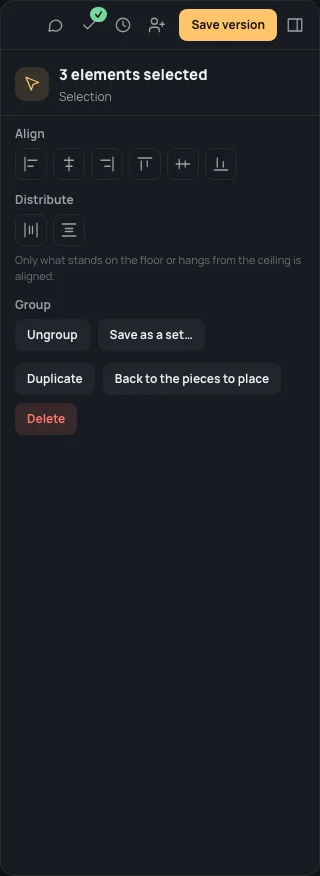
- the inspector, with the group selected, names it above its buttons, Group (or Group “Pantry”, a set’s name), and has Ungroup instead of Group.
Ungroup, or ⇧⌘GCtrl+Shift+G, undoes the groups among the pieces selected (Group undone): the pieces stay where they are, each on its own. Deleting pieces takes them out of their group; a group left with one piece is no group.
Saving a set
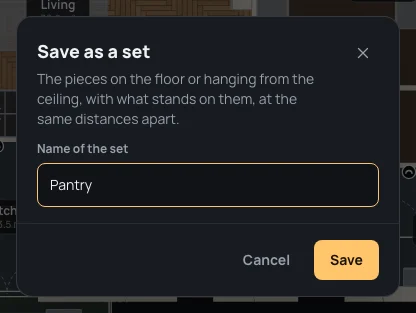
Section titled “Saving a set”With pieces selected, Save as a set… in the inspector opens Save as a set: The pieces on the floor or hanging from the ceiling, with what stands on them, at the same distances apart. Give it a Name of the set (it can’t be empty: Give it a name) and click Save (Set saved).
What hangs on a wall stays out of a set: it belongs to its wall. A monitor standing on a desk goes with the desk.
The set belongs to this home: you find it in the catalogue’s Sets tab, in this project.
Placing a set
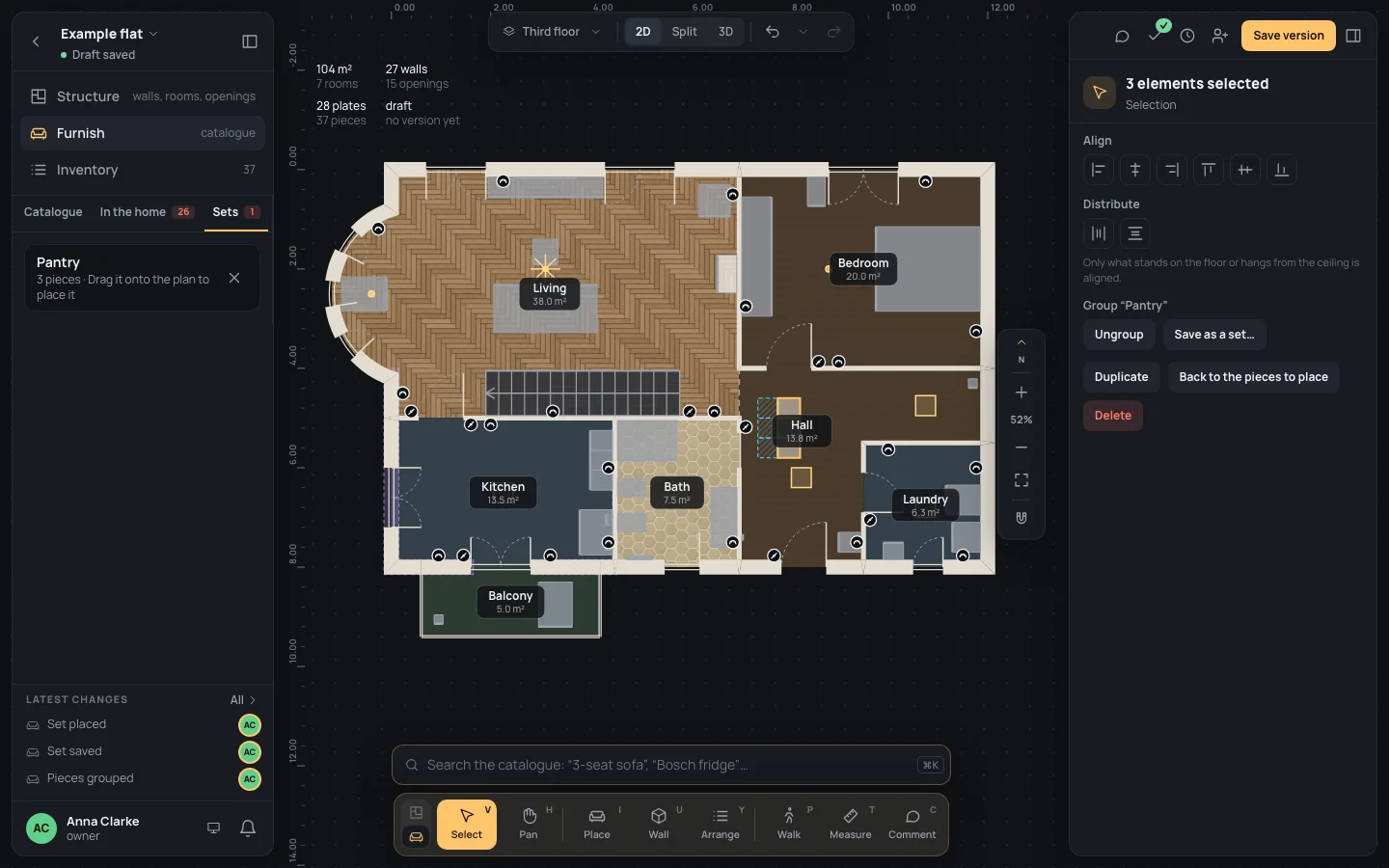
Section titled “Placing a set”- In the catalogue, open the Sets tab. Each set has its name and how many pieces it holds, with Drag it onto the plan to place it.
- Drag a set onto the plan. While it moves over the plan, its pieces are drawn where they would stand.
- Release. The set’s middle lands under the pointer: its pieces are new pieces of the home, at the same distances and turns as when it was saved, all in the room where you drop it, grouped and named after the set, and selected (Set placed).
A set can be placed as many times as you want, on any plan of the home. The ✕ beside a set deletes it (Delete the set Pantry): what was placed from it stays. With no set yet, the tab says No sets yet: select some pieces and save them as a set.
Example: the kitchen’s cabinets as a pantry in the hall
Section titled “Example: the kitchen’s cabinets as a pantry in the hall”On the finished example flat, in Furnish:
- Click one of the three tall cabinets on the kitchen’s east wall, then ⇧Shift + click the other two.
- Press ⌘GCtrl+G. Above the buttons the inspector now says Group, with Ungroup.
- Click Save as a set…, type Name of the set
Pantryand click Save. - Open the Sets tab: Pantry, 3 pieces.
- Drag Pantry onto the hall, west of the hall’s name, and release. Three new cabinets stand there, grouped as Group “Pantry”, in the hall.
What can go wrong
Section titled “What can go wrong”- A click selects more than one piece: the piece is in a group. ⇧⌘GCtrl+Shift+G undoes the group, or ⇧Shift + click to take pieces away.
- A piece is missing from the set: it hangs on a wall; sets keep only what stands on the floor or hangs from the ceiling, and what stands on those.
- The set landed on other furniture: drag the group where it goes (it moves as one), or undo.
- The set was deleted by mistake: ⌘ZCtrl+Z gives it back (Set deleted).