

Select
Select is the tool the editor rests on: it picks what you click, or what a box takes, and moves what you drag. Every other tool comes back to it when it is done.
Picking it
Section titled “Picking it”- Select, the first button of the dock.
- VV, from anywhere, in every workspace. A viewer has it too.
- EscEsc from another tool goes back to it (after what the tool was drawing, see each tool).
- Done (✓) at the end of a tool’s bar.
Select has no options. Its bar is the search’s entry (Search commands, rooms, settings…, ⌘KCtrl+K), with what the pointer does now and a few commands for what is selected (a wall: Split in half, Add a door, Frame; several things: Frame, Duplicate the selection, Delete the selection).

Using it
Section titled “Using it”A click
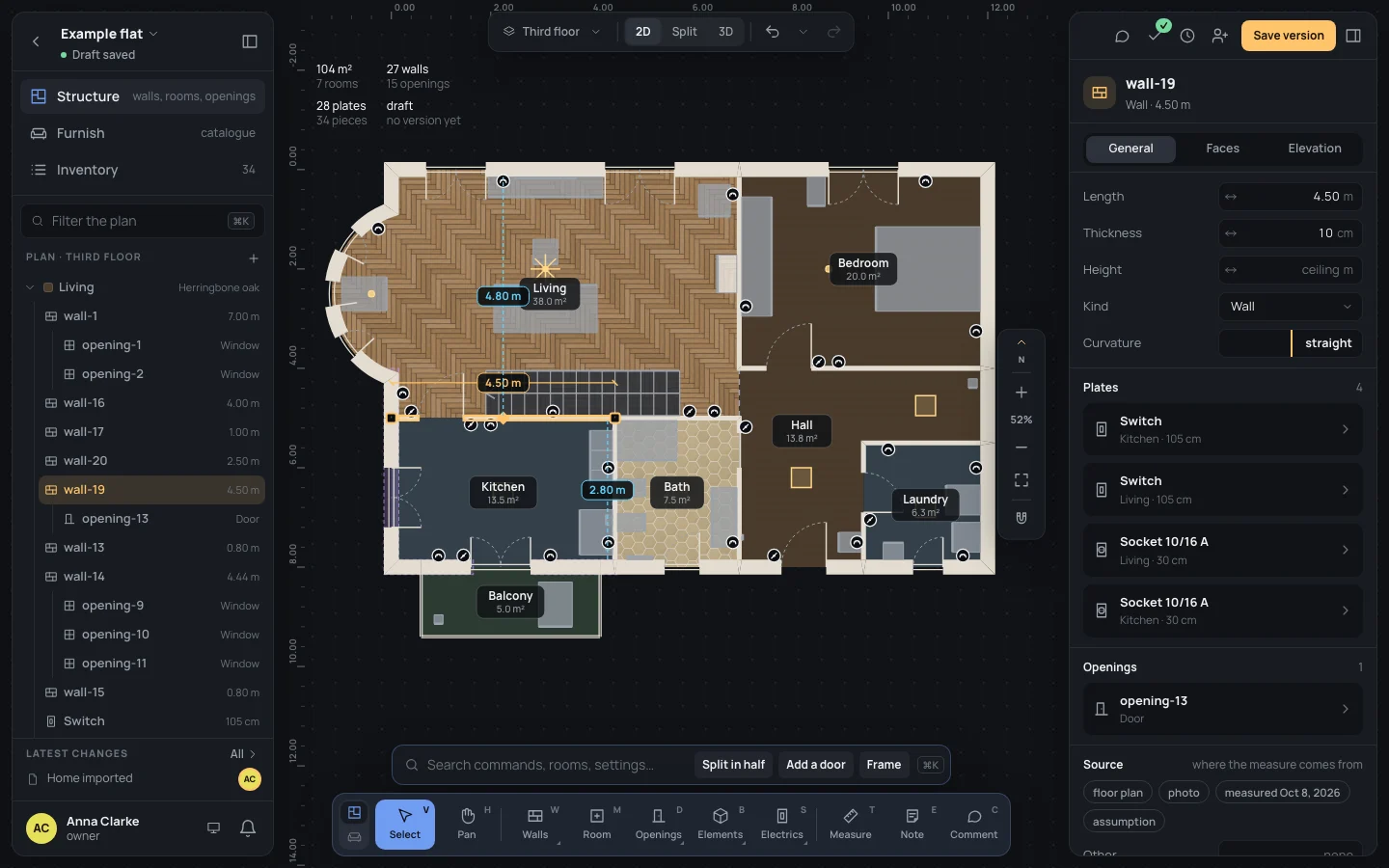
Section titled “A click”- Click on something: it is selected, outlined in amber, and the inspector on the right shows it.
- ⇧Shift-click adds another one to the selection, or takes it out if it is in.
- A click on nothing clears the selection; so does EscEsc.
When several things lie under the pointer, the one on top wins, in this order: a light switch’s or socket’s mark, an opening, a wall, a dimension or a note, a light, an awning, a piece of furniture, a stair, a block, and last the room they all stand in. A piece that belongs to a group selects its group. What is on a hidden layer is never picked (Selecting).
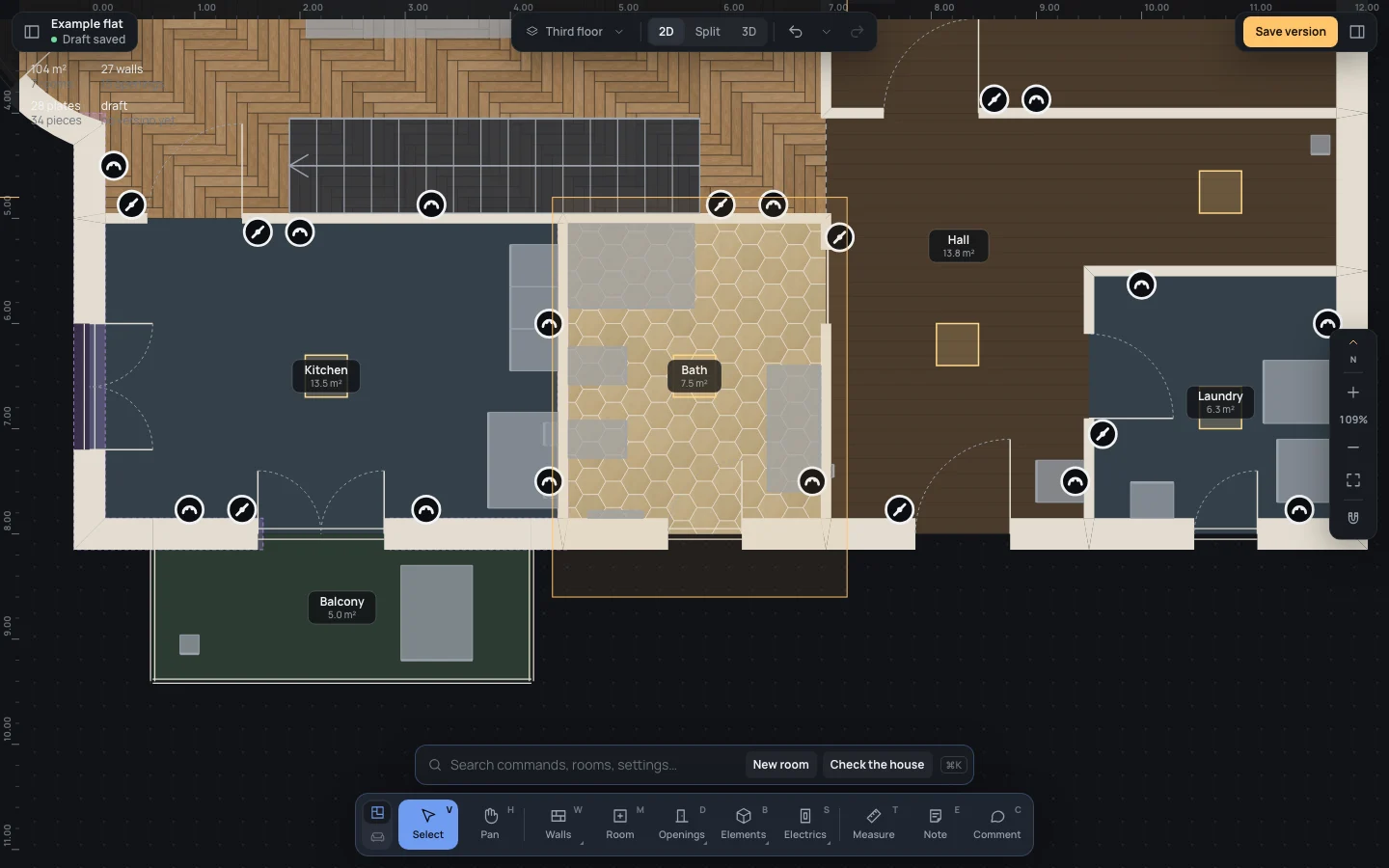
Press on a room or on nothing, and drag: a box follows the pointer.
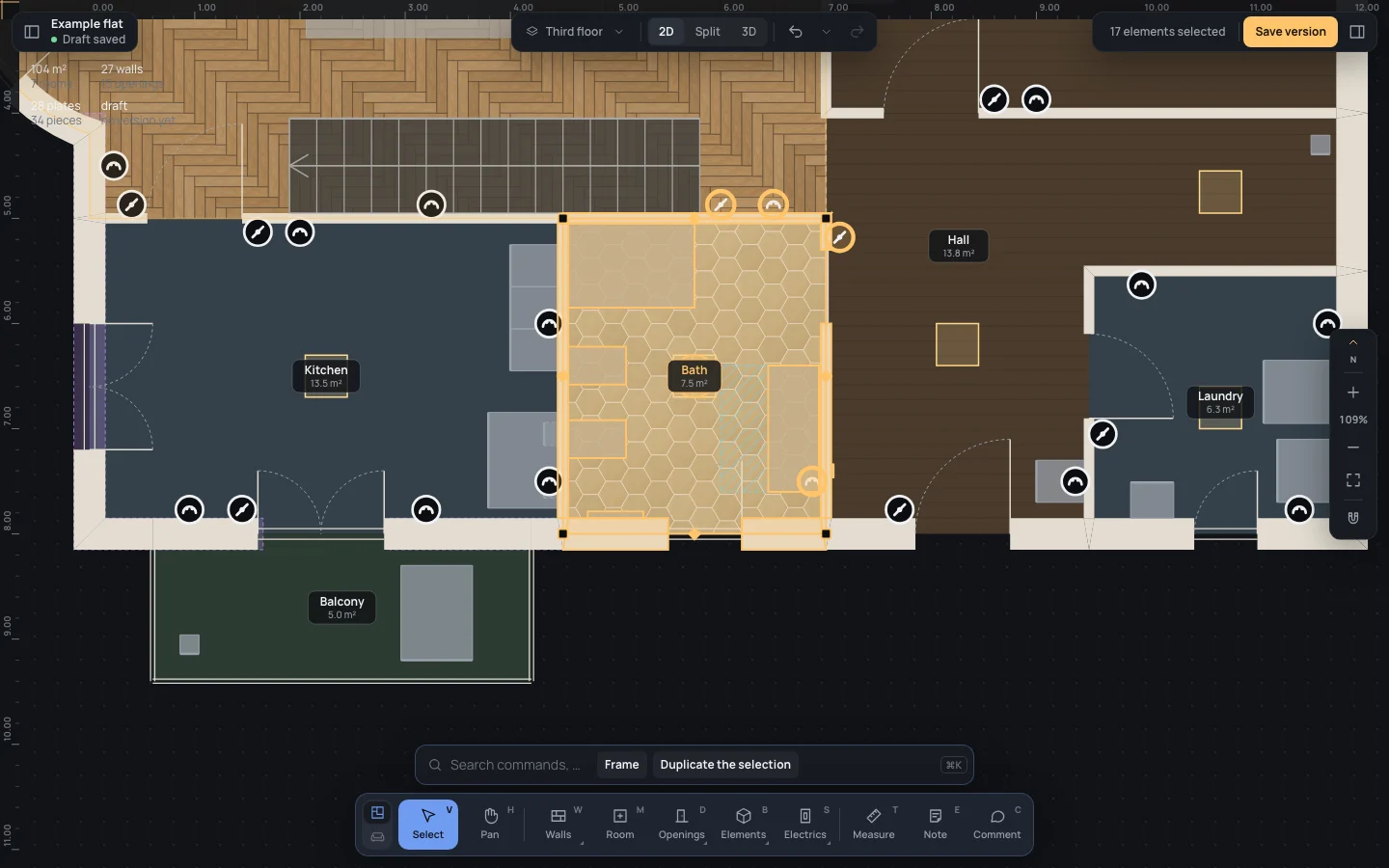
- Drawn left to right, it takes what lies wholly inside it.
- Drawn right to left, it takes what it touches.
- With ⇧Shift held, what it takes is added to the selection.
It takes walls, rooms, blocks, lights, awnings, light switches and sockets, furniture and stairs; openings are picked one by one, with a click. ⌘ACtrl+A selects everything a box round the whole plan would.
Things of different kinds selected together are counted in the inspector (17 elements selected), which says Select one kind of element to change it; together they can be duplicated or deleted.
Dragging
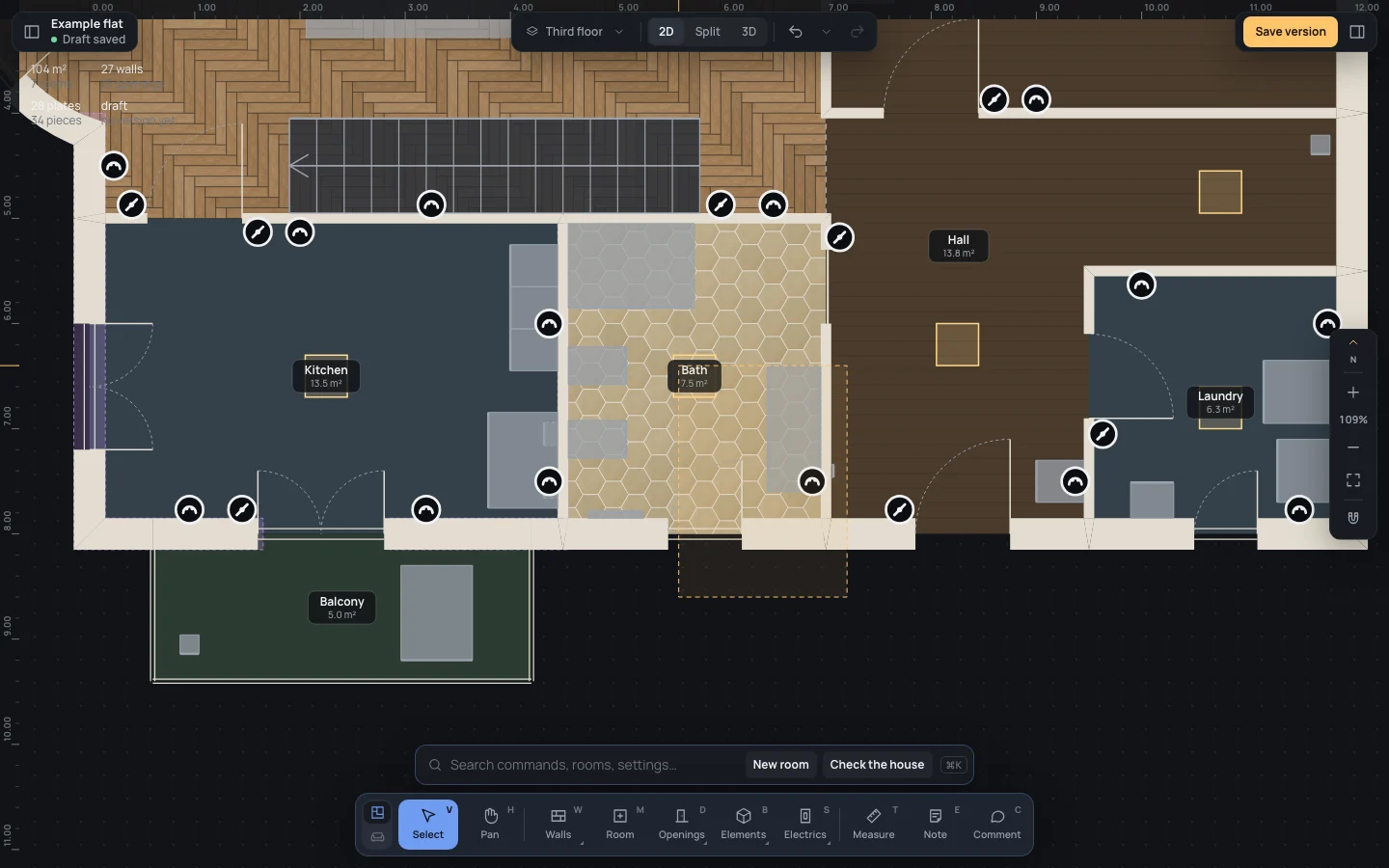
Section titled “Dragging”Press on something and drag it: it is selected and follows the pointer, as a preview until you let go. Each drag is one step in the history.
- A wall: it moves; the walls joined to it stretch to follow. One straight wall alone slides across itself only, keeping its line. A wall stops where it would run into another one; hold ⌥Alt to go through.
- Several things selected: dragging one of the selected walls or blocks moves them all.
- A corner of a selected wall (its square handle): every wall ending there follows, snapping as when drawing, its angle measured from the wall’s other end, every 45° (every 15° with ⇧Shift).
- The ◆ in the middle of a selected wall: bends it into an arc; back near its chord it is straight again, and near a curve continuing a neighbour it says tangent to ….
- An opening: it slides along its wall, with its distances to what is beside it.
- A block, a light, a piece of furniture, a stair, a note: it moves; a piece of furniture alone lands as when it was placed, against the wall near it.
EscEsc while dragging gives up: nothing moves. In Furnish the walls are locked and only furniture is picked and moved.
With something selected
Section titled “With something selected”The hint changes: Drag an end to move the corner · the wall to move it · type a length. The arrows move the selection by 1 cm (←← →→ ↑↑ ↓↓), by 10 cm with ⇧Shift. With one wall selected, typing a length opens its Length; its distances on the plan can be clicked and typed too (Numbers). A double click on a wall splits it there (Split).
Keys inside it
Section titled “Keys inside it”- ⇧Shift held: a click adds or takes away, a box adds; while dragging a corner, every 15°.
- ⌥Alt held while dragging: through other walls.
- EscEsc: during a drag, gives it up; otherwise clears the selection.
- ⌘ACtrl+A: everything.
- ←← →→ ↑↑ ↓↓: 1 cm; with ⇧Shift, 10 cm.
- ␣␣ held: move the view.
What it snaps to
Section titled “What it snaps to”Clicks and boxes don’t snap. A dragged corner snaps as a drawn one does (ends, middles, walls, guides, angles, ⌘Ctrl to turn it off); a slid opening catches the edges near it; a piece of furniture catches the wall near it. See Snapping.
What it refuses
Section titled “What it refuses”- A drag that would run a wall into another stops where they meet; ⌥Alt goes through.
- In Furnish, walls, rooms and openings can’t be selected: only furniture.
- Openings are not taken by a box: click them one by one.
What you selected stays selected, in the inspector on the right, until you click elsewhere or press EscEsc. Each move is one step, named in the history (Walls moved, Corner moved, Opening moved…): ⌘ZCtrl+Z takes it back.
Example: a bigger kitchen
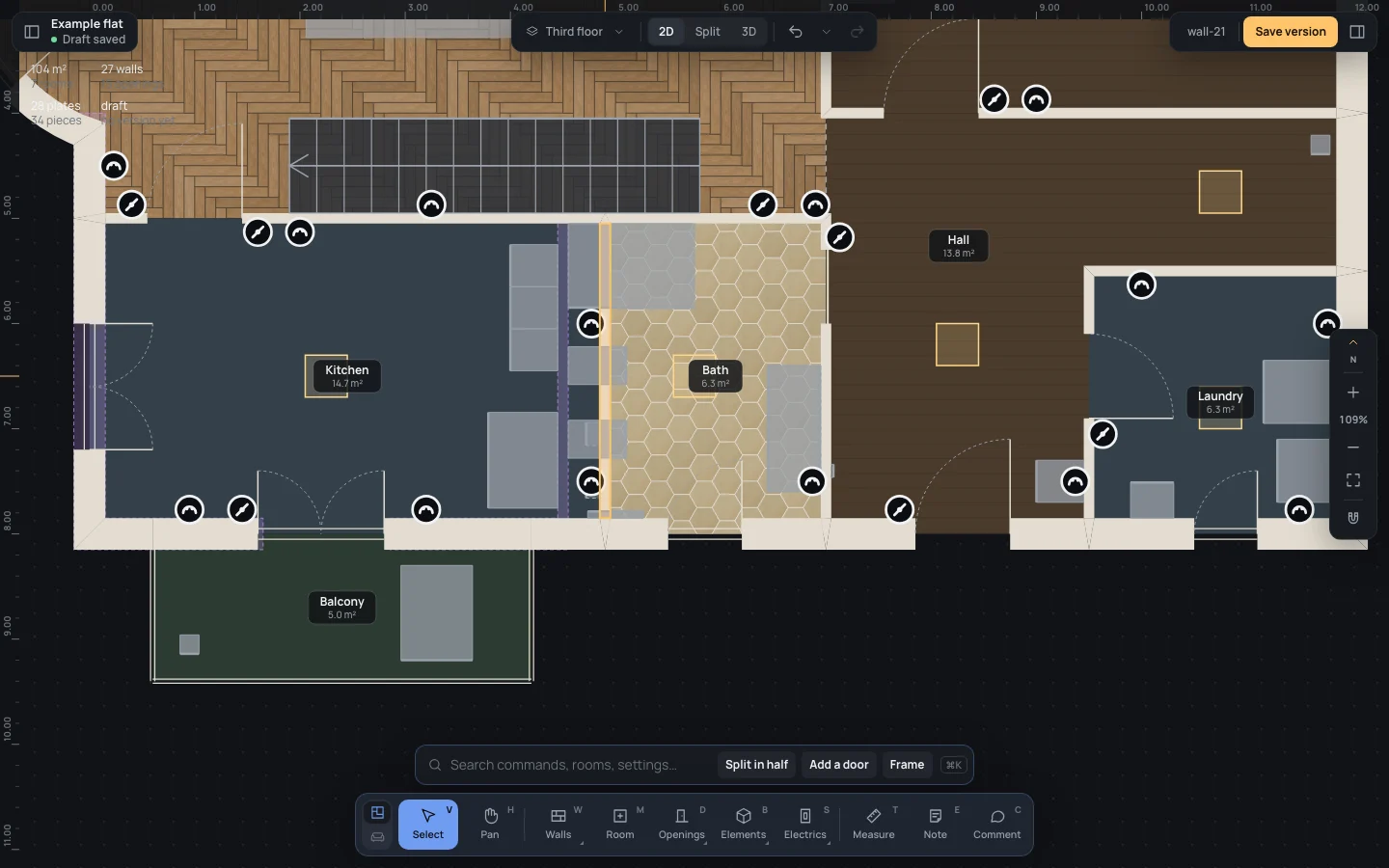
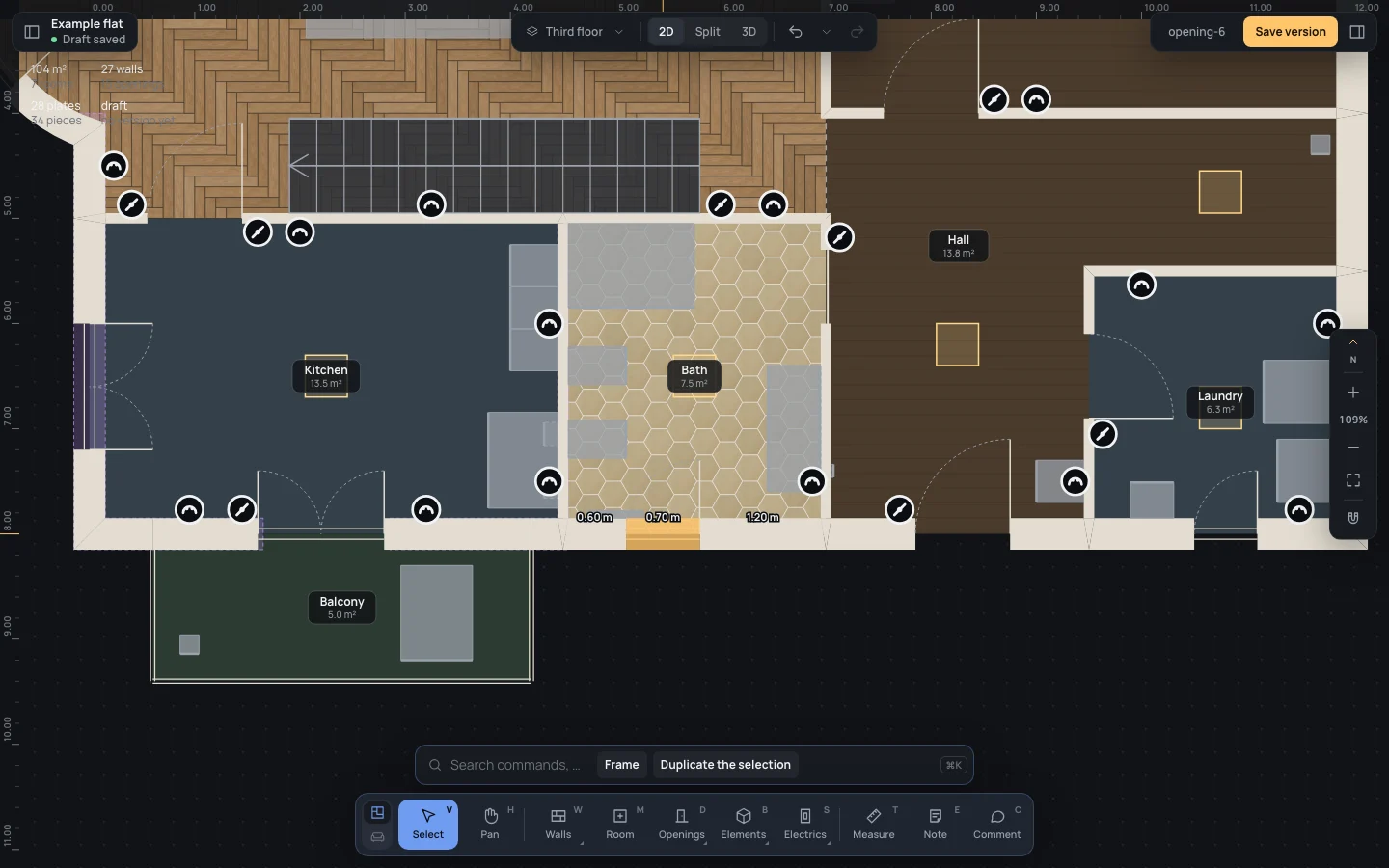
Section titled “Example: a bigger kitchen”On the finished example flat, move the wall between the kitchen and the bath 40 cm east.
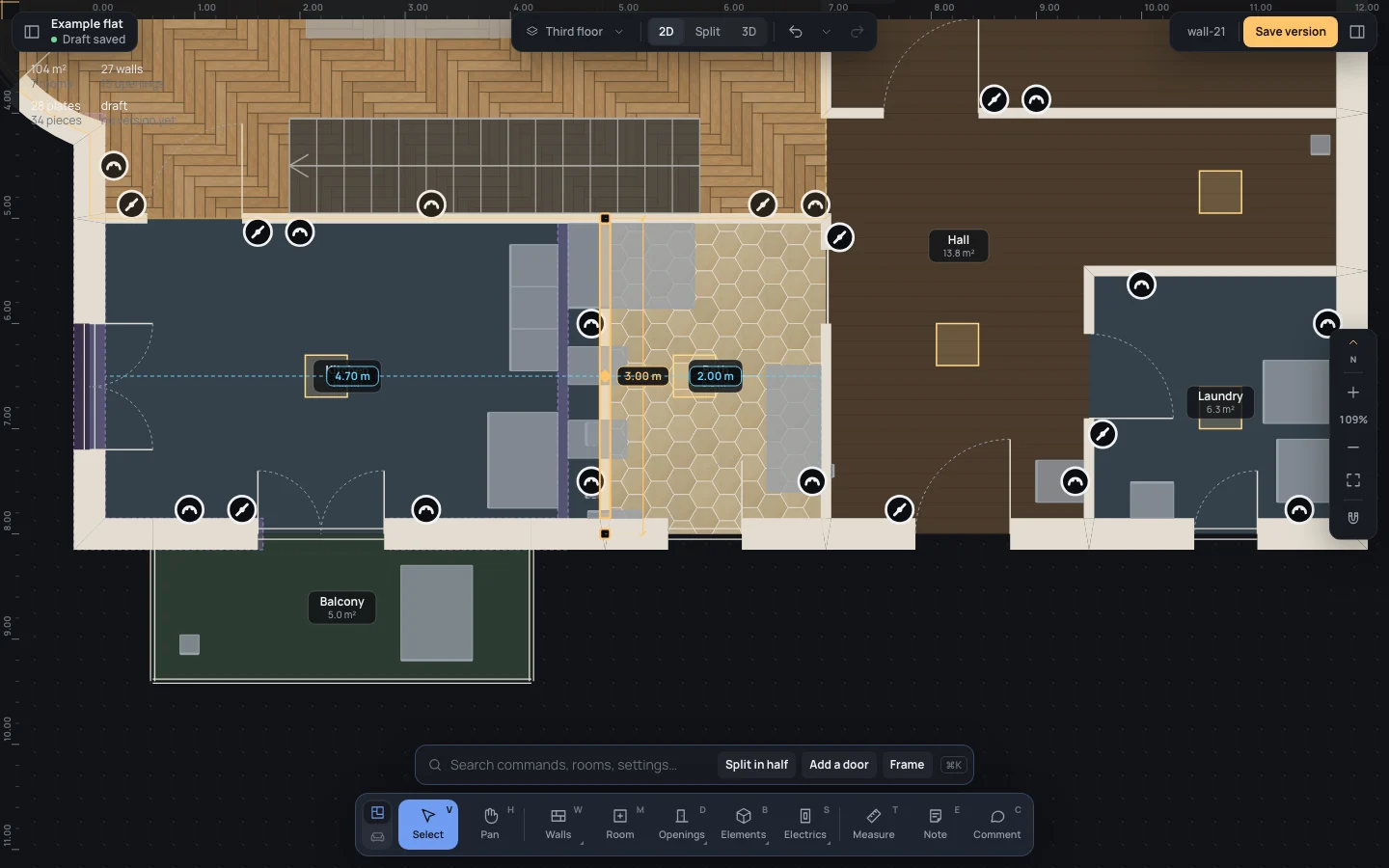
- Press VV and click the wall between the kitchen and the bath. On the plan its distances read 4.30 m to the kitchen’s west wall and 2.40 m to the bath’s east wall.
- Press ⇧→Shift+→ four times: 10 cm each.
- Or click the 4.30 m and type Clearance
4.70, then ↵↵.
The kitchen goes from 13.5 to 14.7 m², the bath from 7.5 to 6.3 m²; the walls joined to it stretch, and the bath’s pieces against it stay where they were.
If something goes wrong
Section titled “If something goes wrong”- Moved the wrong thing: ⌘ZCtrl+Z, one step per drag.
- A drag selected a piece of furniture instead of drawing a box: start the box on an empty spot, or outside the flat.
- A wall won’t go further: it is stopping against another one; hold ⌥Alt.
- Nothing can be selected: the layer is hidden in the left panel, or you are in Furnish.
See also
Section titled “See also”- Selecting: the outline, the layers, duplicating and deleting.
- Editing walls: what a selected wall offers.
- Pan: moving the view.