

History and versions
A project has one draft, the home everyone works on, saved as you go. When it reaches a fixed point, you create a version of it: it becomes a version (v1, v2…), which never changes again and is what other apps, like a home dashboard, read. The history shows both: every change to the draft, and every version.
Open it with the clock at the top of the right panel (History), with ⇧⌘HCtrl+Shift+H, or from the search. It has two tabs, Changes and Versions.
Changes
Section titled “Changes”Every change to the draft, newest first: the step’s name, when, and who made it (their face; yours is ringed).
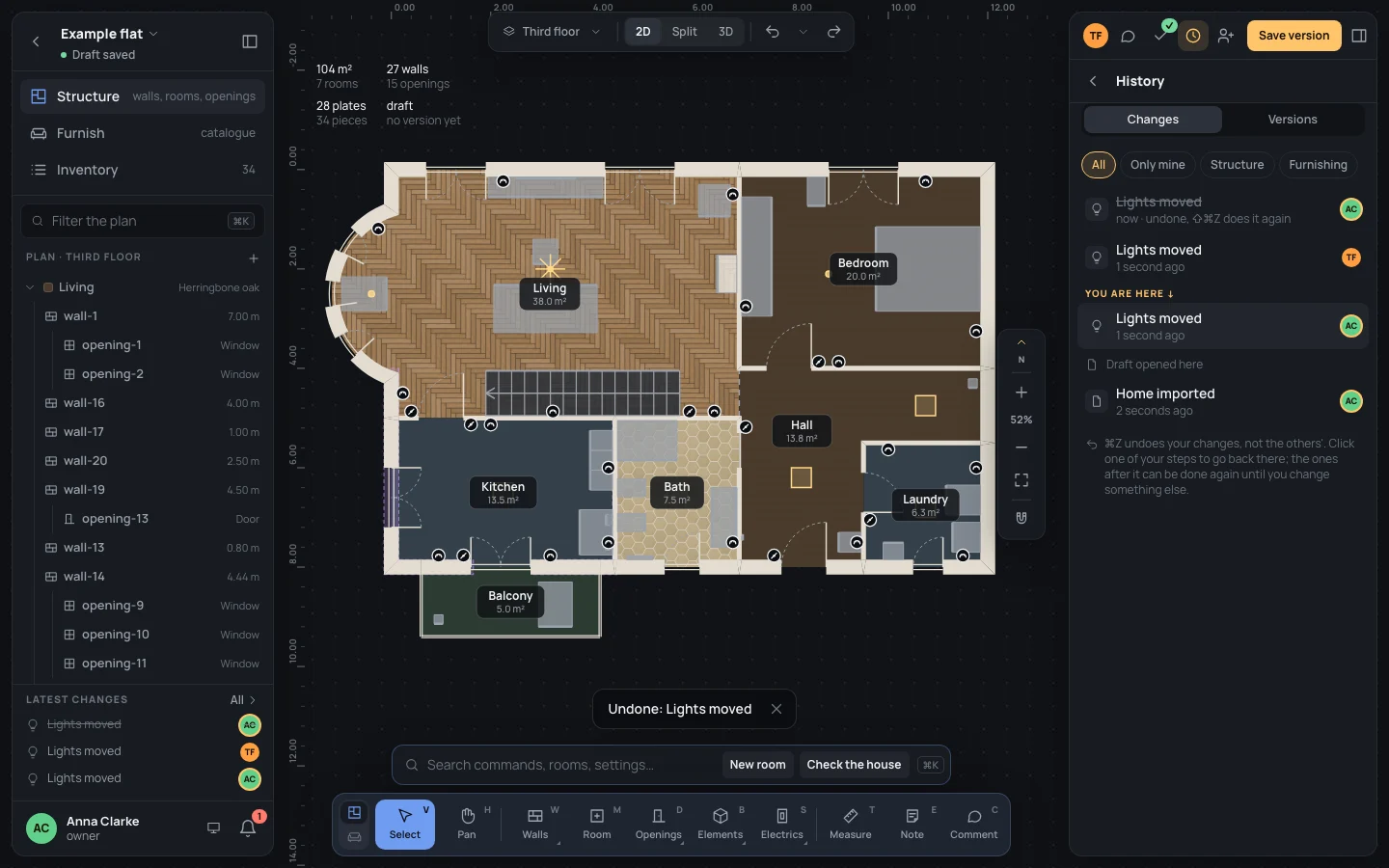
- The chips choose which: All, Only mine, Structure or Furnishing.
- You are here stands over your last step still done.
- Draft opened here marks where you opened the project this time: the changes under it are from before.
- Show earlier ones, at the end, loads the 50 before.
The last three changes are also at the bottom of the left panel, under Latest changes; All opens the history.
Going back
Section titled “Going back”⌘ZCtrl+Z undoes your last step, ⇧⌘ZCtrl+Shift+Zor⌘YCtrl+Y does it again (Working together live). In the history you can go further back in one click:
- Click one of your steps of this session: the tip says Go back to just after “Lights moved”.
- Your steps after it are undone: they stay in the list, struck through, with undone, ⇧⌘ZCtrl+Shift+Z does it again.
- Do them again with ⇧⌘ZCtrl+Shift+Zor⌘YCtrl+Y, one at a time, or click the last one to go forward to it.
Steps you undid can be done again until you change something else: a new step drops them.
You can’t go back over:
- someone else’s change (By Tom Fisher: only whoever made it can undo it);
- your changes from an earlier session, under Draft opened here (From an earlier session: it can no longer be undone from here).
To bring back an earlier state of the whole home, restore a version (below).
If the history doesn’t load it says The history didn’t load., with Try again.
Versions
Section titled “Versions”The Versions tab, also reached from the project’s menu (Versions, with the latest’s number):
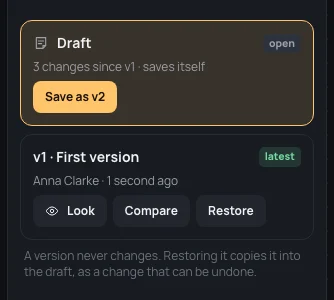
- The Draft comes first, open while you are on it, with how many changes it has since the last version (3 changes since v1 · saves itself), and Create v2 for the next.
- Then every version, newest first: its number and message, latest on the newest, who saved it and when.
Before the first, it says No version yet: the first comes from Create version.
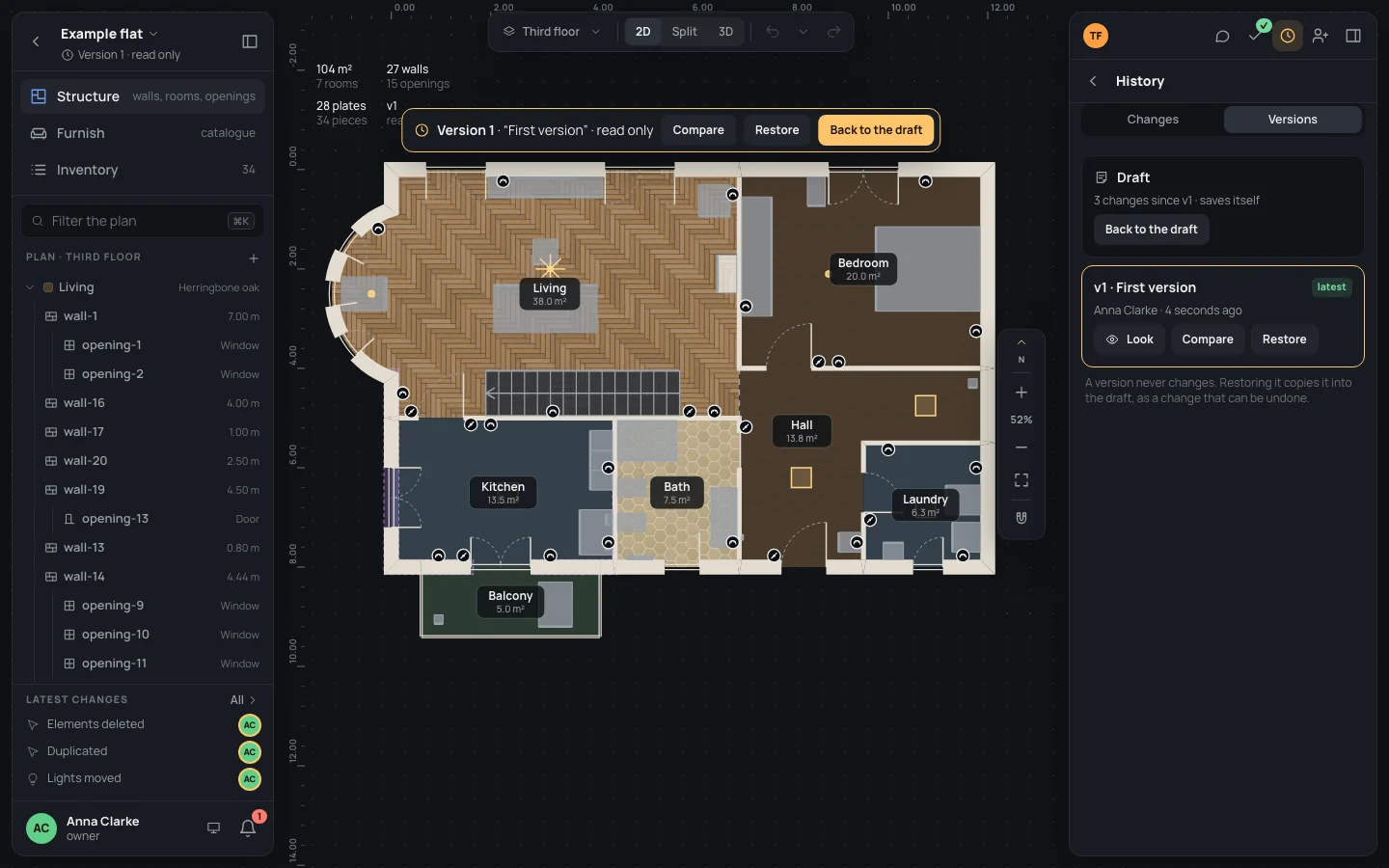
Look shows that version on the plan, read only: no tools, nothing can change. A banner over the plan says which (Version 1 · “First version” · read only), and so does the line under the project’s name.
Compare
Section titled “Compare”Compare shows the draft with what changed since that version: added in green, changed in the accent colour, taken away in red where it was. The banner counts them: The draft against v1 · added: 1 · changed: 1 · removed: 1.
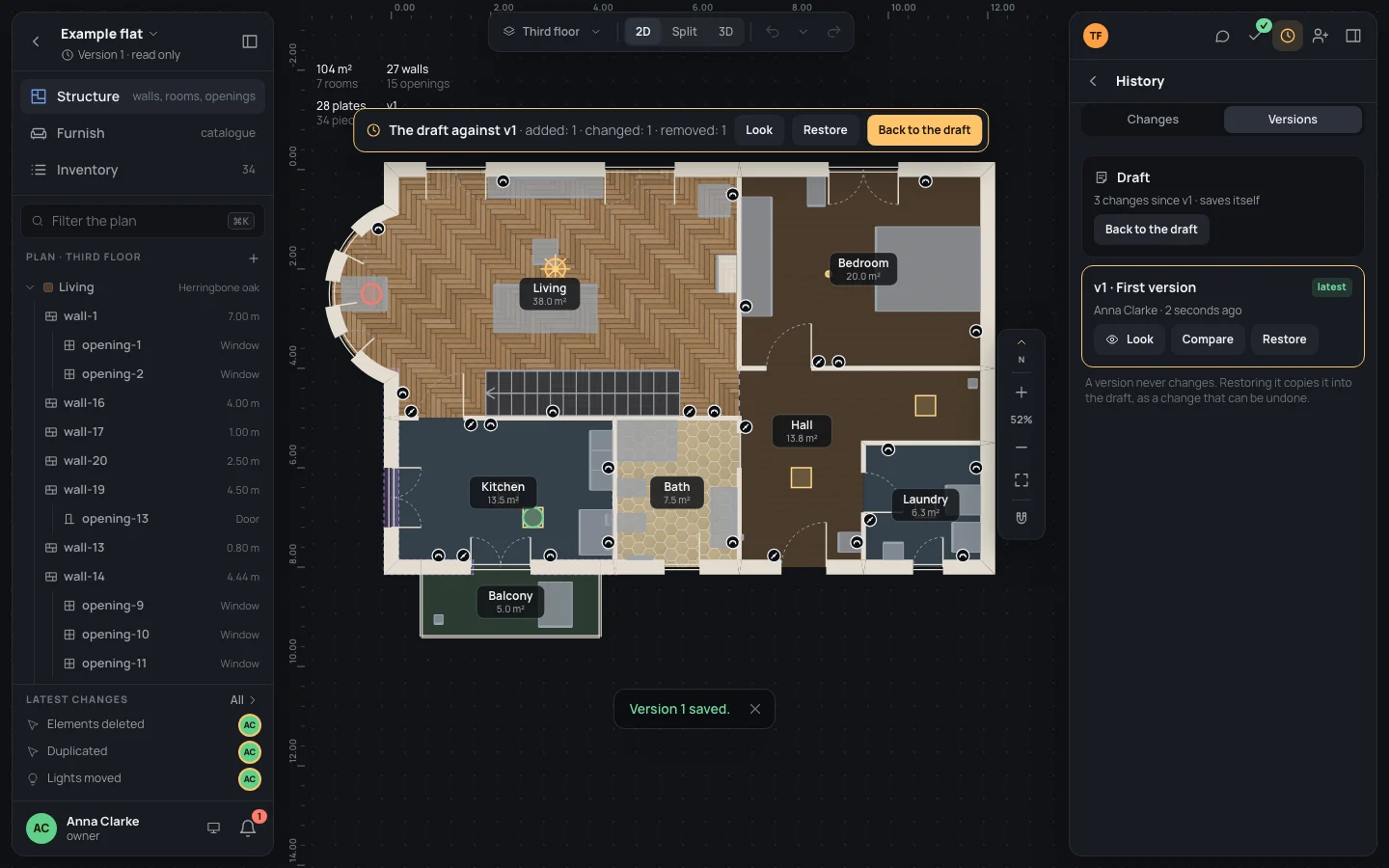
The banner’s Look and Compare switch between the two; Back to the draft returns to the draft as it was.
Restore
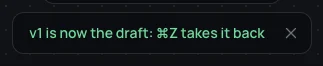
Section titled “Restore”Restore, on a version or in the banner, copies it into the draft as one change: v1 is now the draft: ⌘ZCtrl+Z takes it back. The version itself doesn’t change. Everyone in the project sees the draft change.
Viewers can look and compare, but not restore or create a version.
Creating a version
Section titled “Creating a version”- Click Create version, at the top of the right panel (or Create v2 in the versions, or Create version… in the search). The button stays off while a step is still on its way: what is saved is the draft as Blupinta has it.
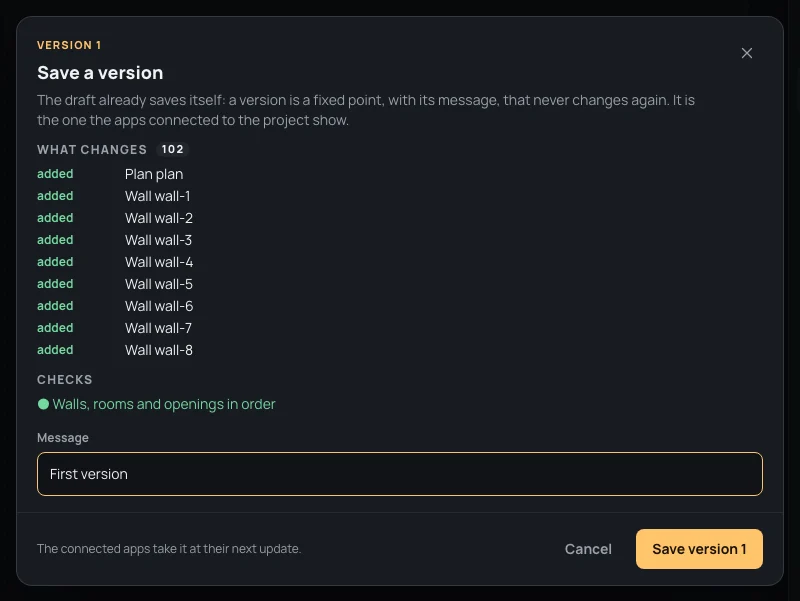
- The window, Create a version, says which version it becomes (Version 1), and What changes since the last one, element by element: added, changed or removed, with how many.
- Checks: Walls, rooms and openings in order, or what must be fixed first.
- Write the Message: what changes, in a few words (up to 200 characters). It starts with the names of your last
steps; change it. For the example’s first version: Message
First version - Click Create version 1. It says Version 1 created., and the button reads Same as v1 until the draft changes again.
A version a connected app saved says so after its author: through Writer app.
A version keeps a small picture of its first plan seen from above, drawn as you save it: the connected apps show it, as a home dashboard does.
The dashboards take the new version at their next update. A version never changes: to change the home, change the draft and create the next.
What keeps it back
Section titled “What keeps it back”Create version stays off in the window while:
- a check fails: the window lists each problem (The walls don’t close the room “Living”.) and says The work is already saved: create the version once the errors are fixed. Fix them with Checking the home;
- nothing changed since the last version (No difference from the last version.).
With the message empty, it says Say briefly what changes. and waits.
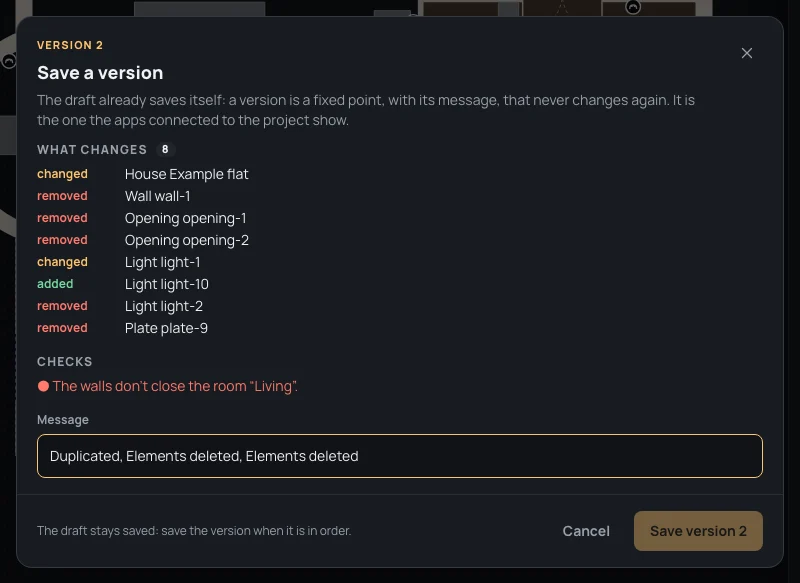
The server checks again when it creates the version: if it still finds problems, the window lists them under Before creating the version, fix:.
What can go wrong
Section titled “What can go wrong”- Restored the wrong version? ⌘ZCtrl+Z takes the restore back, as any step.
- Created a version too soon? Versions can’t be deleted or changed. Fix the draft and create the next one.
- A step you want back is someone else’s. Ask them to undo it, or restore a version from before it.