

Comment
The Comment tool starts a conversation on the plan: a click pins it there, you write, and the people who share the project see it, answer it and resolve it. Unlike a note, a comment is not part of the home: it is not printed, and changing the plan never touches it.
Picking it
Section titled “Picking it”- Comment in the dock, or CC. It is in the dock of Structure and of Furnish, and in a viewer’s: whoever can open the project can comment.
- The right click on an empty part of the plan: Comment here picks the same tool.
- The search (⌘KCtrl+K): type Comment.
Using it
Section titled “Using it”- Pick the tool. The bar says Click where to leave a comment: on an element it follows it · EscEsc to drop it.
- Click where the comment goes. On an element (a wall, a door, a room, a piece of furniture…) the comment is pinned to it; on nothing, to that point. Your pin appears at once, with your face, and the box titled Comment beside it, the cursor in Write a comment….
- Write it. @ Mention picks a member of the project: their name goes into the text as @Name, and they are told.
- Click Send, or press ⌘↵Ctrl+↵. The box closes and the pin stays, with how many messages the thread has.
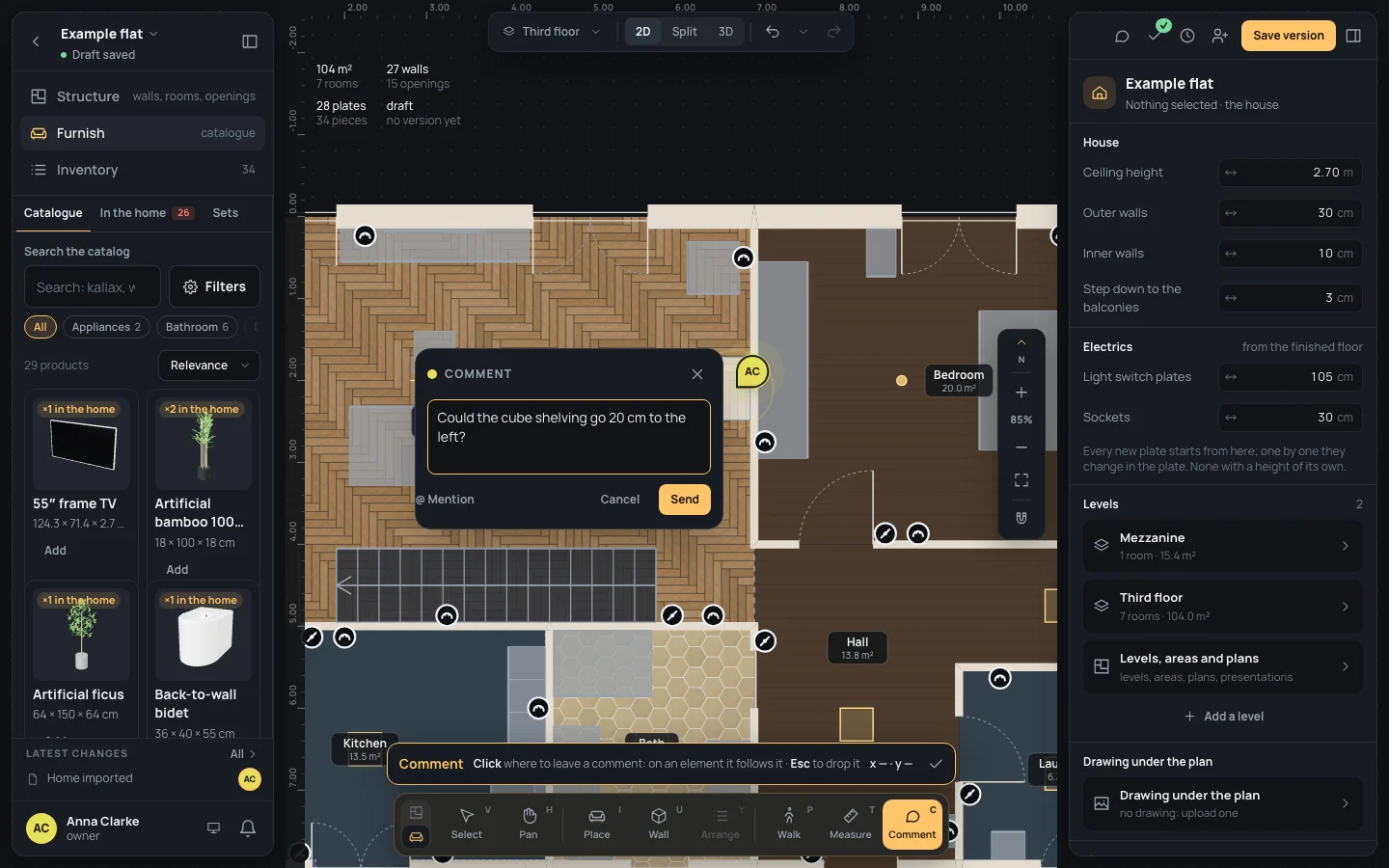
While the box is open, a click elsewhere with the tool moves the pin there, the words kept.
Keys inside it
Section titled “Keys inside it”- ⌘↵Ctrl+↵: sends the comment. ↵↵ alone is a new line.
- EscEsc: drops the comment, but only while nothing is written: written words are never lost to a key. Cancel and the box’s ✕ drop it whatever is written.
- EscEsc with no box open: back to Select; Done (✓) in the bar does the same.
- ␣␣ held: move the view; ⌘Ctrl with the wheel: zoom.
What it snaps to
Section titled “What it snaps to”Nothing: the pin goes where you click. What it catches is the element under the pointer, the one Select would pick there: the comment then moves with it wherever it goes.
What it refuses
Section titled “What it refuses”Send stays greyed out until something is written. If the comment can’t be saved (no connection, for instance), it says The comment was not saved. and the box stays open with your words, to send again.
The pin stands on the plan in your colour, on its element wherever that goes; the thread stays closed until someone clicks the pin. The tool stays on for the next comment. A comment is not a change to the home, so it is not in the history and ⌘ZCtrl+Z doesn’t take it away: delete its message from the thread instead (your own at once; the project’s owner can delete anyone’s too, after being asked). Threads, replies, resolving and the Comments drawer: Comments.
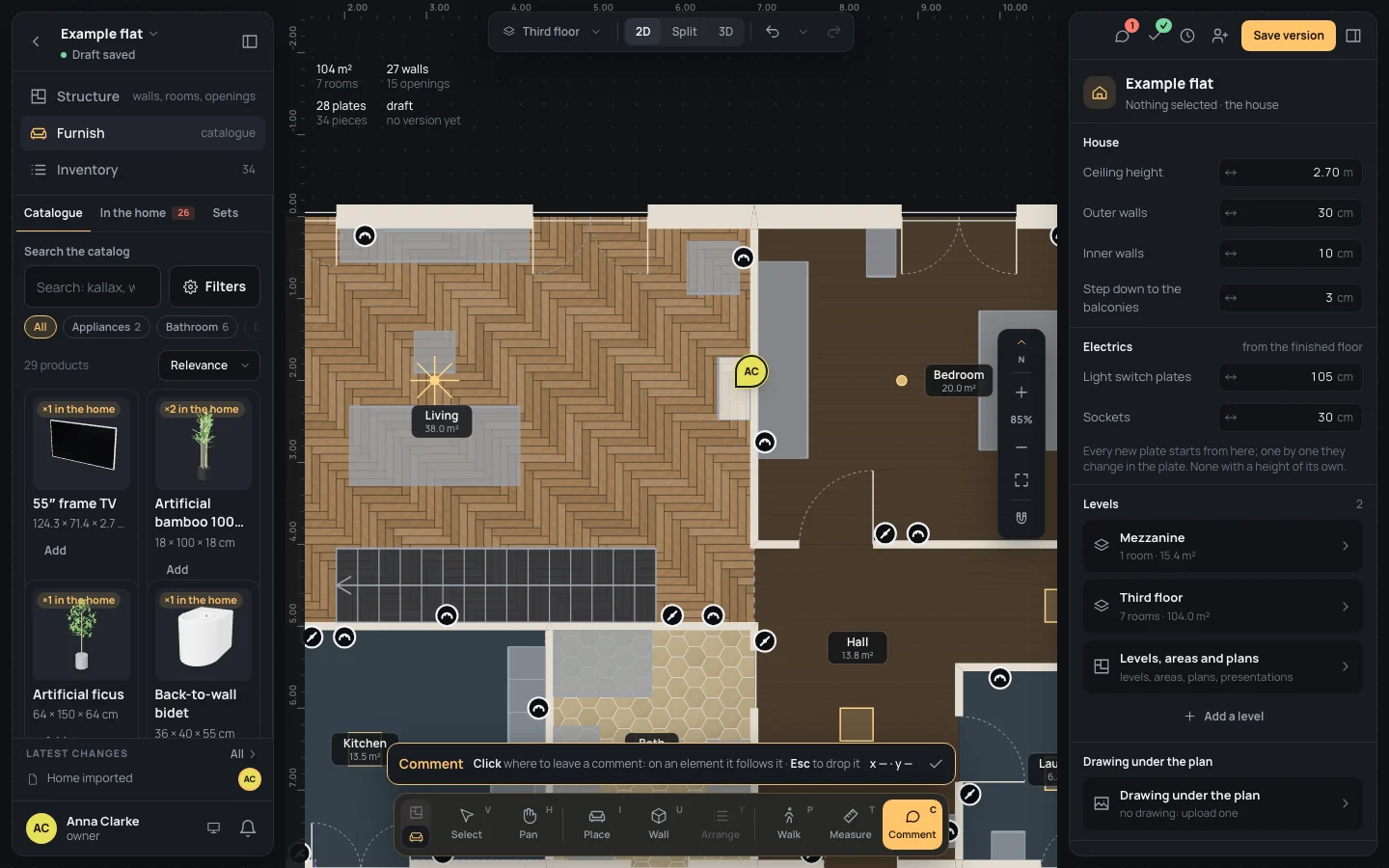
Example: a question on the cube shelving
Section titled “Example: a question on the cube shelving”On the finished example flat, in Furnish:
- Press CC.
- Click on the cube shelving unit against the living room’s east wall.
- Write Comment
Could the cube shelving go 20 cm to the left?. - Press ⌘↵Ctrl+↵. The pin stays on the shelf; move the shelving and the pin goes with it.
If something goes wrong
Section titled “If something goes wrong”- The pin on the wrong element: drop it with Cancel before sending, then click again. Once sent, delete its message and leave a new one.
- The element it was pinned to was deleted: the thread stays where the element was, and says so.
- The words were sent too soon: you can edit your message in its thread (Comments).