

Arrange
Arrange lines up pieces of furniture on the plan. It is not a tool that takes the pointer: with two pieces or more selected, it brings up the inspector’s Align and Distribute, the buttons that put them in line or space them evenly.
Picking it
Section titled “Picking it”- Arrange in Furnish’s dock (spread, line up), or YY. It is Furnish’s own.
- It is greyed out until two pieces or more are selected. Select them with Select: a click on the first, ⇧Shift + click on the others, or a box dragged on an empty part of the plan.
The inspector shows the same buttons as soon as several pieces are selected; Arrange brings the inspector back when the right panel is showing something else (the comments, the history).
Using it
Section titled “Using it”- Select the pieces: two at least, nothing but pieces of furniture.
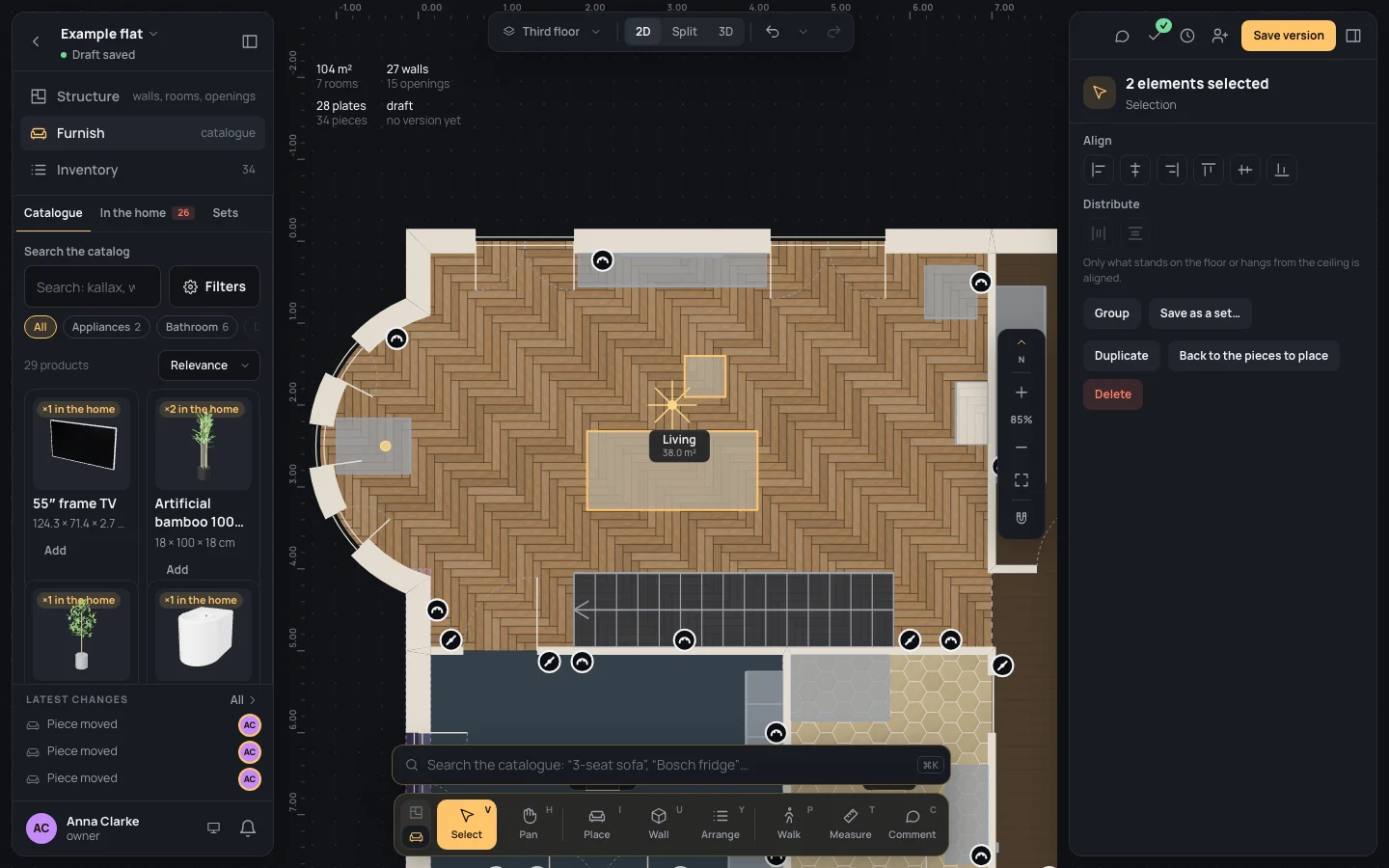
- Press YY. The inspector says 2 elements selected, with Align and Distribute on top.
- Click the way to line them up. They move at once, in one step.
The buttons
Section titled “The buttons”Align lines them up on one side, or the middle, of the box round them all:
- Left, Centre, across, Right: they move across only;
- Top, Centre, down, Bottom: they move down or up only.
Distribute, with three pieces or more, spaces them so the gaps between them are the same, the two at the ends staying where they are: Equal gaps across, Equal gaps down. With two, both are greyed out.
The pieces are lined up by their outline on the plan, turned as they are. One step each (Pieces aligned, Pieces distributed).
Below them the inspector offers the rest for a selection of pieces: Group (or Ungroup, when they are one group) and Save as a set… (Groups and sets), Duplicate, Back to the pieces to place and Delete.
Keys inside it
Section titled “Keys inside it”Arrange has no keys of its own: it runs and the inspector is there. Around it:
- ⇧Shift + click: add a piece to the selection, or take it away.
- →→ and the other arrows: move the selection 1 cm; ⇧→Shift+→ and the others, 10 cm.
- ⌘GCtrl+G: group the pieces; ⌘DCtrl+D: duplicate them.
What it refuses
Section titled “What it refuses”- Fewer than two pieces selected: Arrange is greyed out and its key does nothing.
- A selection with something else in it (a wall, a room): the inspector doesn’t show the arranging buttons, but says Select one kind of element to change it; together they can be duplicated or deleted.
- Only what stands on the floor or hangs from the ceiling is aligned. Pieces hanging on a wall, or standing on another piece, stay where they are: line up what hangs on a wall in its composition.
Example: the coffee table back in line
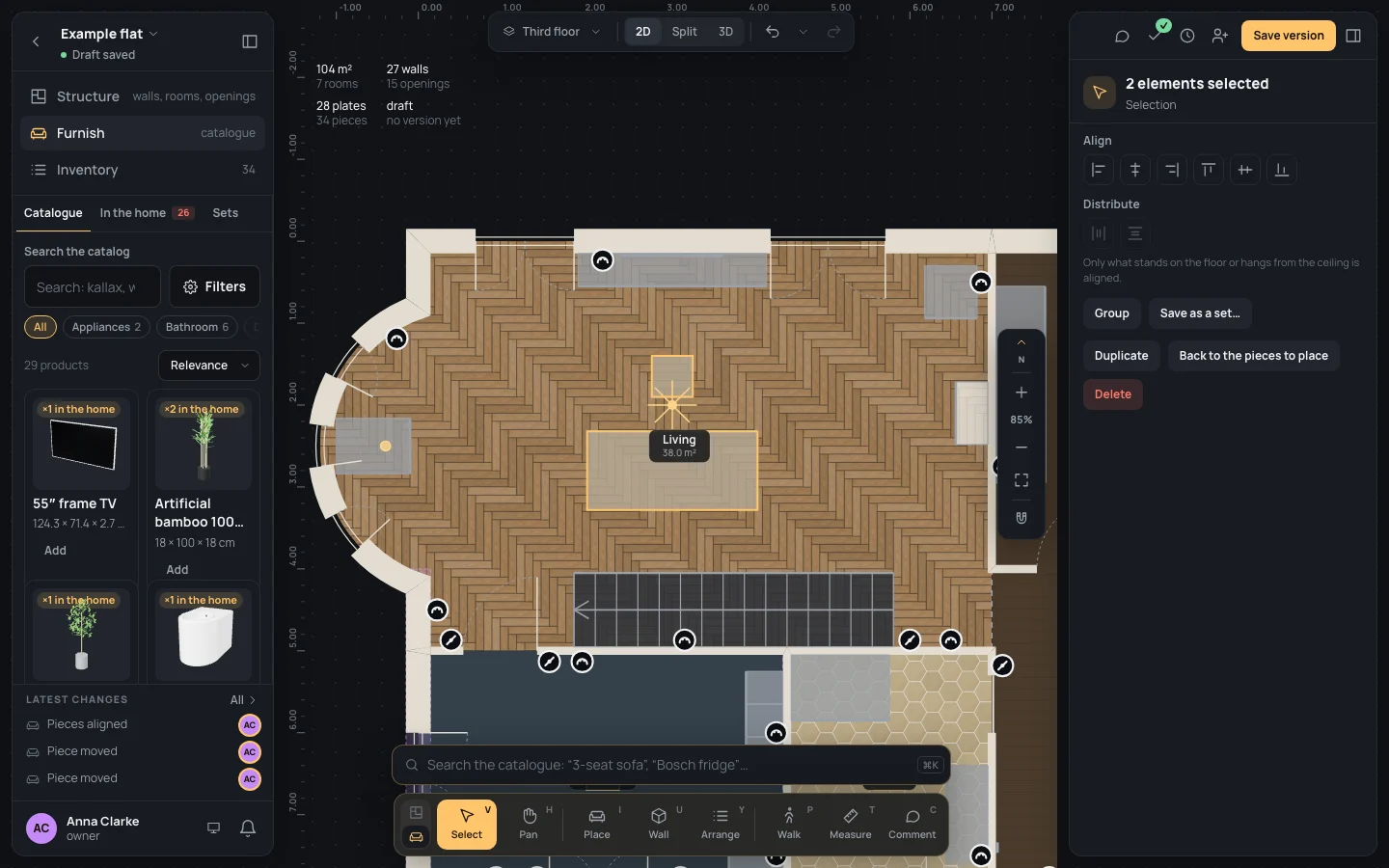
Section titled “Example: the coffee table back in line”On the finished example flat, in Furnish, say the coffee table has slipped 40 cm to the right of the sofa.
- Click the Smoked glass coffee table, then ⇧Shift + click the Sofa bed.
- Press YY.
- Click Centre, across. The table moves back to the sofa’s middle; the sofa, centred on the TV, stays.
 BeforeAfter
If something goes wrong
Section titled “If something goes wrong”- The wrong side: ⌘ZCtrl+Z, then the other button.
- Both pieces moved, not just one: aligning on the centre moves each to the middle of the box round them all. Line them up on the piece that should stay with Left or Right (across), Top or Bottom (down) when it is the outermost one.
- A piece didn’t move: it hangs on a wall or stands on another piece (see above).
See also
Section titled “See also”- Arranging furniture: align, distribute, repeat in a row, duplicate beside, turn.
- Groups and sets.
- Compose a wall: lining up what hangs on a wall.