

Inviting people
A project can be worked on by several people. You invite them by email from the Share window, each with a role, and you all work on the same draft at the same time (Working together live).
The Share window
Section titled “The Share window”Open it from any of these:
- in the editor, the person with a plus at the top of the right panel (Share);
- in the editor, the project’s menu (click its name, top left): Share and invite…;
- on the projects page, Share on the project’s card, or Share… in its ⋯ menu.
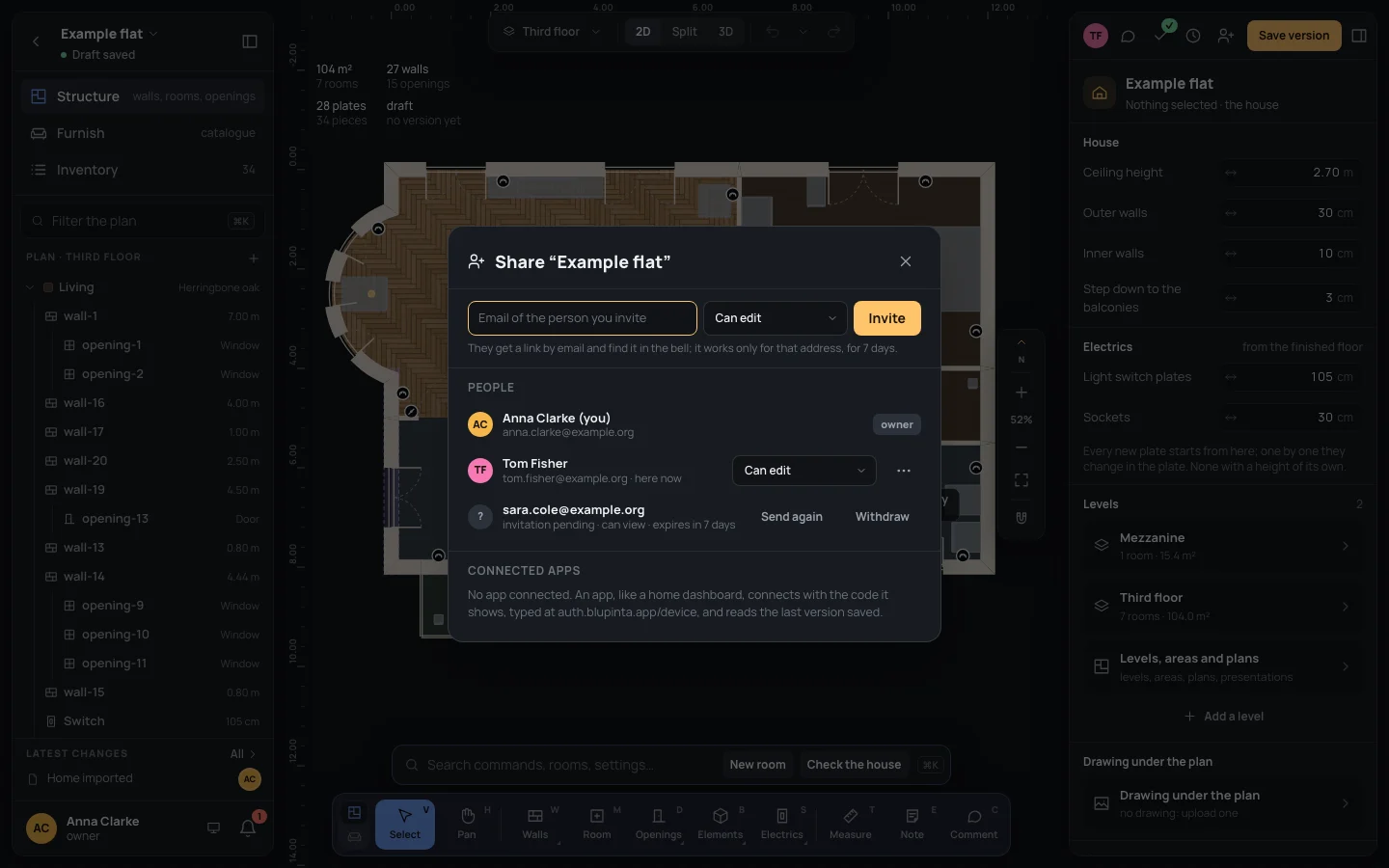
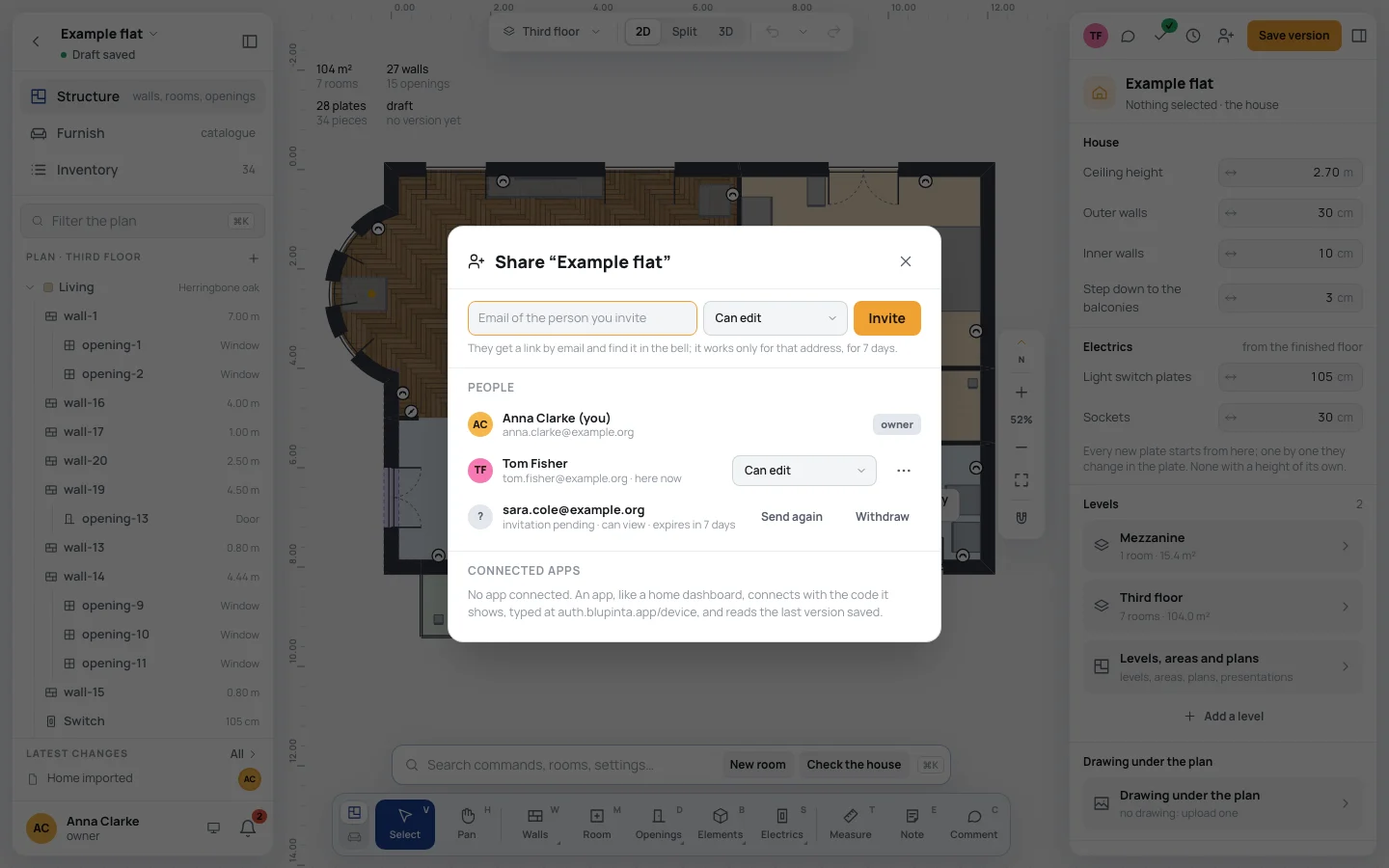
It is in three parts: the invitation’s field (only the owner has it), People, and Connected apps. The window stays open if you reload the page.
Who can do what
Section titled “Who can do what”Every project has one owner: whoever made it. Everyone else is in it with one of two roles:
- Can edit (an editor): draws, furnishes, renames and creates versions, like the owner.
- Can view (a viewer): looks at the home in 2D and 3D, measures, comments, prints and exports the home file; changes nothing. The dock keeps only Select, Pan, Measure and Comment, and there is no Create version.
Only the owner invites, changes roles, removes people, hands the project over, archives it and deletes it.
Inviting someone
Section titled “Inviting someone”- Open Share and type their address in Email of the person you invite. For the example:
Email
tom.fisher@example.org - Choose the role beside it: Can edit (where it starts) or Can view.
- Click Invite. It says Invitation sent to tom.fisher@example.org., and the field empties for the next one.
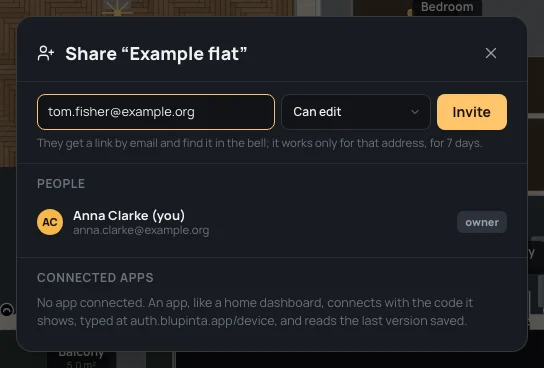
They get an email with a link, and if they already have an account they find the invitation in the bell and on their projects page too. The link works only for that address, for 7 days. Someone who chose Never for Invitations (Settings) finds it only in Blupinta: the bell and the projects page.
When they answer, you are told in your bell: Tom Fisher accepted your invitation to Example flat (or declined), and by email too unless you chose otherwise for Sharing (Notifications).
An address that isn’t one says Enter a valid email address.; someone already in the project says This person is already in the project. A project takes up to 20 invitations an hour.
Invitations waiting
Section titled “Invitations waiting”Until they answer, each invitation stays under People: the address, invitation pending, the role and when it expires.
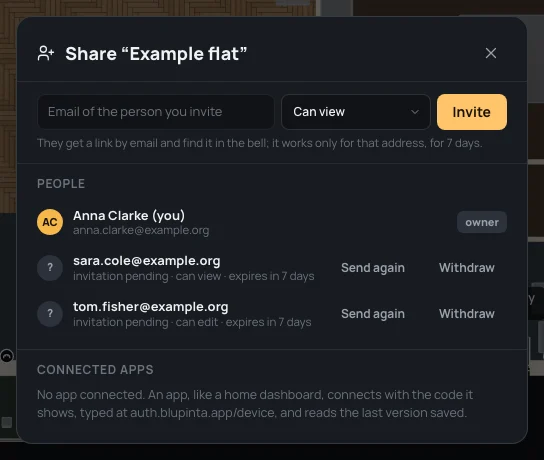
- Send again sends a new link, valid for 7 more days from now. Inviting the same address again does the same.
- Withdraw takes it back: its link stops working (Invitation to … withdrawn.).
An invitation past its 7 days says expired: Send again gives it a new life.
Answering an invitation
Section titled “Answering an invitation”From the email
Section titled “From the email”The link opens a page that says who invites you, to which project and with which role.
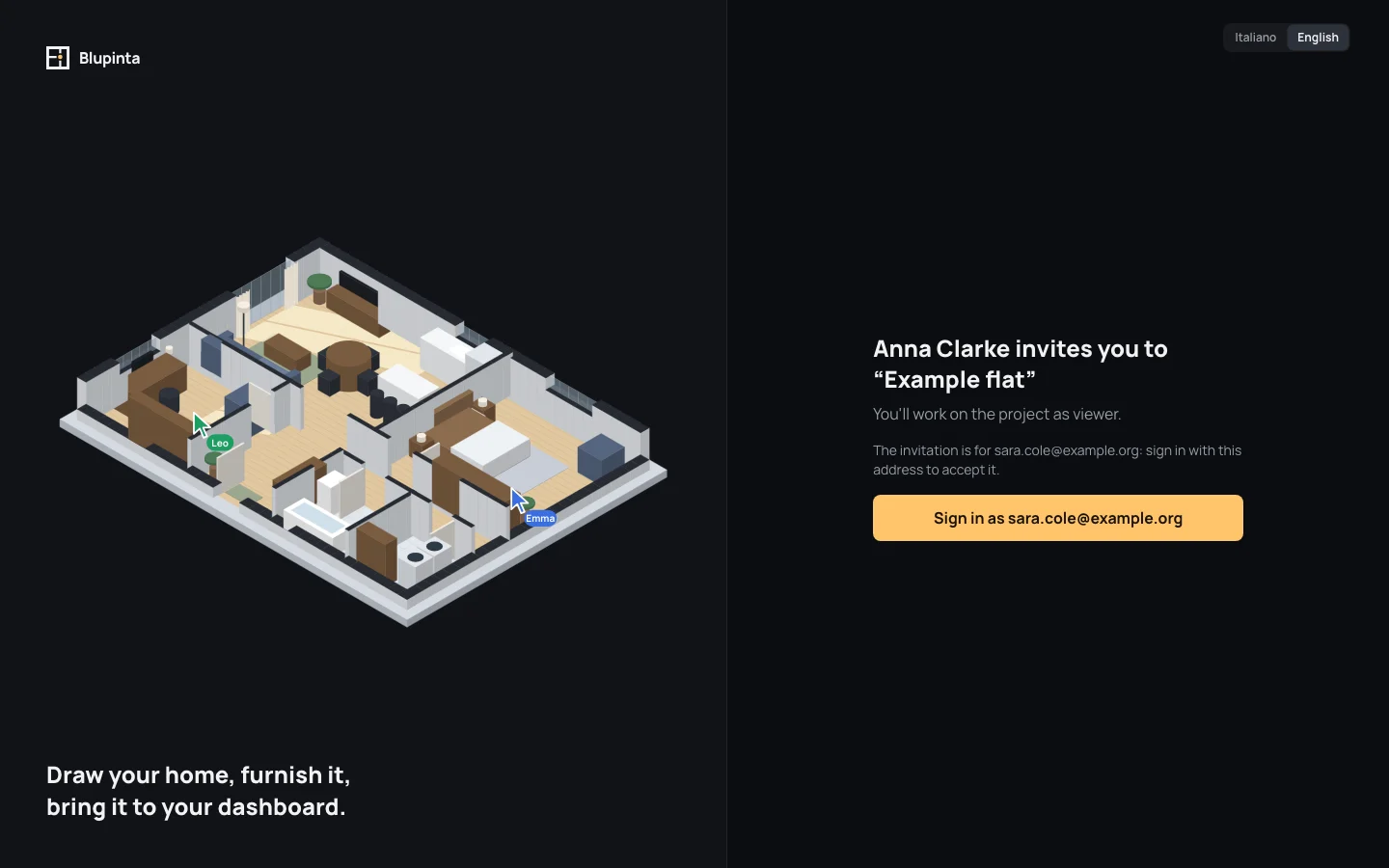
- Signed out, click Sign in as …: the sign-in page opens with that address written in (Signing in). The sign-in link brings you back to the invitation.
- Click Accept the invitation. You land in the project’s editor: You’re now part of “Example flat”.
Decline turns it down and takes you to your projects (Invitation declined.).
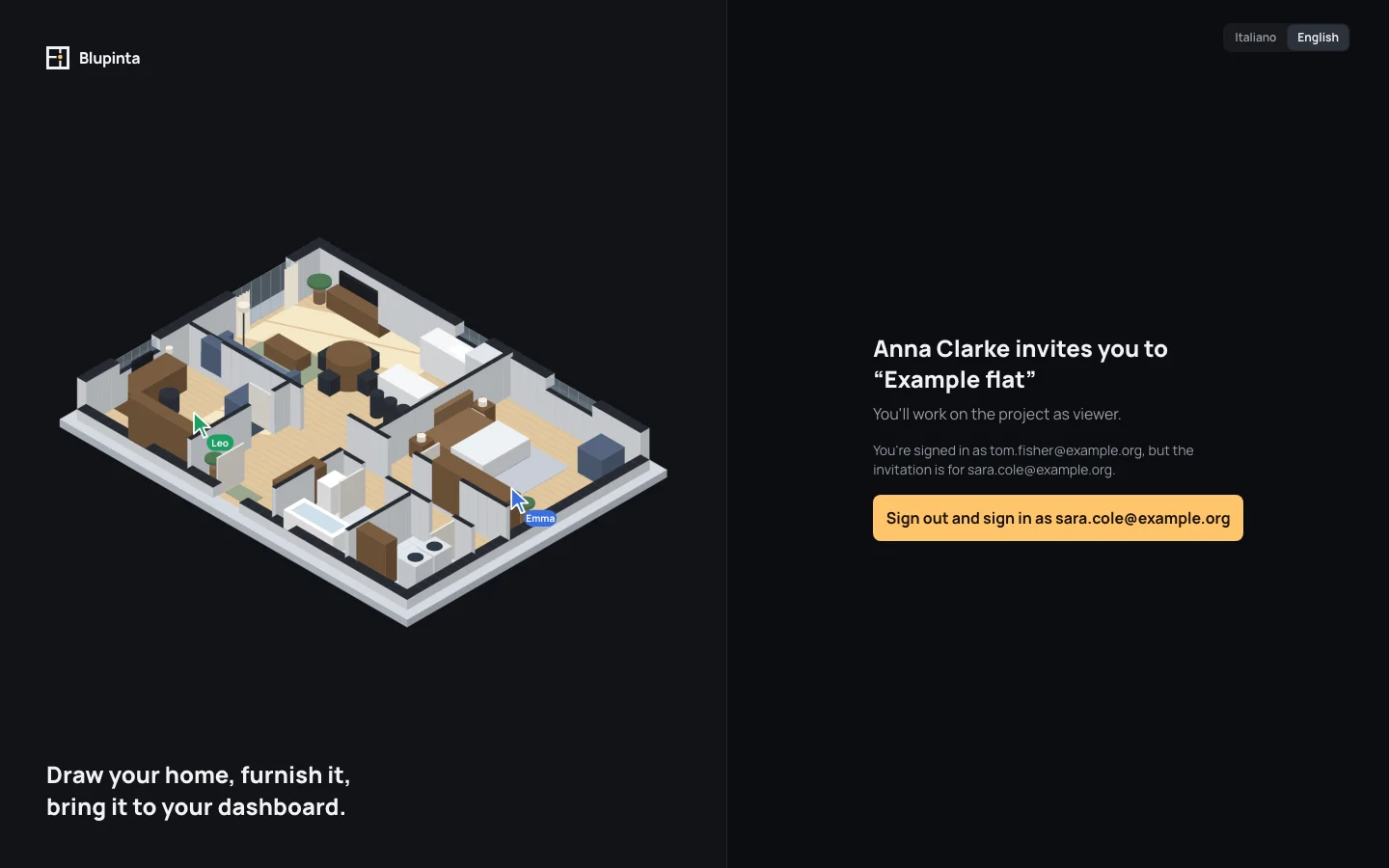
If you are signed in with another address, the page says so: Sign out and sign in as … signs you out and opens the sign-in page with the invited address.
A link withdrawn, already answered or past its 7 days says This invitation is no longer valid, with Go to the projects. Ask the owner for a new one.
From the bell
Section titled “From the bell”The bell, at the top of the projects page and in the editor beside your name, counts what waits for you. Open, its panel shows your invitations first, under Invitations, then what happened in your projects (Notifications).
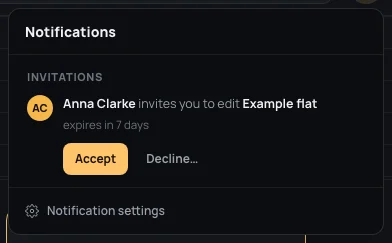
- Accept puts the project among yours, there and then (Example flat is among your projects, with Open).
- Decline… opens the invitation in a window first, so a slip of the finger declines nothing: Later closes it (it stays in the bell), Decline, or Accept the invitation, which opens the project.
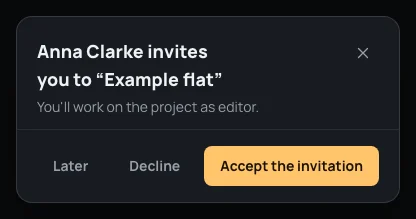
Invitations stay counted until you answer them.
On the projects page
Section titled “On the projects page”Beside your projects, a card says An invitation for you (or how many), with who invites you, to edit or to see which project, and when it expires.
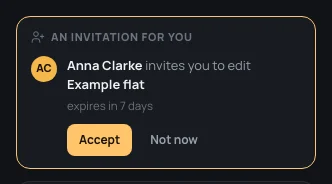
Accept puts the project among yours (Example flat is among your projects, with Open). Not now hides the card for now: You’ll find it in the bell. On the projects page, Whose → Shared with me shows the projects other people shared with you (Your projects).
Changing a role
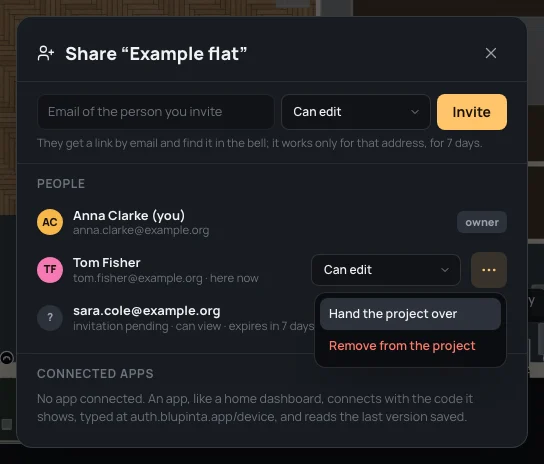
Section titled “Changing a role”In Share, beside each person, the owner has their role: choose Can edit or Can view. It changes at once, even in an editor they have open: Tom Fisher is now viewer.
Removing someone
Section titled “Removing someone”The ⋯ beside a person has Remove from the project. It asks first: they won’t see the project any more; their comments stay. You can invite them again whenever you like.
Handing the project over
Section titled “Handing the project over”Hand the project over, in the same ⋯, makes that person the owner. It asks first: they can then share, archive and delete it, and you stay in the project as an editor. It says Tom Fisher is now the owner.
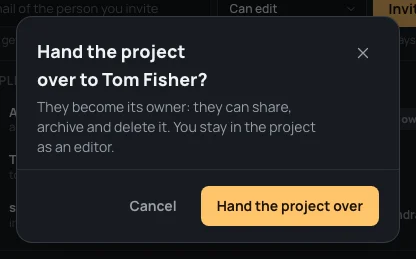
To delete your account while you own projects other people work on, hand them over first (Your account).
Leaving a project
Section titled “Leaving a project”If you are not the owner, Share shows the people and their roles, Only the owner invites people and changes roles., and Leave the project. It asks first (Leave “Example flat”?): you won’t see it again until someone invites you back.
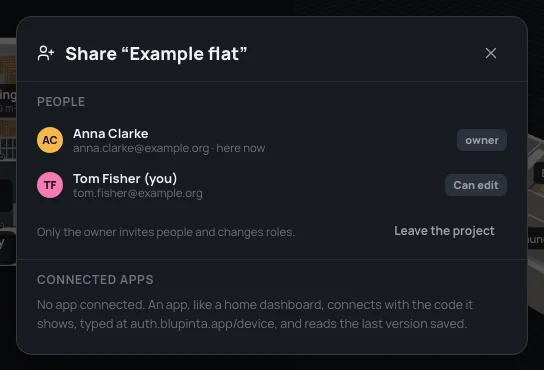
The owner can’t leave: hand the project over first.
Connected apps
Section titled “Connected apps”The last part of Share lists the apps that read the home, like a home dashboard: each with who allowed it and when it was last used. Apps read the last version saved, never the draft (History and versions). An app is connected with the code it shows (Connecting an app); the project’s owner can Remove from this project from here: the app stops reading this home and keeps the others it reads. With none, it says No app connected.
What can go wrong
Section titled “What can go wrong”- The invitation didn’t arrive. Check the address under People; Send again sends a new link. If they have an account, it is in their bell anyway.
- They opened the link with another account. The page offers to sign out and in with the right one.
- Removing, handing over and leaving can’t be undone with ⌘ZCtrl+Z. That is why they ask first. Someone removed can be invited again; a project handed over can be handed back by its new owner.