

Opening types
An opening type is one of the house’s windows or doors, defined once: its kind, the size it is placed at, and its parts (leaves, glazing, frame, sills, shading). The tools place openings already of a type, and changing a type’s parts changes every opening of it.
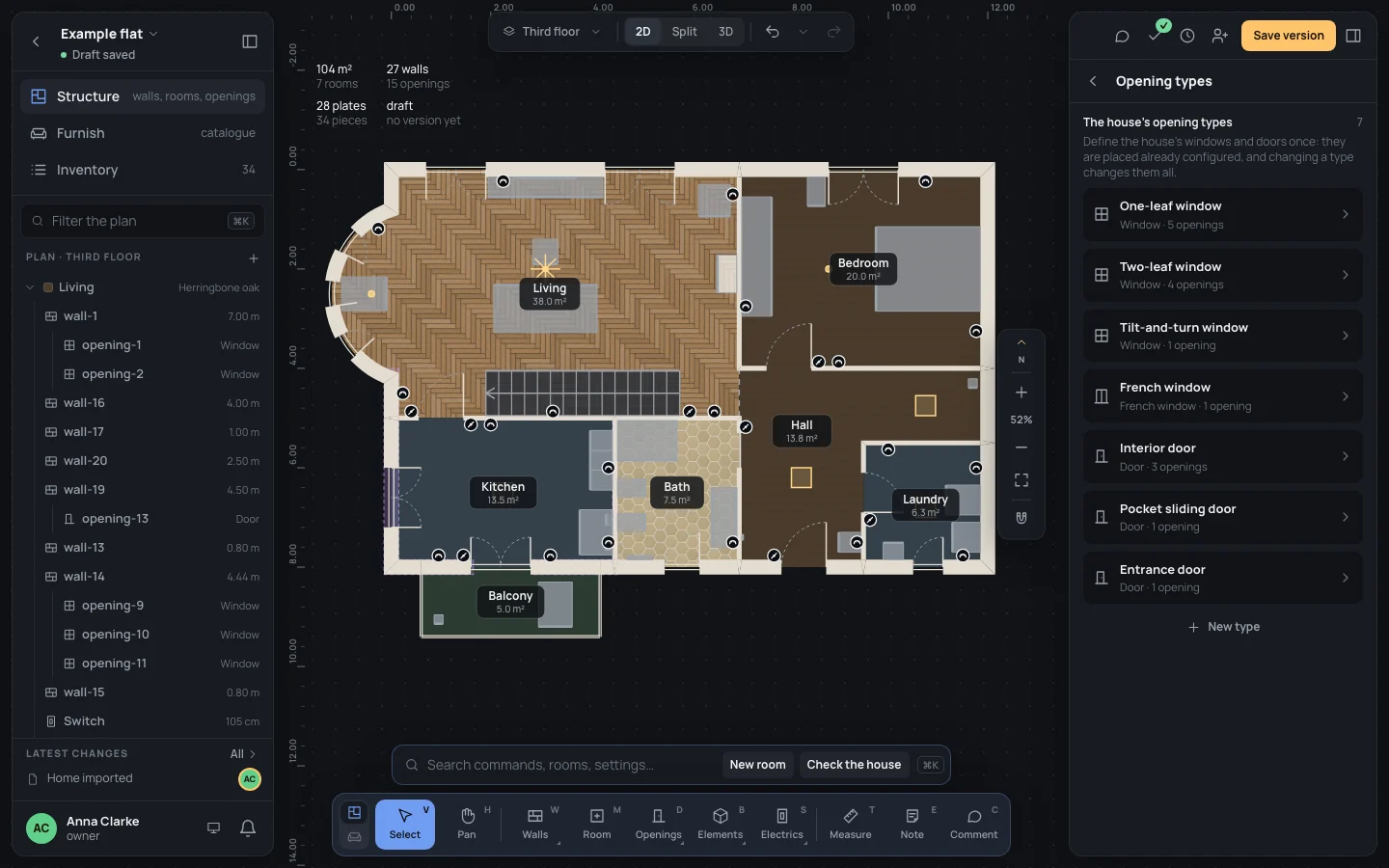
A house made with the guided setup already has the types you ticked there. The example home has seven: One-leaf window, Two-leaf window, Tilt-and-turn window, French window, Interior door, Pocket sliding door and Entrance door.
The house’s types
Section titled “The house’s types”- Click an empty spot of the plan (or press EscEsc) so the right panel shows the house.
- Under Library, click Opening types: its row says how many the house has (7 in the house).
- The page lists every type with its kind and how many openings use it (Window · 4 openings, or unused). Click one to open it; All types goes back to the list, the arrow at the top back to the house.
Making a type
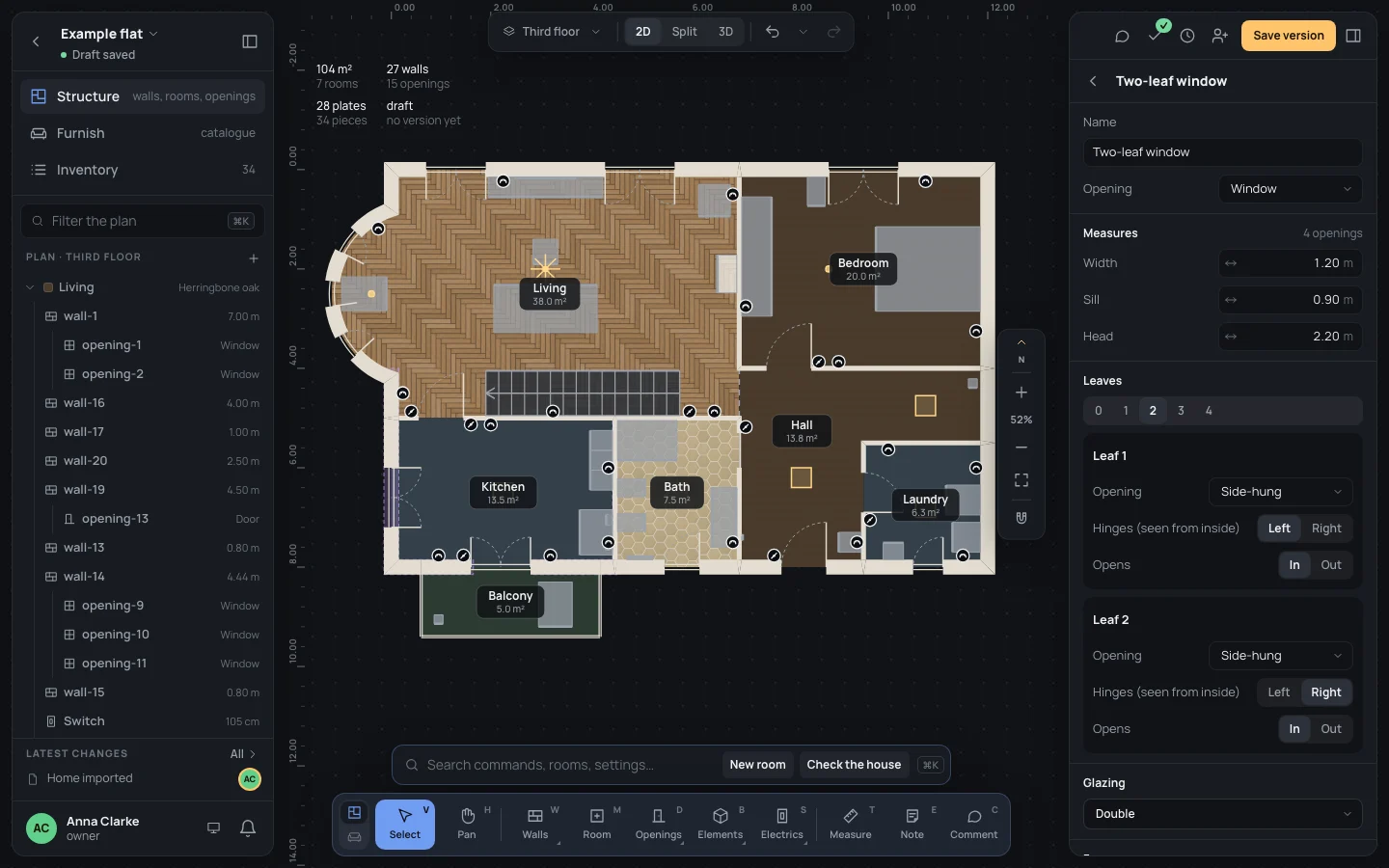
Section titled “Making a type”New type adds a window called New window, 1.20 m wide, with a 0.90 m sill and a 2.20 m head, and opens it. Give it its name, its kind and its parts:
- Name: required (Give it a name.).
- Opening: Door, Window, French window or Doorway.
- Width, Sill and Head: the size a new opening of the type is placed at. Width from 0.30 m to 6 m; the sill from 0 to 10 cm under the head; the head from 10 cm above the sill to 4 m. Outside them, the field says between what (Between 0.30 m and 6.00 m.).
- Its parts, as an opening has them: Opening parts.
A type is also made from an opening as it is: select the opening and click Save as a new type under the type, at the top of its inspector. Give it a name: the new type takes the opening’s kind, width, sill, head and parts, and the opening becomes one of it (the parts it had changed become the type’s own).
Changing a type
Section titled “Changing a type”Whatever you change in a type’s parts changes every opening of it, at once: make the Two-leaf window’s glazing Triple and the four windows of that type have triple glazing. A type’s Width, Sill, Head and Opening are what new openings start from: openings already placed keep their own size and kind.
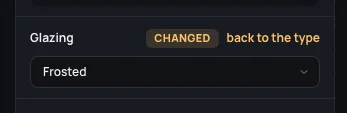
An opening can still be different from its type, part by part. Change a part in the opening’s inspector (its glazing, say): that part says changed, keeps its own value whatever the type does later, and back to the type gives it the type’s again.
An example: a frosted window for the bath
Section titled “An example: a frosted window for the bath”The bath’s window on the example home is opening-6, a One-leaf window.
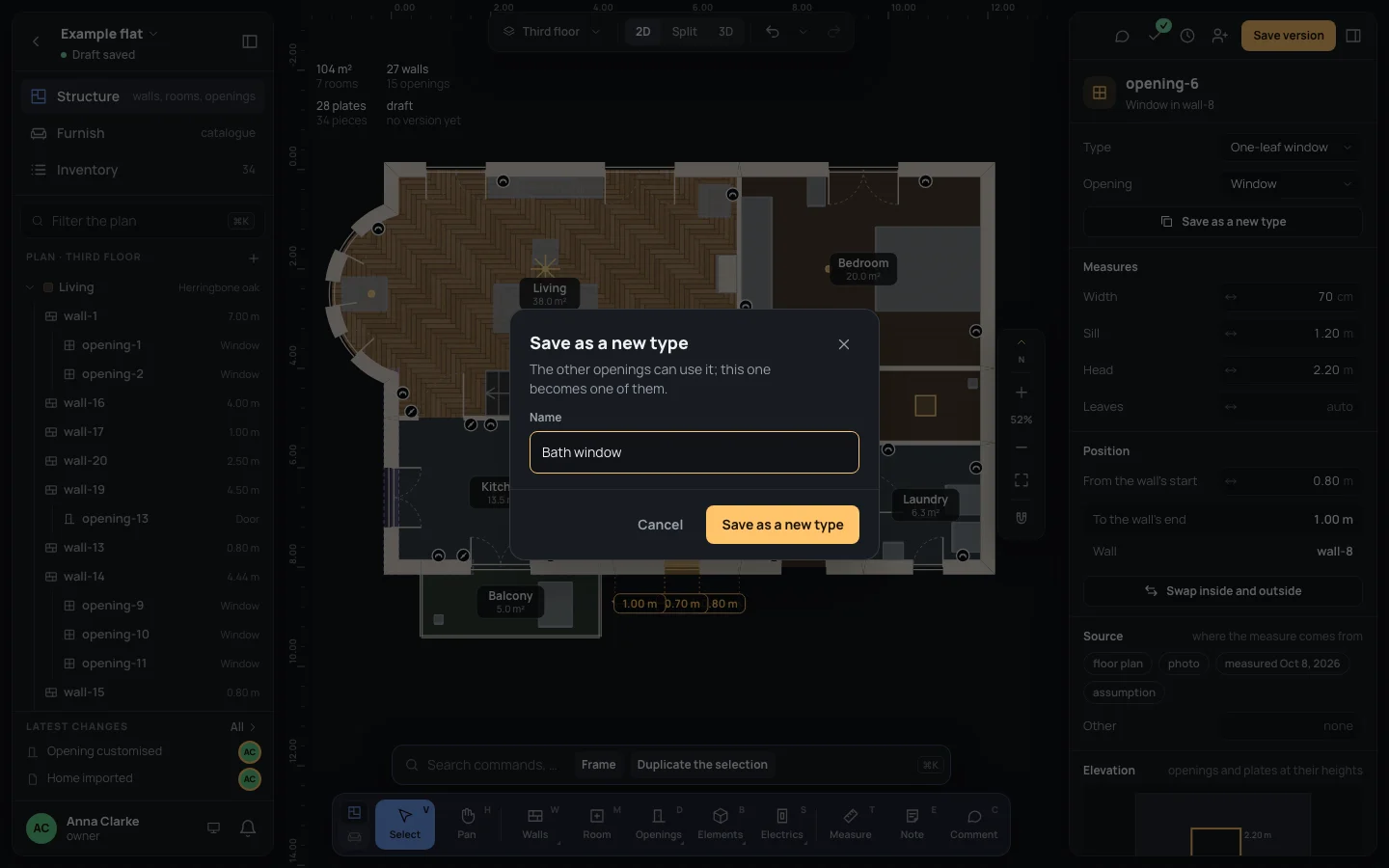
- Select it, on the plan or in the left panel.
- In its Glazing, choose Frosted. The part says changed: the other one-leaf windows stay clear.
- Click Save as a new type, and name it Name
Bath window. Click Save as a new type: the house has eight types, and the bath’s window is a Bath window.
Applying a type to several openings
Section titled “Applying a type to several openings”Select the openings together (⇧Shift and click, on the plan or in the left panel): with only openings selected, the inspector has Apply a type. Choose a type, or No type.
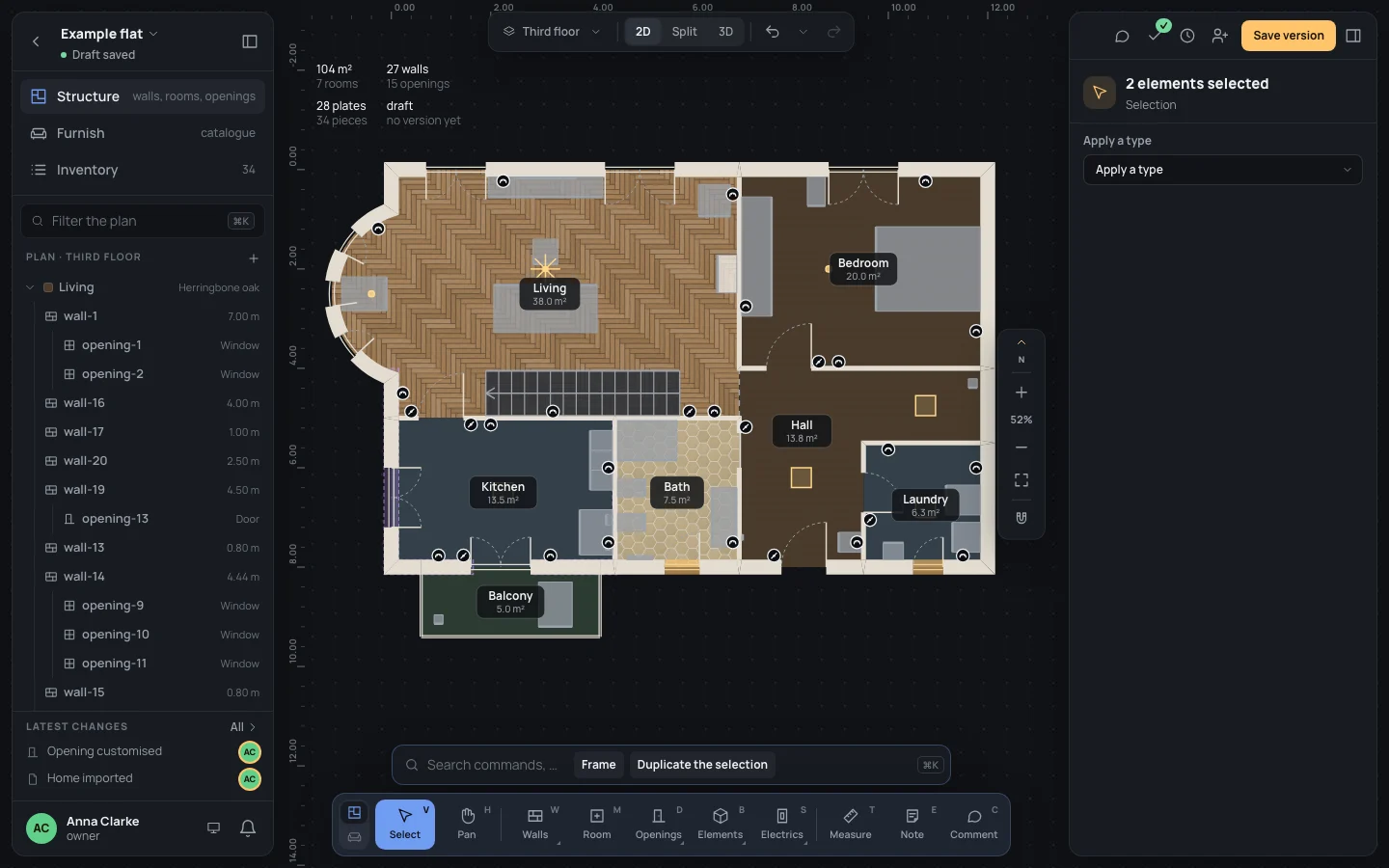
Applying a type, from here or from one opening’s Type, gives the openings that type’s kind, sill, head and parts, and drops the parts they had changed; they keep their place on the wall and their width. No type leaves them with their kind’s usual parts.
The type each tool starts with
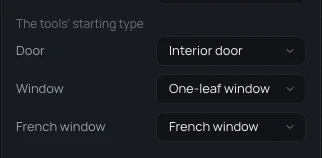
Section titled “The type each tool starts with”In the house’s panel, To start with has The tools’ starting type: a type for the Door, the Window and the French window tool, among the types of that kind (No type to start with none; with no type of a kind, its field is greyed out). The tool then places that type, at its width, until you pick another in its bar. A house made with the guided setup starts each tool with the first type of its kind.
Deleting a type
Section titled “Deleting a type”Delete the type, at the bottom of a type, deletes it, and no tool starts with it any more. A type in use can’t be deleted: instead of the button it says It’s in use: take the type off its openings first. Select its openings and apply them another type, or No type, then delete it.
If something goes wrong
Section titled “If something goes wrong”Every change to a type is one step of the history (Type created, Type changed, Saved as a type, Type applied, Type deleted): ⌘ZCtrl+Z undoes it, ⇧⌘ZCtrl+Shift+Zor⌘YCtrl+Y does it again. A type changed by mistake changes all its openings back with a single undo.
See also
Section titled “See also”- Doors and windows: one opening’s inspector.
- Opening parts: every part a type has.
- Door, Window, French window: choosing the type to place.