

Connecting an app
An app can use your Blupinta account when you allow it: a home dashboard that shows the last version saved of your home, or a service made by someone else. Blupinta never gives it your sign-in: it gives it its own key, for what you allowed and nothing else, which you can take back at any time.
A device, with a code
Section titled “A device, with a code”A device with no keyboard, like a wall tablet, shows a short code (BCDF-GHJK) and the address auth.blupinta.app/device.
- Open the address on your phone or computer and type the code in Code, then Continue.
- Does your device show this code? shows the code again with the app’s name (A device, for a device that connects without being registered, like a home dashboard): go on with Yes, go on only if the device shows the same one. No, cancel stops it.
- Sign in, if you aren’t already (Signing in).
- The app’s page says what it will be able to do, and asks Which projects may it read? among your own projects. Tick one or more. A device without a registered name also asks for its Name of the device (Kitchen tablet, up to 60 characters): it is how you’ll find it among your connected apps. Then Allow.
- Device connected: the device connects by itself in a moment.
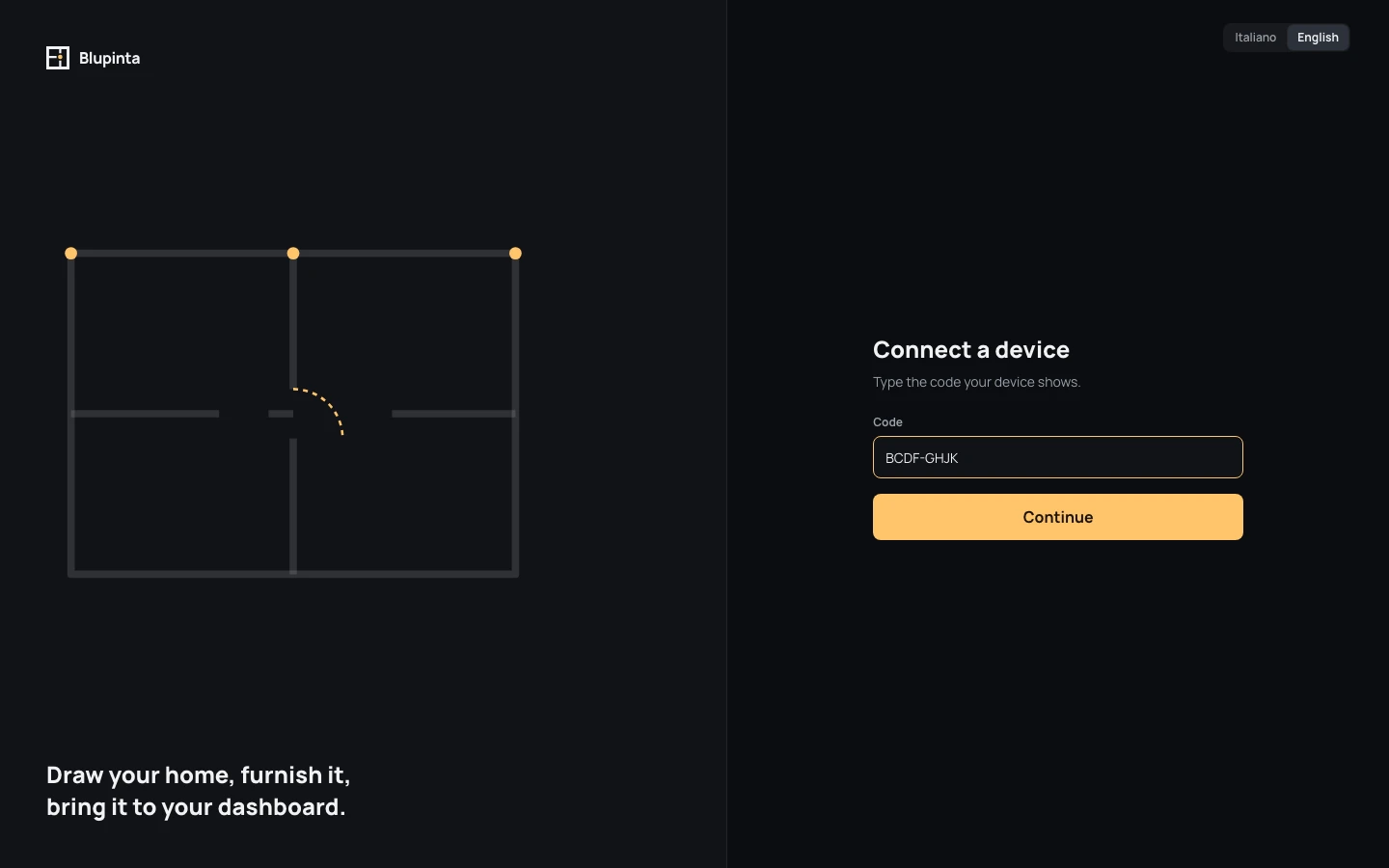
A code that isn’t the device’s, or that has expired (after 10 minutes), says That code isn’t valid or has expired: check your device and type it again.
What an app may ask
Section titled “What an app may ask”An app’s page lists what it asks, in your words: see your name and language, see your email address, stay connected until you disconnect it, read the saved versions of the projects you choose. An app that reads projects reads those only, and only their saved versions, never the draft (History and versions). Don’t allow sends you back to the app without giving it anything.
An app its developer has just registered is unverified until Blupinta checks who makes it: only that developer can connect it, and its page says Unverified app. Anyone else is told This app isn’t verified by Blupinta yet and connects nothing (Registering it).
Disconnecting an app
Section titled “Disconnecting an app”Your connected apps are in the settings, Account › Connected apps, each with what it may do, the projects it reads, who allowed it and when it was last used. A project’s apps are also at the bottom of its Share window (Inviting people), where its owner can take that project away from them.
Disconnect, in your account, asks first (Disconnect Wall tablet?): the app stops working at once, and connecting it again needs a new code. Deleting your account disconnects it too.
Remove from this project, in a project’s Share window, asks first too (Take “Casa” away from Wall tablet?): the app stops reading that project at once, and keeps reading the other projects it was given. Deleting a project does the same for every app that reads it.