

Your settings
Your settings are one window over any page, for how Blupinta looks and behaves for you. Everything saves as you change it and is kept with your account, so your other devices find it too.
Opening and closing it
Section titled “Opening and closing it”- Open your menu (your initials, top right on the projects page, or your name at the bottom of the editor’s left panel) and choose Settings, or press ⌘,Ctrl+, from anywhere, even while typing in a field.
- The window opens on Appearance. Pick a section on the left; your name at the top opens Account.
- Close it with EscEsc, the ✕, or a click outside it.
Some places open it on a section of their own: ?? and Keyboard shortcuts on Shortcuts, Language on Language and formats, About on About. The section open is in the page’s address, so a reload finds it again and the browser’s back button closes it. The search (⌘KCtrl+K) finds settings too.
The window says it under its list: Saves itself · works on every device. There is no Save button and nothing to undo: to go back, choose what you had.
The account menu
Section titled “The account menu”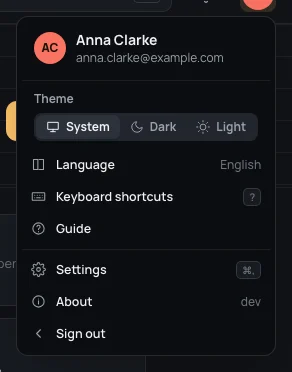
The same menu on every page, with your name and address on top:
- Theme: System, Dark or Light, chosen in place (the same as in Appearance).
- Language, with the one you use: opens Language and formats.
- Keyboard shortcuts (??): opens Shortcuts.
- Guide: this guide, in a new tab, in your language.
- Settings (⌘,Ctrl+,): the window, on Appearance.
- About, with the version you have: opens About.
- Sign out: this device leaves your account and goes back to the sign-in page. Your other devices stay signed in (Your account signs them out).
Finding a setting
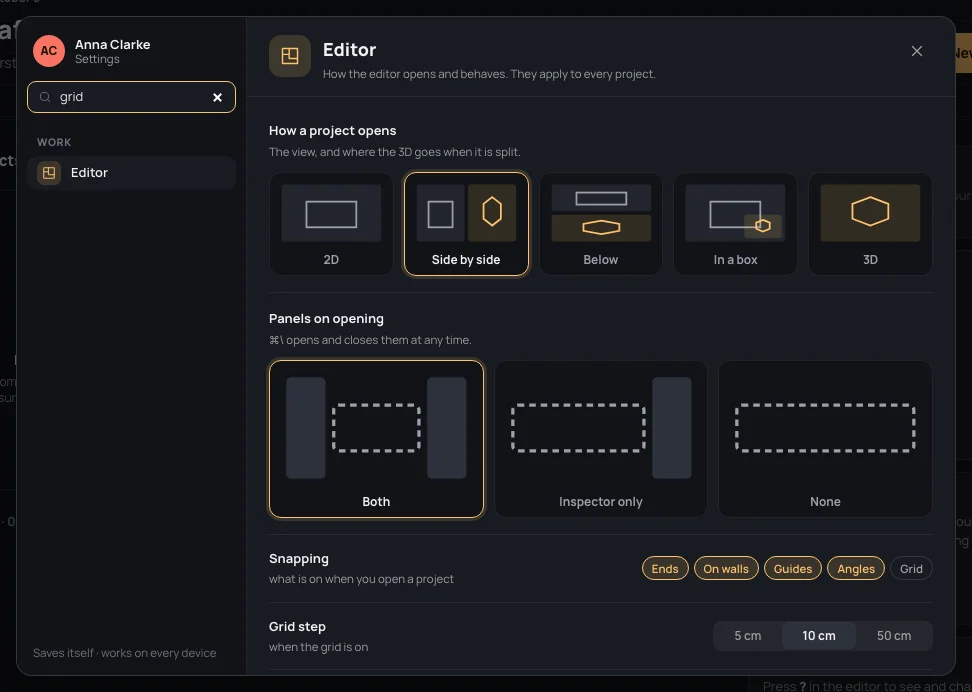
Section titled “Finding a setting”Search a setting, at the top of the list, keeps the sections whose name or words match what you type, and opens
the first one. Try Search a settinggrid: only Editor is left, and it opens.
Nothing matching says No settings.
The sections
Section titled “The sections”The list has four groups: You (Account, Notifications), Look and measures (Appearance, Language and formats, Units), Work (Editor, New homes, Shortcuts) and Blupinta (About).
Account
Section titled “Account”Your name and photo, your address, passkeys, the devices you’re signed in on, your data and deleting the account: they have a page of their own, Your account.
Notifications
Section titled “Notifications”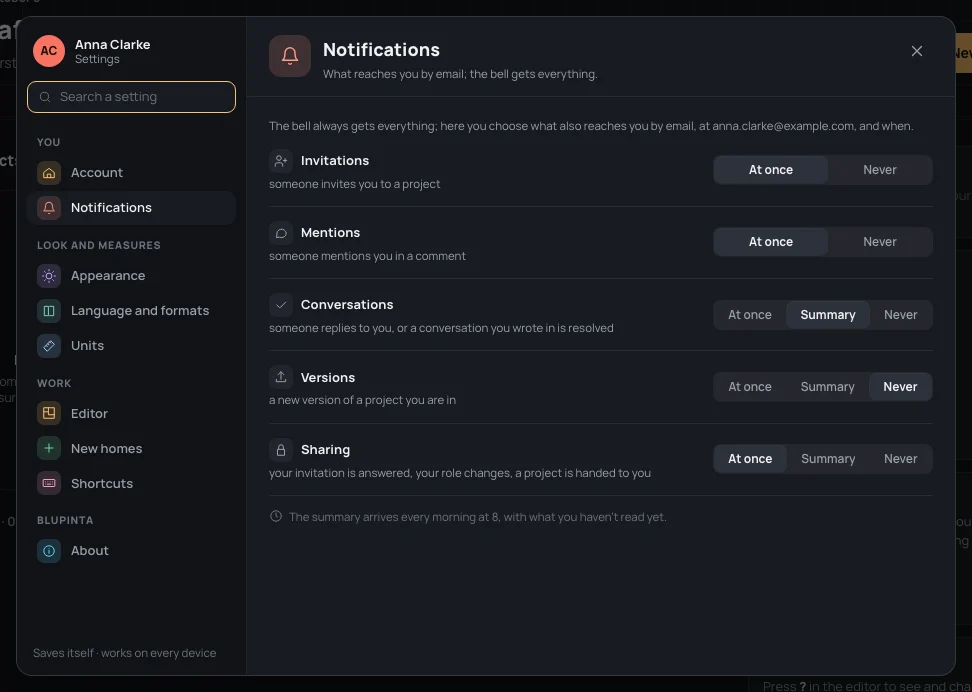
What reaches you by email too, at your account’s address, and when: At once, in the Summary that arrives every morning at 8, or Never. The bell gets everything anyway, whatever you choose here.
- Invitations: someone invites you to a project. At once or never; it starts at once.
- Mentions: someone mentions you in a comment. At once or never; it starts at once.
- Conversations: a reply in a conversation you opened, a conversation you wrote in resolved or reopened. It starts in the summary.
- Versions: a new version of a project you are in. It starts at never.
- Sharing: your invitation answered, your role changed, a project handed to you, being removed from one. It starts at once.
The summary holds only what you haven’t read in the bell yet. More in Notifications.
Appearance
Section titled “Appearance”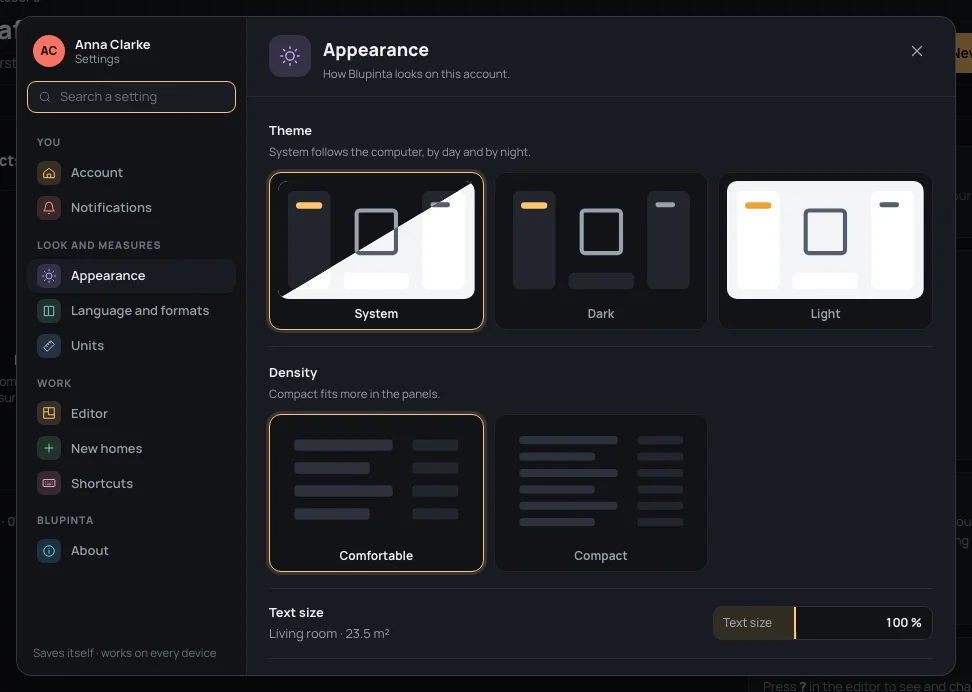
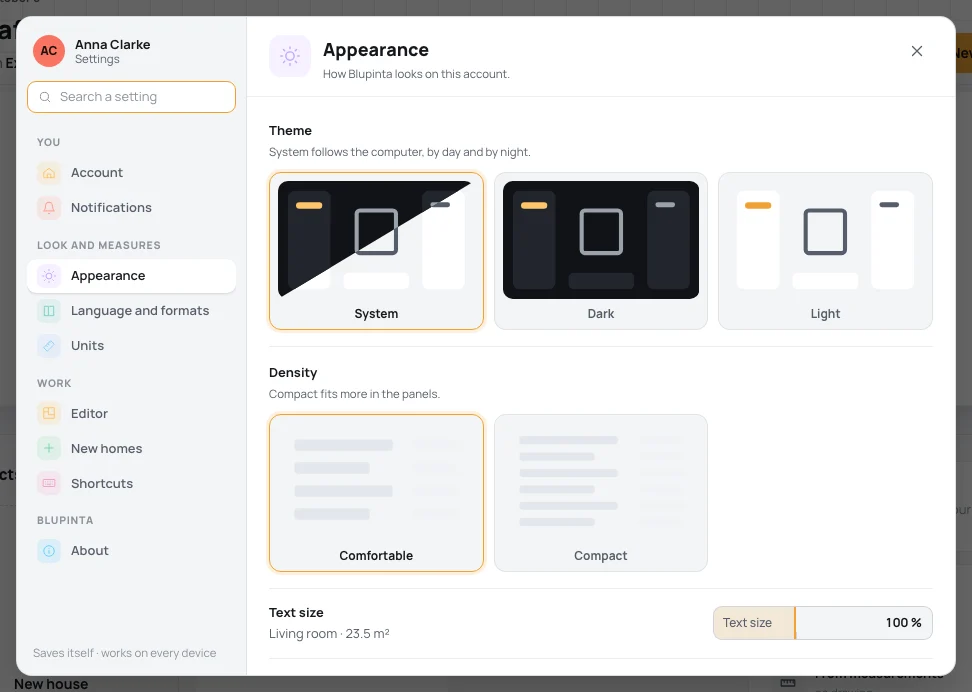
- Theme: System follows your computer, by day and by night; Dark and Light stay as they are. It changes this device at once and is kept with the account, so your other devices take it once you sign in there.
- Density: Comfortable or Compact; compact fits more in the panels.
- Text size: how large the whole app is drawn, from 85 % to 125 % in steps of 5 (100 % is marked). The line under it (Living room · 23.5 m²) grows as you drag; the app changes when you let go.
- Room colours: how the plan colours rooms in every project. Automatic gives each room its own colour until you choose its floor, Per room always gives one colour per room, Per floor uses the floor’s colour.
Language and formats
Section titled “Language and formats”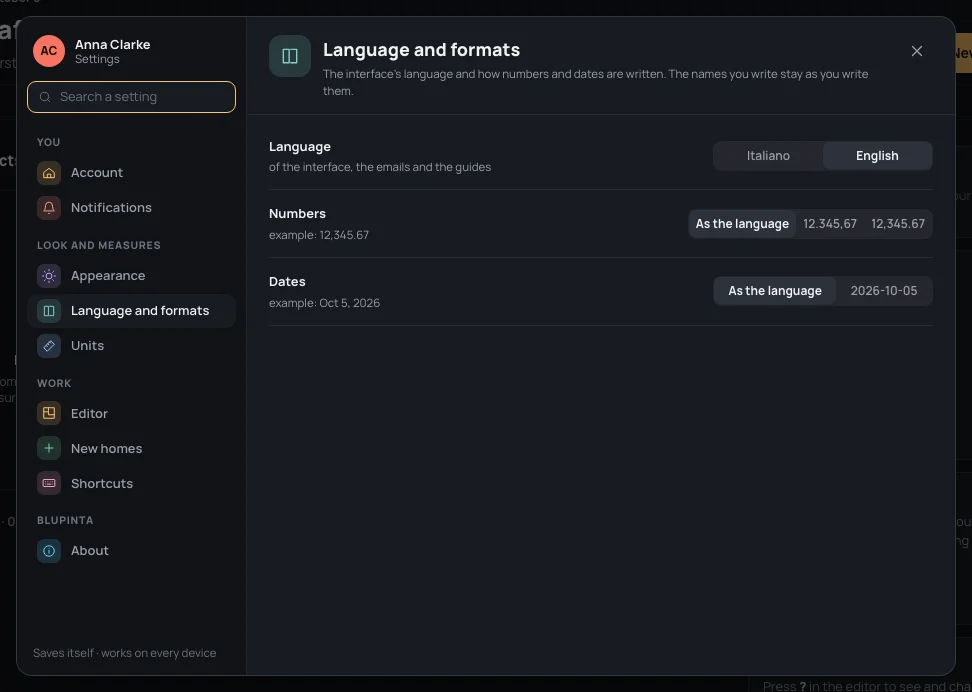
- Language: Italiano or English, for the app, the emails Blupinta sends you and this guide.
- Numbers: As the language (a comma before the decimals in Italian, a point in English), or always 12.345,67, or always 12,345.67. The line under it shows how a number is written now.
- Dates: As the language (Oct 5, 2026 in English, 5 ott 2026 in Italian), or always year, month and day (2026-10-05).
The names you write yourself, of a project or a room, stay as you wrote them in any language.
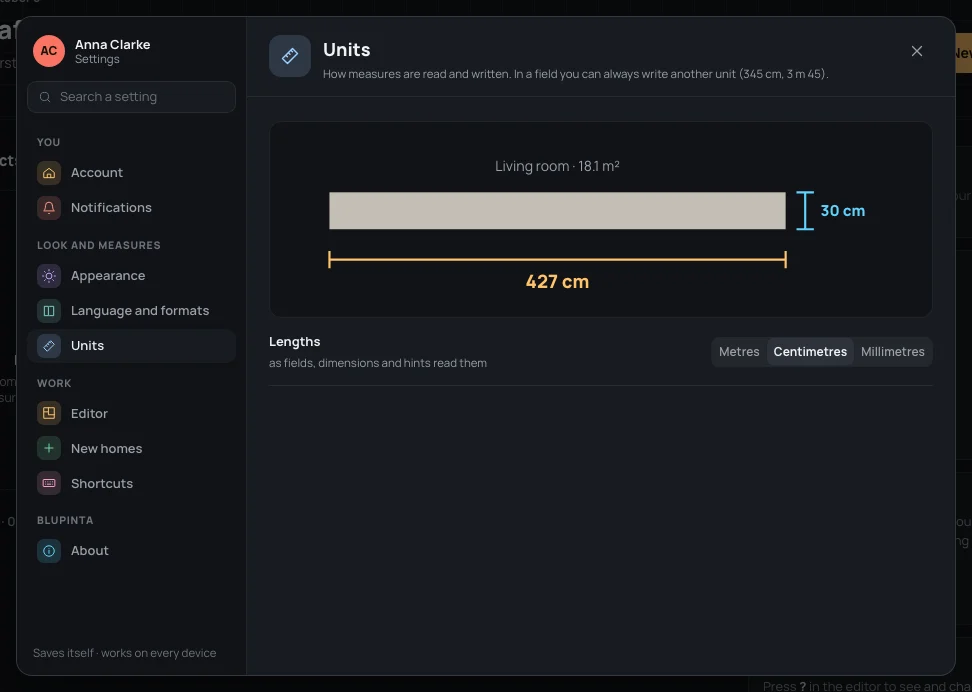
- Lengths: Metres, Centimetres or Millimetres: how fields, dimensions and hints write a length. The wall drawn above changes as you choose.
- Decimals, only with metres: 1, 2 or 3; 2 (the centimetre) to start with.
A field still takes any unit you type, whatever you choose here: with metres, To type345 cm or
To type3 m 45 are both 3.45 m. Everything a field understands is in
Units and numbers.
Editor
Section titled “Editor”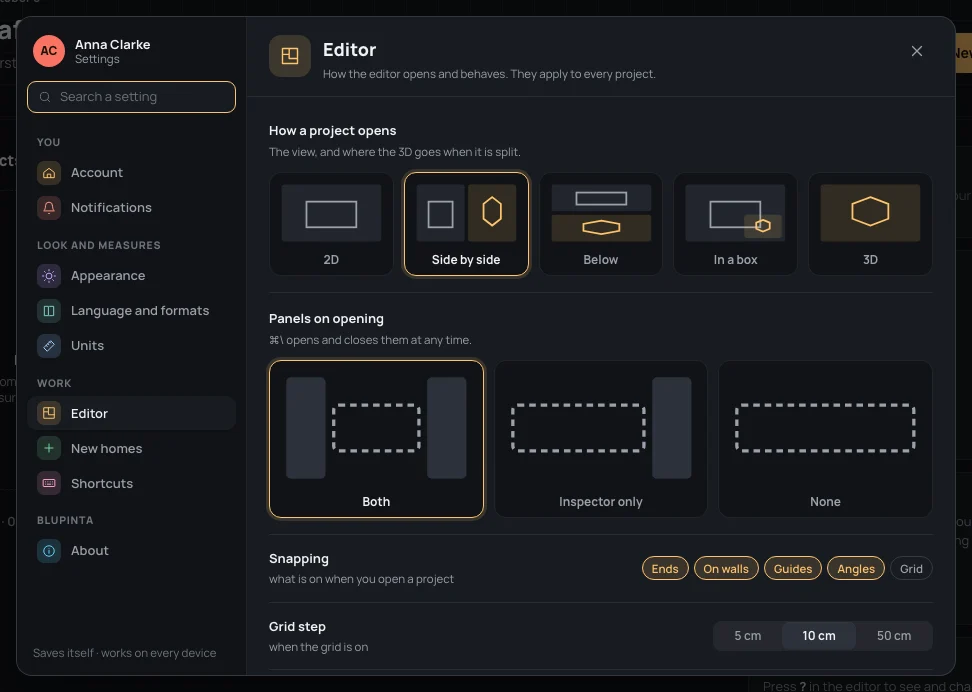
These apply to every project you open:
- How a project opens: 2D, 3D, or split with the 3D Side by side, Below or In a box. It starts on Side by side. In a project you can change the view at any time (The plan and the 3D).
- Panels on opening: Both, Inspector only or None. ⌘\Ctrl+\ opens and closes them at any time.
- Snapping: what the pointer snaps to when a project opens: Ends, On walls, Guides, Angles (on to start with) and Grid (off).
- Grid step: 5 cm, 10 cm (to start with) or 50 cm, when the grid is on.
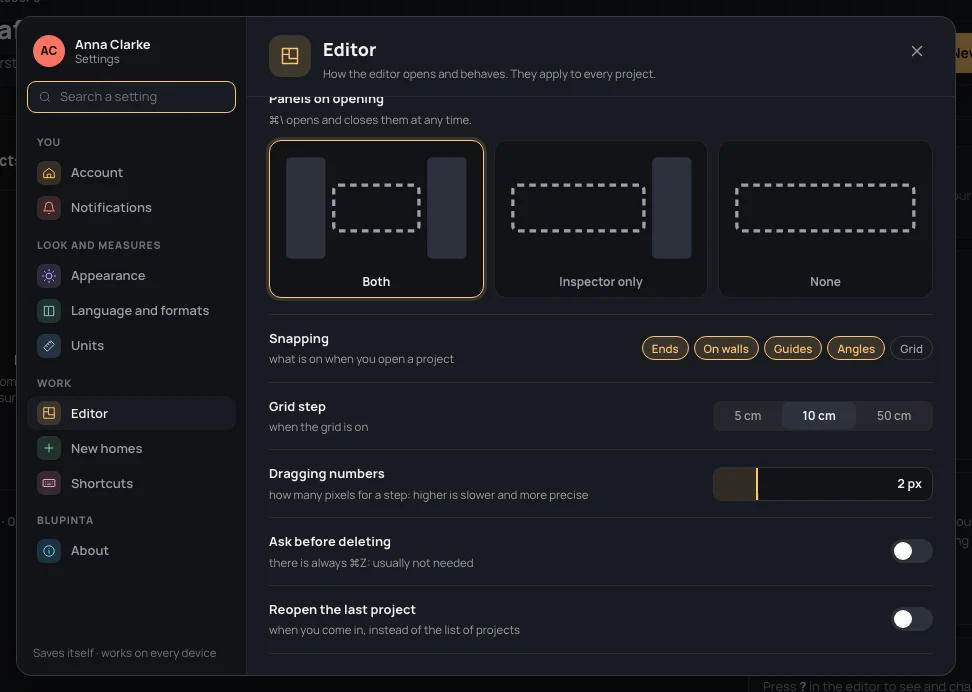
- Dragging numbers: how many pixels you drag a number for one step, from 1 to 6 px (2 to start with): higher is slower and more precise.
- Ask before deleting: off to start with, since ⌘ZCtrl+Z always brings back what you deleted. On, deleting in the editor asks first.
- Reopen the last project: on, coming into Blupinta opens the project you worked on last instead of the list of projects (only when Blupinta is the first page of the tab, and the project is still in your list).
New homes
Section titled “New homes”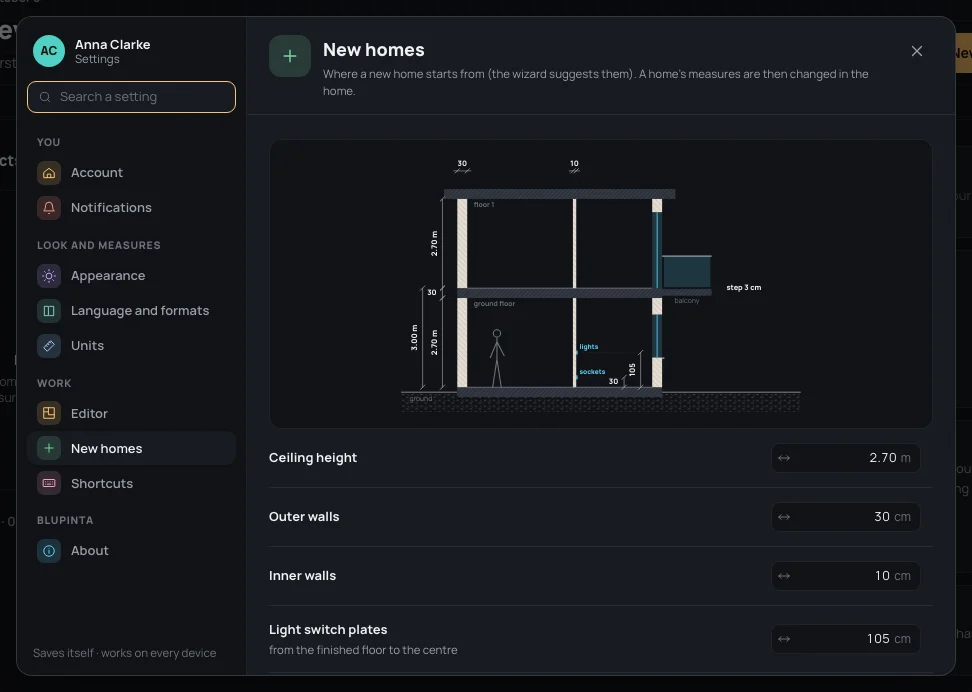
The measures a new home starts from. The new home’s wizard offers them; then each home has its own, changed in the home (House settings), and changing these doesn’t touch the homes you already have.
| measure | to start with | from – to |
|---|---|---|
| Ceiling height | 2.70 m | 1.80 – 6 m |
| Outer walls | 30 cm | 5 – 100 cm |
| Inner walls | 10 cm | 3 – 60 cm |
| Light switch plates | 105 cm | 20 – 200 cm |
| Sockets | 30 cm | 10 – 200 cm |
The ceiling is in your unit, the walls and the plates in centimetres; the plates’ heights are from the finished floor to their centre. Type a measure and press ↵↵, or drag the field sideways: the section above follows. Saved, it says Saved: it applies to new homes. A measure outside its range isn’t kept: the field says the range it takes (A measure between…).
For example, for a house with higher ceilings and thinner outer walls: Ceiling height2.80
and Outer walls25.
Shortcuts
Section titled “Shortcuts”Every command of the editor and its keys, and how to change them: see Every key.
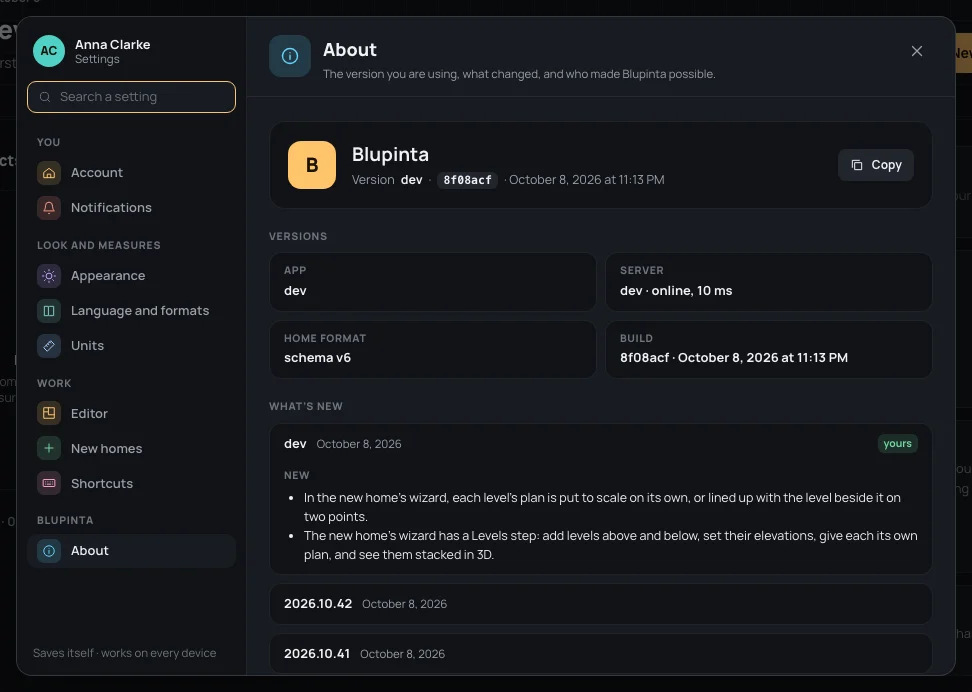
- On top, the Version you are using, its build and its date. Copy puts the version, the server’s and your browser on the clipboard for a report (Version copied: paste it into your report).
- Versions: App, Server (its version and how fast it answers, or unreachable), Home format (the schema’s version), Build.
- What’s new: each release, what it added (New) and fixed (Fixes); the latest is open, and yours is marked yours.
- This device: your Browser, whether it can draw 3D (WebGL 2, WebGL, or not available), the Language and the Theme.
- Help and legal: Guide, Report a problem (an email with the version and the device already written), Write to us and Privacy (what we keep and why).
- Thanks to: what Blupinta is made with, each with its licence.
A new version
Section titled “A new version”On the web a new version arrives by itself: each time you come back to Blupinta’s page, it asks the server which version it runs, and loads the newer one at once. If you have changes the server doesn’t have yet, it waits for the next time. Nothing of the draft is lost: it lives on the server. About says which version you have.
When something breaks
Section titled “When something breaks”If Blupinta meets an error it didn’t expect, the page says Something broke (in the editor, The editor stopped, and that your drawing is safe: what was in the draft stays on the server). Reload the page (in the editor, Open the project again) usually puts things right; Back to projects leaves the page.
Below, For support tells us which error it was. The error is reported to us by itself, without your name, the project or its address: just what went wrong, on which kind of page, in which version and browser. When the report reaches us you see Report received and a Code, the same for everyone who met the same error: write it in a message and we find it at once. Copy the details puts the code, the version, the time and the technical details on the clipboard; Write to us opens an email with them already written. If the report couldn’t go out (Report not sent: offline, say), the email carries the details itself.
Two cases aren’t errors and say so: A new version is out, when Blupinta was updated while the page was open, and You’re offline, when the page couldn’t load without a connection. Both only need Reload the page.