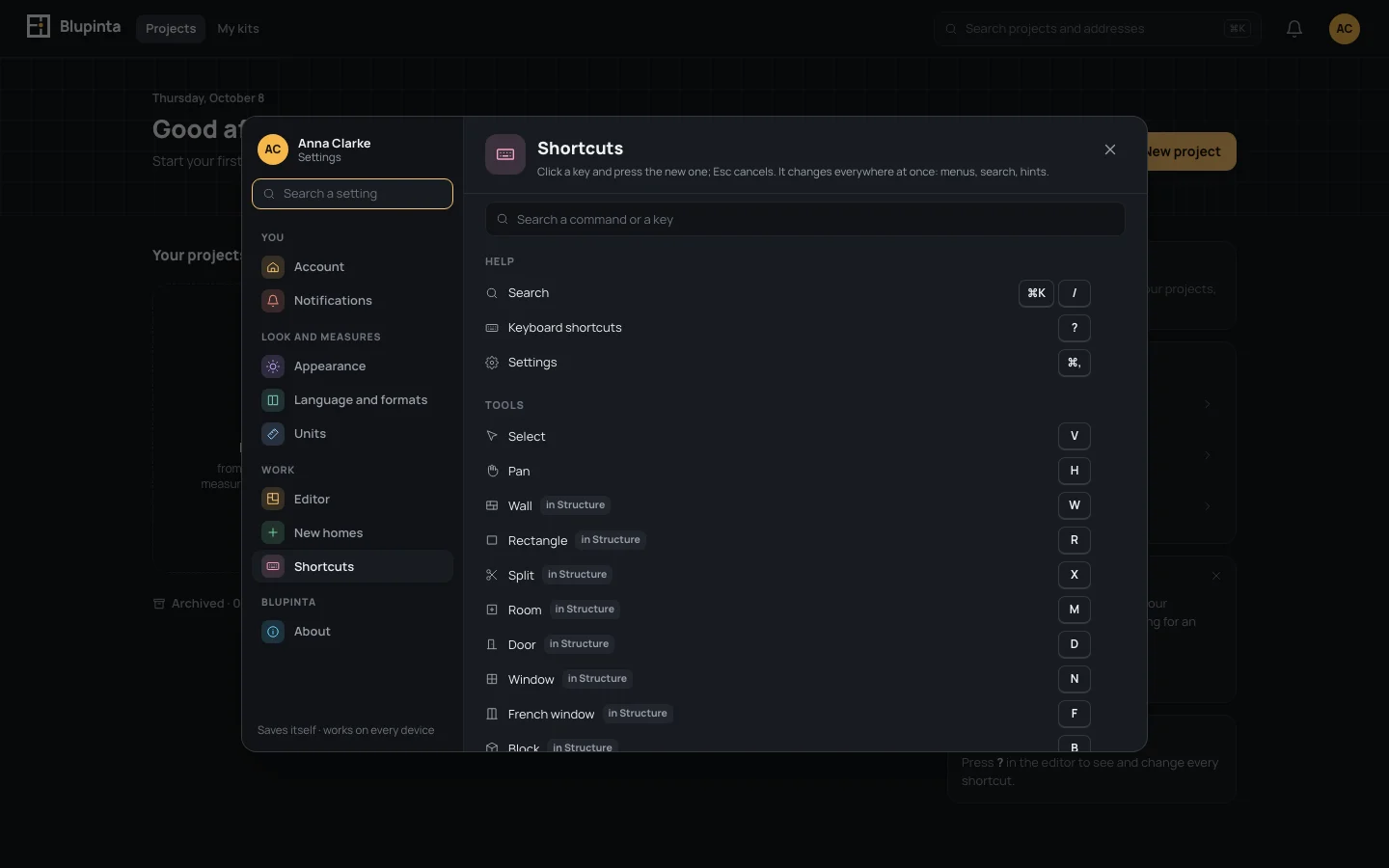
Every command of the editor has a name, and most have a key. This page lists them all, as they are when you start:
if you change one, the editor uses yours everywhere (the menus, the search and the hints say it too). Keys are
written for your computer: ⌘Ctrl is ⌘ on a Mac and Ctrl elsewhere.
Where it works: most keys work everywhere. Some only in a workspace (a tool of Furnish, for instance), some
only while a tool is on (↵↵ ends what you are drawing), some only with furniture
selected (RR turns it), some inside the search.
Fixed keys can’t be changed: EscEsc, ↵↵ and TabTab inside a
tool, and the search’s own.
While held: ⌘Ctrl, ⇧Shift, ⌥Alt and ␣␣ are
held while the pointer moves or clicks, and change what it does (no snapping, every 15°, add to the selection,
through a wall, move the view). They are read by the pointer, so they are shown but never changed.
A command with no key is reached from the search (⌘KCtrl+K), a menu or a
button; you can give it one.
Open the settings (⌘,Ctrl+,) on Shortcuts, or press ??.
Find the command: type part of its name, or the key itself, in Search a command or a key.
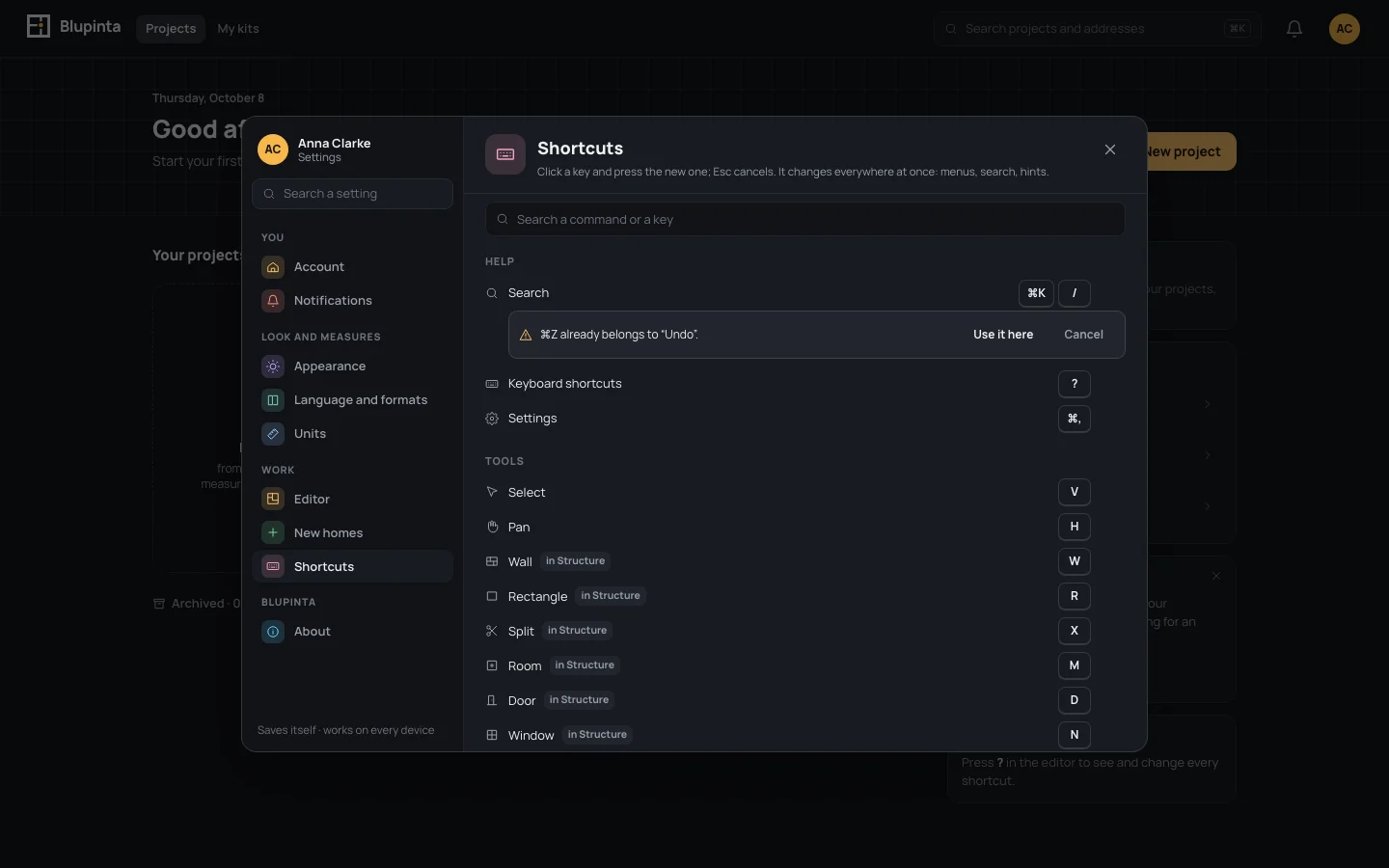
Click its key and press the new one; EscEsc gives up. A command with no key has Add.
If the key belongs to another command that works in the same place, the editor says so and asks: Use it
here moves it, and the other command is left without it.
The browser keeps some keys for itself (⌘WCtrl+W, ⌘TCtrl+T, ⌘QCtrl+Q, ⌘NCtrl+N, ⌘RCtrl+R, ⌘LCtrl+L, ⌘TabCtrl+Tab, ⇧⌘TCtrl+Shift+T, ⇧⌘NCtrl+Shift+N and ⇧⌘WCtrl+Shift+W): the editor refuses them
and says so. Next to a changed command, Back to gives it its own keys again; Changed only shows only the ones
you changed, and Reset all gives every command its own keys back (it doesn’t ask first). Your keys are kept
with your account and work on every device you sign in on.