

Room
The Room tool makes a room in a region the walls close: one click inside it, and the room is there, named Room 1, selected, with its name ready to be typed.
Picking it
Section titled “Picking it”- Room in the dock, between Walls and Openings, or MM.
- With nothing selected, the command bar suggests New room: it picks the same tool.
- The search (⌘KCtrl+K): type Room.
- Without the tool: every closed region without a room shows a + and Make a room in its middle; a click on it makes the room there. The right click on such a region offers Make a room here (greyed out where the walls don’t close a region).
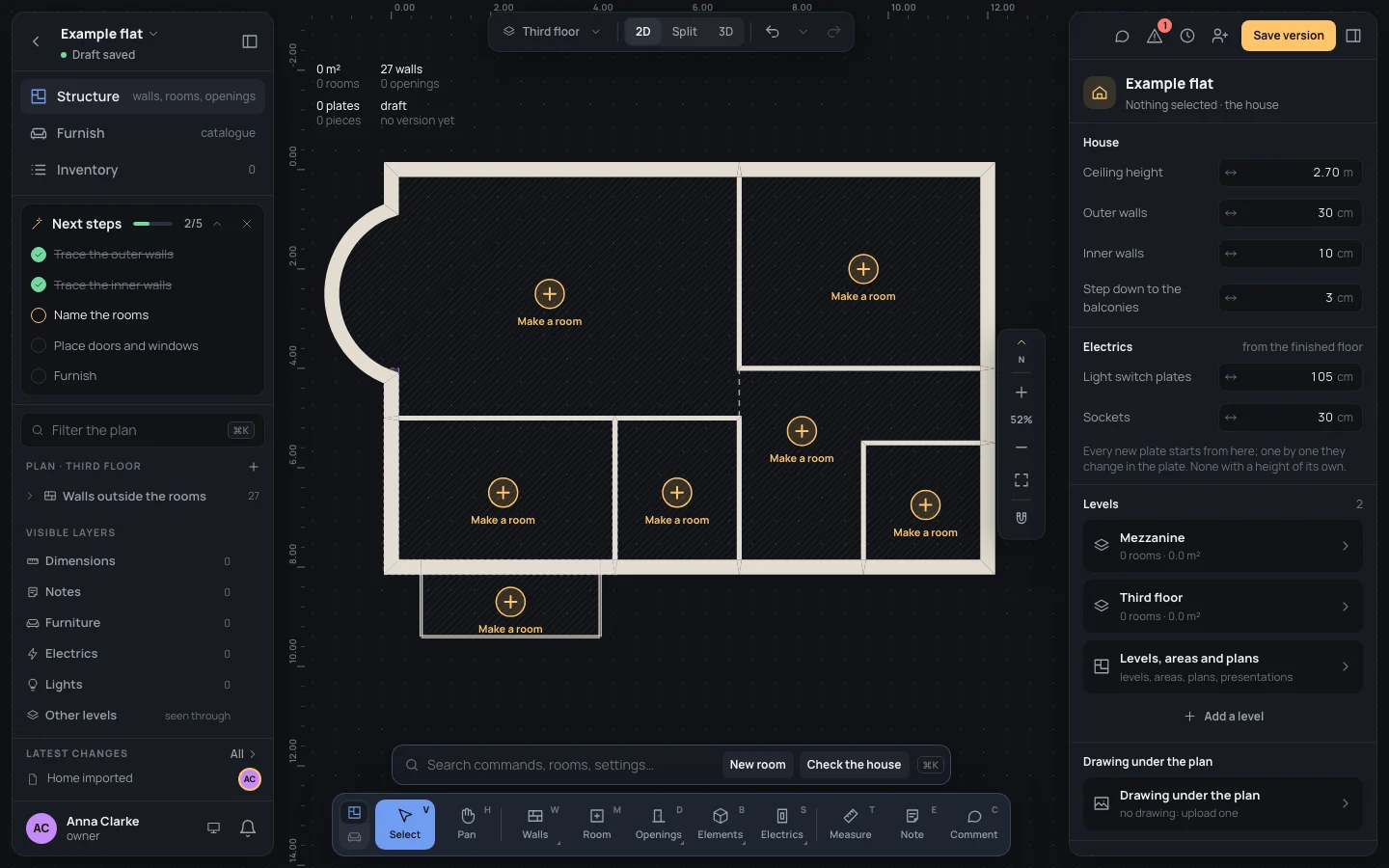
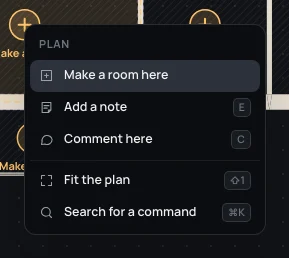
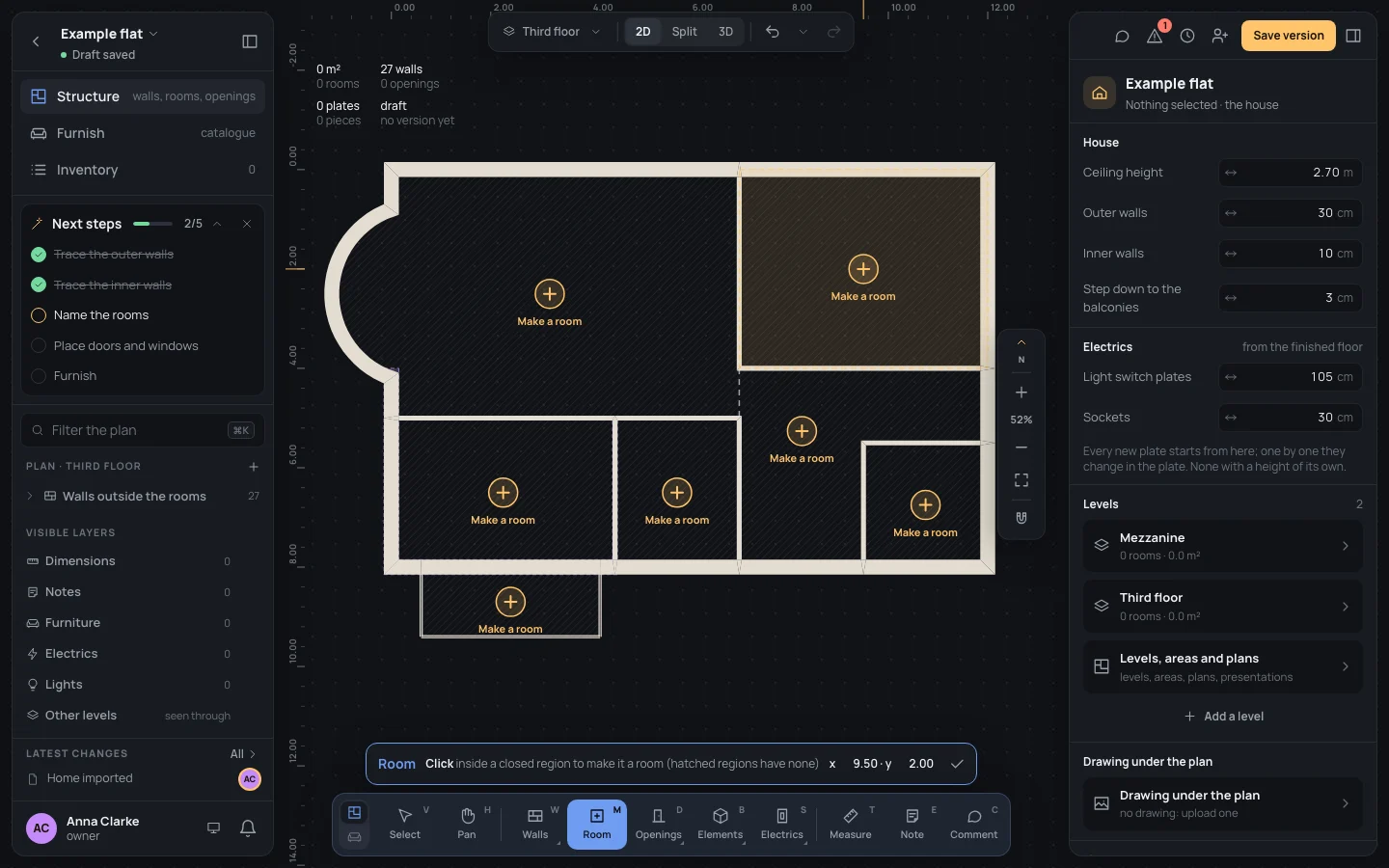
The tool has no options: its bar shows only its name, what to do, where the pointer is and Done.
Using it
Section titled “Using it”- Pick the tool. The regions closed by walls with no room are hatched.
- Move over one: it lights up, edged with a dashed line. Over a region that already has a room, that room lights up instead.
- Click inside it. The room is made, takes the region’s shape and is selected; the inspector opens on it with Name focused, its text selected.
- Type the name and press ↵↵. The tool stays on: click the next region.
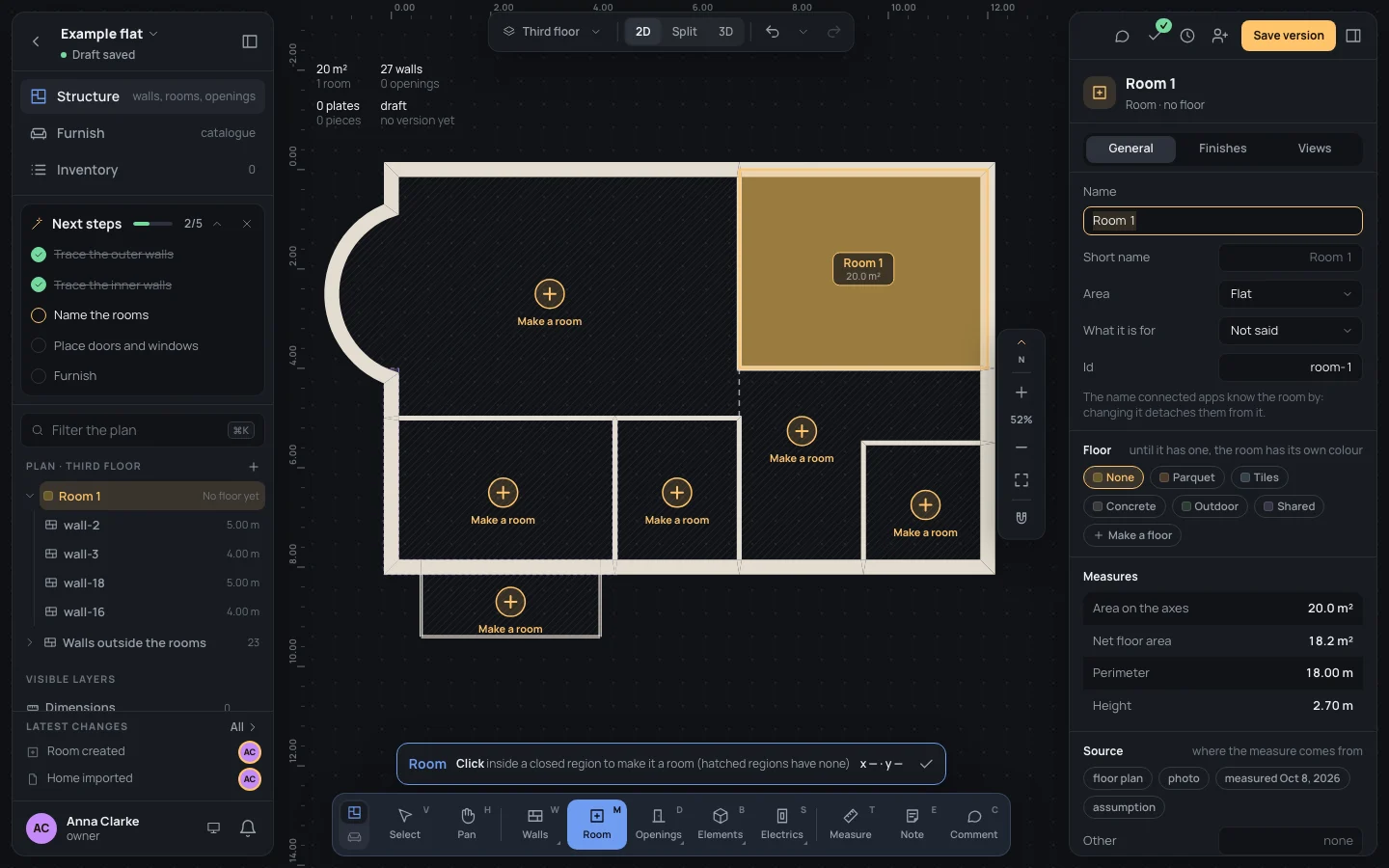
A new room is called Room 1, Room 2… (the number is the plan’s rooms plus one), goes in the area of the plan’s first room (or the home’s first area), and takes the floor the house gives new rooms, if it gives one (New rooms’ floor, in the house’s To start with); otherwise it has none yet and shows a colour of its own.
Keys inside it
Section titled “Keys inside it”- EscEsc or Done (✓) in the bar: back to Select.
- ␣␣ held: move the view; ⌘Ctrl with the wheel: zoom.
- Any other tool’s key picks that tool.
What it snaps to
Section titled “What it snaps to”Nothing: the room follows the walls around the point clicked, so where you click inside the region doesn’t matter.
What it refuses
Section titled “What it refuses”- A click outside every closed region (outside the flat, or where the walls leave a gap) makes nothing: it only clears the selection. Close the gap first (a wall’s end on the other’s, see Wall).
- A click in a region that already has a room makes no second room: it selects the one there.
The new room is selected and the tool stays on, so you can go round the plan region by region. Each room is one step in the history (Room created). Its use, floor, paint, id and the dashboard’s views are set in the inspector: Rooms.
Example: the bedroom
Section titled “Example: the bedroom”On the bare example flat (walls only), the bedroom is the region in the north-east corner, 5.00 × 4.00 m between the walls’ axes.
- Press MM.
- Click in the north-east region, round x 9.50 · y 2.00 (the bar shows where the pointer is).
- The inspector says Room 1, its name selected. Type Name
Bedroomand press ↵↵.
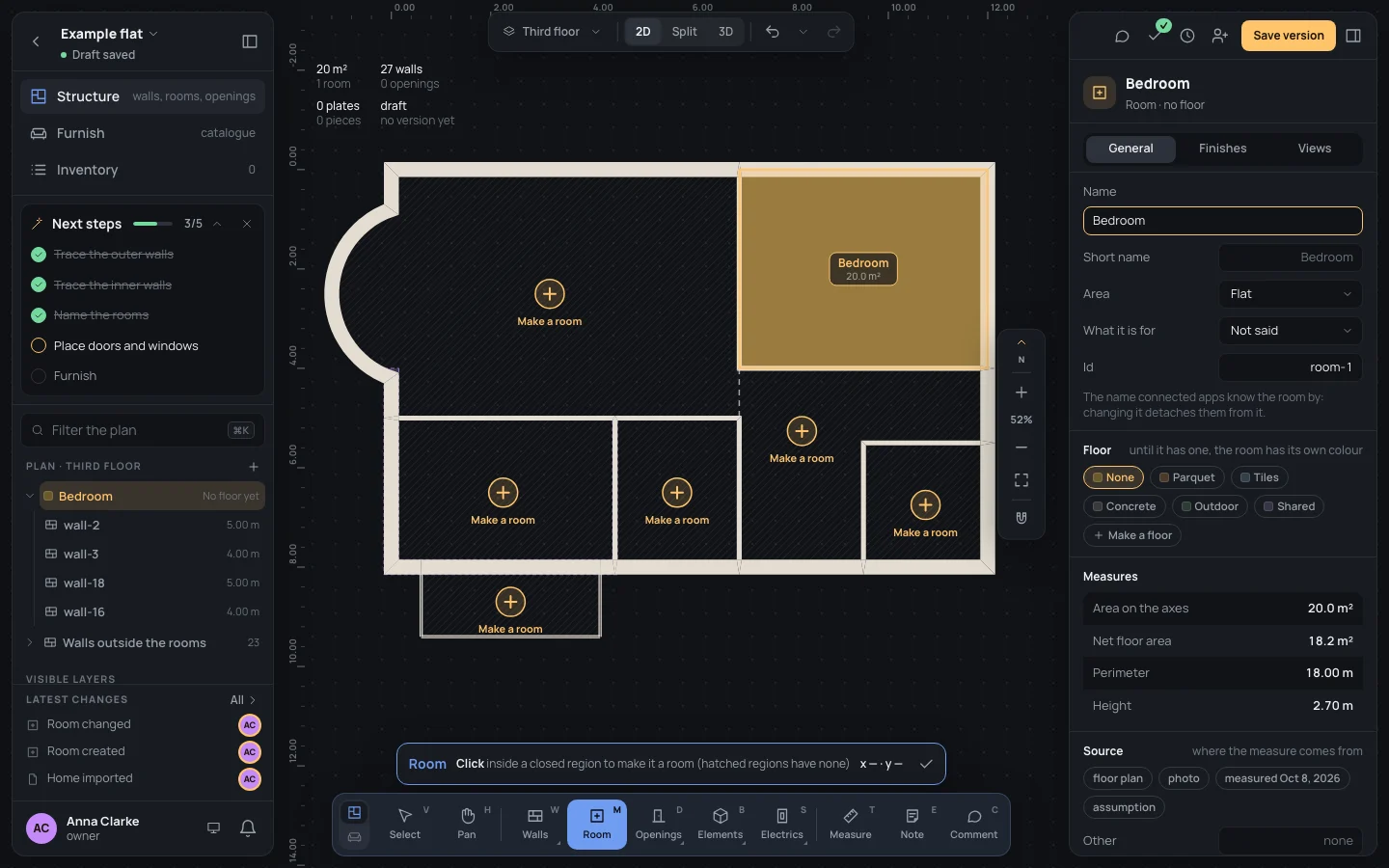
The measures read Area on the axes 20.0 m², Net floor area 18.2 m², Perimeter 18.00 m. Go on with the other regions: Living (with the bay), Kitchen, Bath, Hall, Laundry, Balcony.
If something goes wrong
Section titled “If something goes wrong”- The wrong region: ⌘ZCtrl+Z takes the room away, or select it and delete it (⌫⌫or⌦⌦): the walls stay, and its furniture stays in the home with no room (No room in the inventory).
- Nothing lights up where you expect a room: the walls don’t close it. Look for a corner where two walls don’t meet, or a wall that stops short.
- The name can be changed whenever you like in the room’s Name.