

Switches and sockets
Light switches and sockets are plates on one face of a wall. This page is about a plate once it is there: its type, its height, its modules and its place. Each plate belongs to the room its face looks into, and stands at the height the house gives its kind until you give it one of its own.
Putting one on a wall
Section titled “Putting one on a wall”The Electrics group of the dock holds the two tools: Light switch (SS) and Socket (OO). You click the side of the wall the plate goes on; how they place, and where they refuse, is on their own pages: Light switch and Socket.
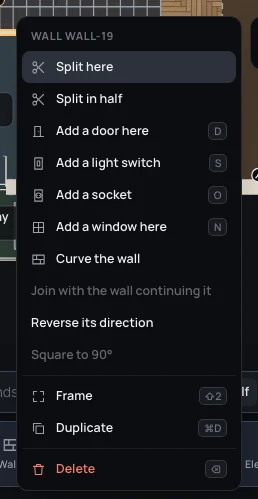
The right-click menu of a wall has the same two tools: Add a light switch and Add a socket. They are there only on walls and parapets: railings and separators take no plates.
The plate’s inspector
Section titled “The plate’s inspector”Click a plate on the plan, or its row in the left panel, and the right panel shows it. Its heading says its type, its kind, its room and its wall: Switch, Light switch · Living · wall wall-19.
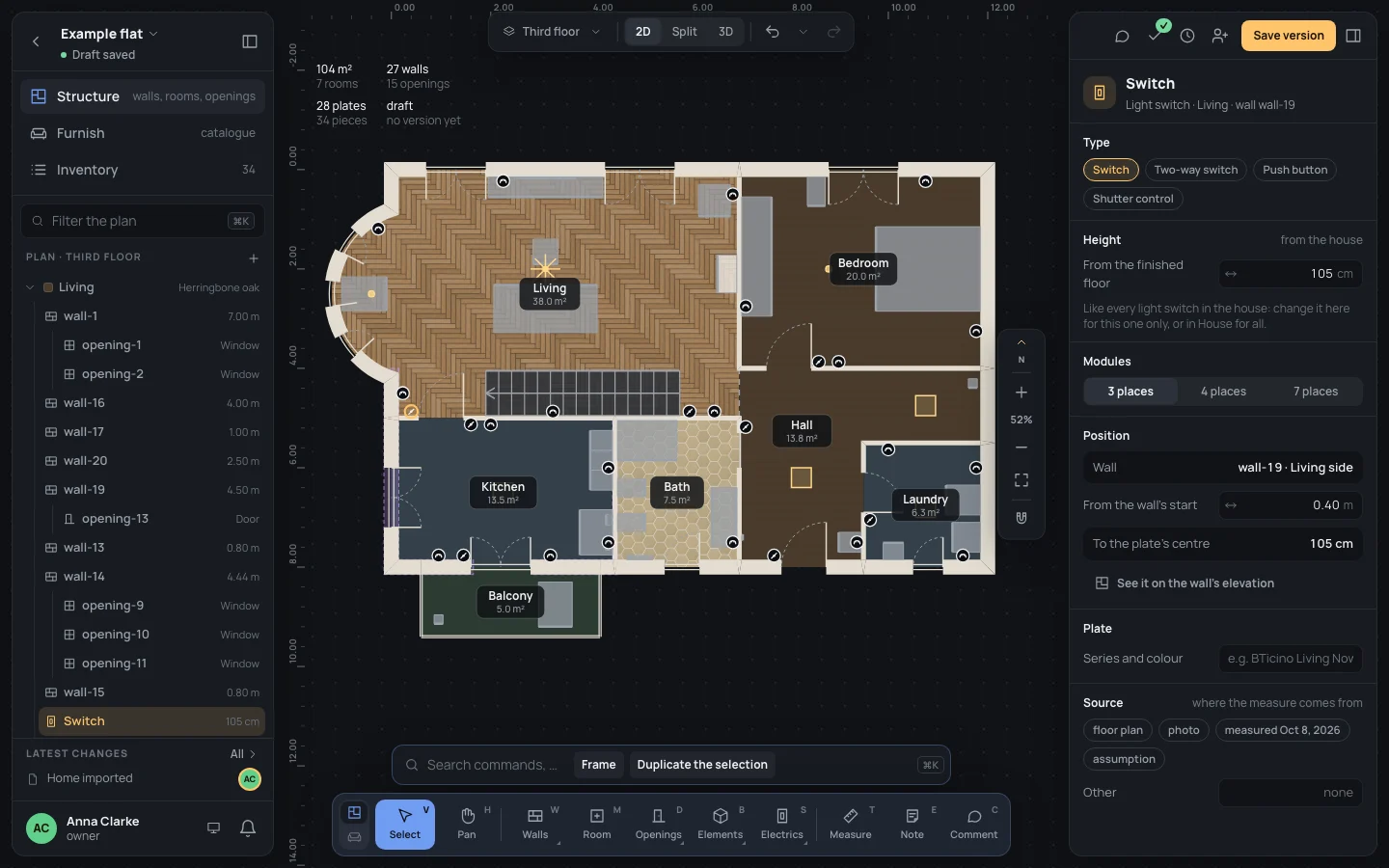
- Type: one of its kind’s. Light switches: Switch, Two-way switch, Push button, Shutter control. Sockets: Socket 10/16 A, Schuko, USB, TV, Data network. A new plate starts as the first.
- Height: From the finished floor to the plate’s centre, in cm. Under it, from the house while it follows the house; see below.
- Modules: 3 places, 4 places or 7 places: how wide the plate is on the wall. It starts at 3.
- Position: its Wall and the room on that side (wall-19 · Living side), From the wall’s start (typed or dragged, from 0 to the wall’s length), and To the plate’s centre, its height again. See it on the wall’s elevation opens the wall’s page on that face.
- Plate: Series and colour, free text as you would write it, e.g. BTicino Living Now · white. Nothing checks it: it is there for whoever reads the plan.
- Source: where its measures come from; see Measures and notes.
Each change is one step: ⌘ZCtrl+Z takes it back. ⌫⌫ deletes the plate.
Its height: the house’s, or its own
Section titled “Its height: the house’s, or its own”The house has one height for every light switch and one for every socket, from the finished floor to the plate’s centre: 105 cm and 30 cm unless you change them in the house’s inspector, Electrics (see The house’s settings). A plate follows them, and changes when they change, until you type a height in the plate itself.
- Select the living room’s light switch on wall-19, by the door to the kitchen. Height says from the house, and the field shows 105.
- Type From the finished floor
120and press ↵↵. The note becomes this plate only, and the plate gets an amber dot at its top right on the plan. - Back to the house’s height (105 cm), under the field, makes it follow the house again.
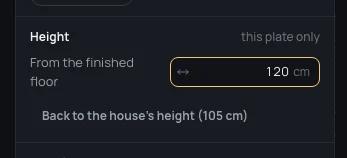
The height goes from 10 to 250 cm: anything else is refused with Between 10 and 250 cm from the floor. A place along the wall past its end is refused with Within the wall, from its start to its end.
The plate’s right-click menu
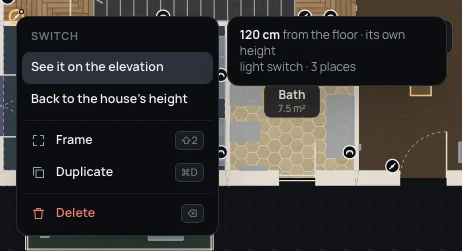
Section titled “The plate’s right-click menu”Right click a plate: its menu says its type and has See it on the elevation and, when it has a height of its own, Back to the house’s height. The card beside it gives its height in bold, whether it is its own or the house’s, its kind and its modules.
A wall’s plates
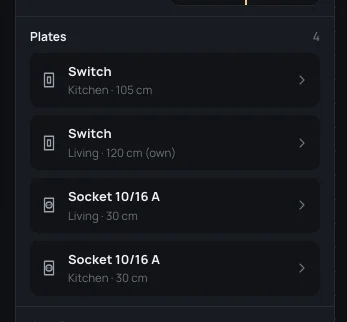
Section titled “A wall’s plates”A wall’s inspector lists its plates under Plates, with how many: each row its type, the room it faces and its height, (own) after a height of its own. A row selects the plate. A wall with none says so, with the two tools’ keys.
The wall’s Elevation draws the face with its openings and plates at their heights, the ones not at the house’s in amber: see Editing walls.
In the left panel, the search and 3D
Section titled “In the left panel, the search and 3D”The plates are in the left panel under their room, with their height. The search (⌘KCtrl+K) finds them by type, height and wall, and finds the house’s two heights as Light switch height and Socket height. In 3D each one is a thin plate on its wall’s face.
When walls change, plates go with them: a wall split, joined, turned round or moved keeps its plates on the same face, in the same room.
What can go wrong
Section titled “What can go wrong”- The plate went in the wrong room. It took the side you clicked. Delete it and click the other side of the wall, or ⌘ZCtrl+Z.
- All the sockets moved up. The house’s socket height changed in Electrics: plates of their own stay where they are, the others follow it.
- A plate has an amber dot and you don’t know why. It has a height of its own: Back to the house’s height in its inspector or its menu.