

Note
The Note tool leaves words on the plan, pinned where you click: what is behind a panel, what to ask the builder, what to check on site. A note is for people: it is printed with the plan, and the 3D and the dashboard never show it.
Picking it
Section titled “Picking it”- Note in Structure’s dock, or EE (the key works in Furnish too, where the dock doesn’t show it).
- The right click on an empty part of the plan: Add a note picks the same tool.
- The search (⌘KCtrl+K): type Note.
Only who can edit the project writes notes: a viewer’s dock has no Note.
Using it
Section titled “Using it”- Pick the tool. The bar says Click where to leave a note on the plan.
- Click where the note goes. Its pin appears there with a card beside it, titled Note, the cursor already in its text (What should people know here?).
- Write the words. ⇧↵Shift+↵ starts a new line.
- Pick its colour among Yellow, Coral, Green, Blue and Violet: the pin and the card’s dot take it at once. A new note starts with the colour of the last note on the plan, or yellow for the first.
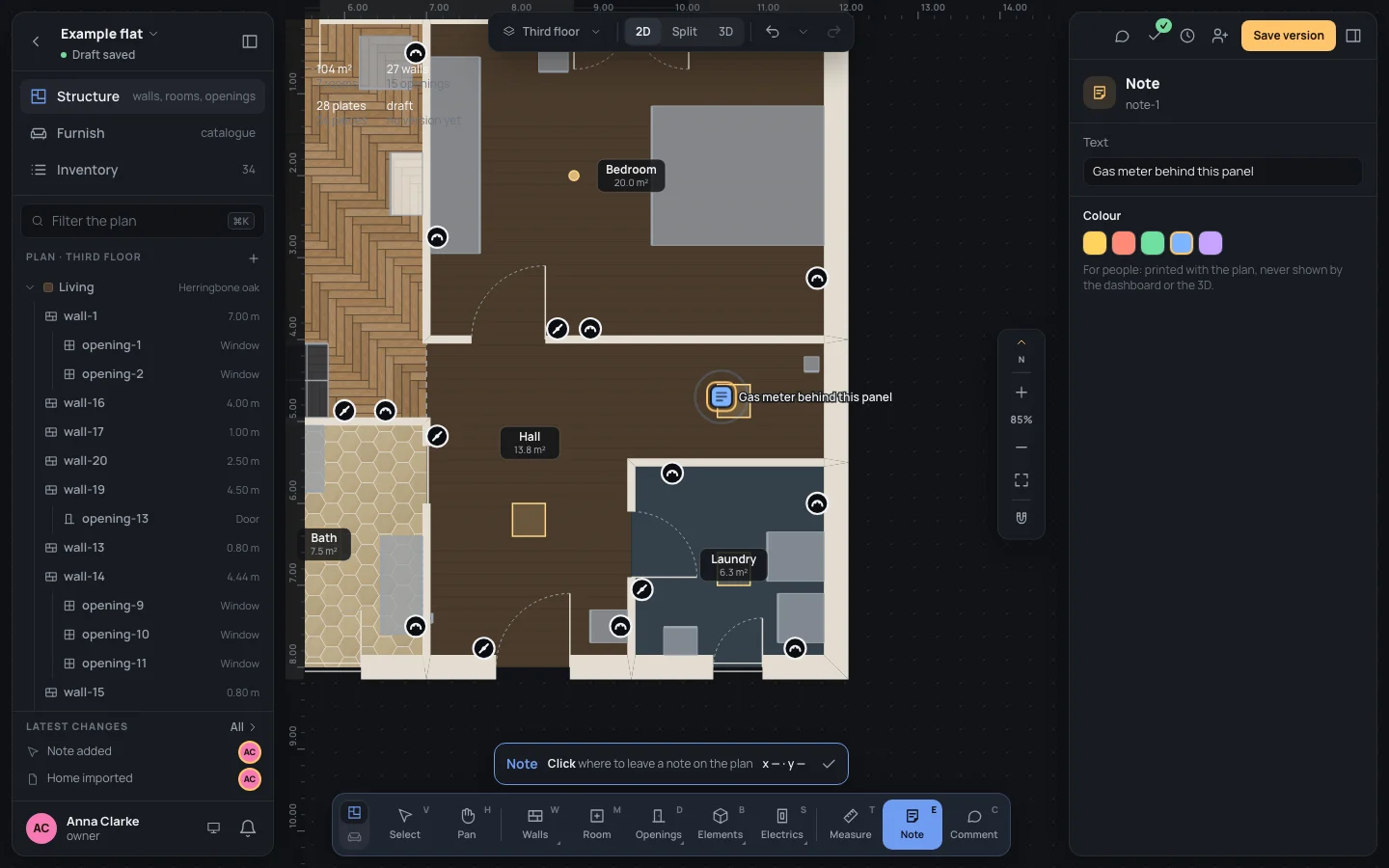
- Click Add, or press ↵↵. The note is on the plan, selected, its words beside its pin.
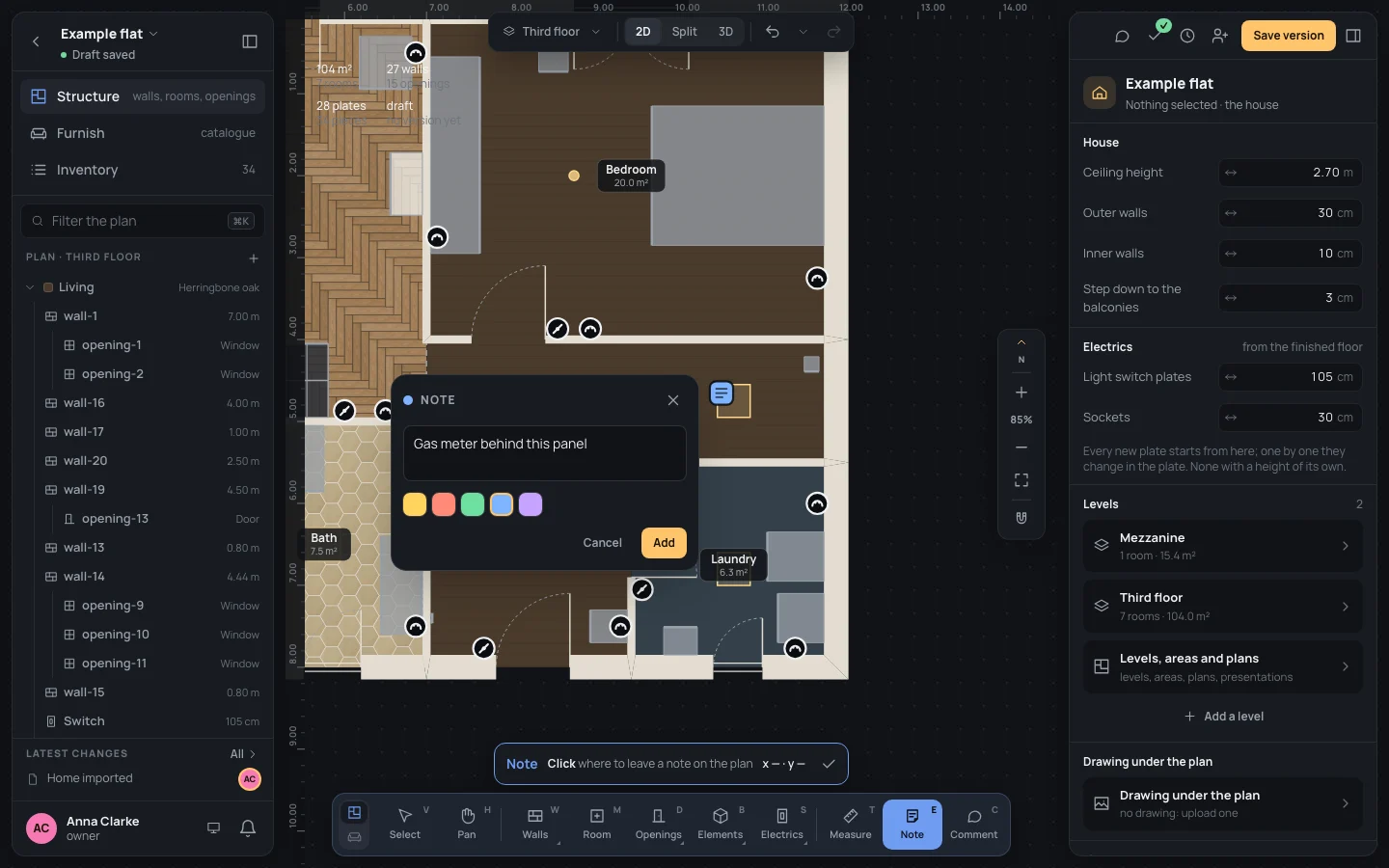
While the card is open, a click elsewhere on the plan moves the pin there and keeps the words written and the colour picked.
The note selected
Section titled “The note selected”The inspector shows its Text, to change (an empty text isn’t taken: Write something in the note.), its colour, and a reminder: For people: printed with the plan, never shown by the dashboard or the 3D. Each change is one step (Note edited, Note colour changed).
Keys inside it
Section titled “Keys inside it”- ↵↵: adds the note (the same as Add). ⇧↵Shift+↵: a new line.
- EscEsc: drops the note, but only while nothing is written in it: written words are never lost to a key. Cancel and the card’s ✕ drop it whatever is written.
- EscEsc again, with no card open: back to Select; Done (✓) in the bar does the same.
- ␣␣ held: move the view; ⌘Ctrl with the wheel: zoom.
What it snaps to
Section titled “What it snaps to”Nothing: the note goes exactly where you click, on a wall, in a room or outside the home.
What it refuses
Section titled “What it refuses”Add stays greyed out, and ↵↵ does nothing, until the note has some words.
The tool stays on, so you can leave the next note. A note is one step in the history (Note added). The left panel lists notes under Dimensions and notes, the Notes layer shows or hides them, and the search finds them as dimension or note. More on dimensions and notes together: Measures and notes.
Example: the gas meter in the hall
Section titled “Example: the gas meter in the hall”On the finished example flat:
- Press EE.
- Click in the hall, near its east wall (round x 10.60 · y 4.70).
- Write Text
Gas meter behind this panel. - Pick Blue, then Add.
If something goes wrong
Section titled “If something goes wrong”- The note in the wrong place: ⌘ZCtrl+Z and click again, or drag it with Select.
- The wrong words: select the note and change its Text.
- A note no longer needed: select it and delete it (⌫⌫or⌦⌦).
See also
Section titled “See also”- Measures and notes: notes and dimensions on the plan.
- Comment: when you want an answer, not a note: comments are a conversation.
- Print and export: notes on paper.