

Comments
A comment is a conversation pinned to a place on the plan: a room, a wall, a window, a piece of furniture, or just a point. Everyone in the project comments, viewers too (Inviting people). Comments are not part of the home: they never change the draft, and a version saved leaves them out.
Pinning a comment
Section titled “Pinning a comment”- Press CC (or Comment in the dock), or right-click an empty spot of the plan and choose Comment here. How the tool works is in Comment.
- Click where it goes. On an element (a room, a wall, an opening, a light, a piece), the comment is pinned to it and follows it wherever it moves; elsewhere, it stays on that point.
- Write in Write a comment…, then click Send, or press ⌘↵Ctrl+↵.
For example, in the example flat, Tom clicks in the living room and writes:
CommentCould the sofa face the bay window?
Sent, the comment stands on the plan as a pin: a bubble in its author’s colour with their face, and how many messages it holds once there are two or more. EscEsc or Cancel drops a comment before it is sent; EscEsc does nothing once you have written something, so your words are never lost to a key. A message is up to 4000 characters.
Mentioning someone
Section titled “Mentioning someone”@ Mention, under the text, lists the people in the project. Pick one: @Anna Clarke goes into the text, and they are told:
- in their bell (on the projects page, and in the editor beside their name): Tom Fisher mentioned you in Example flat, with the comment’s first words;
- by email at once, with a link that opens the conversation, unless they chose Never for Mentions (Settings).
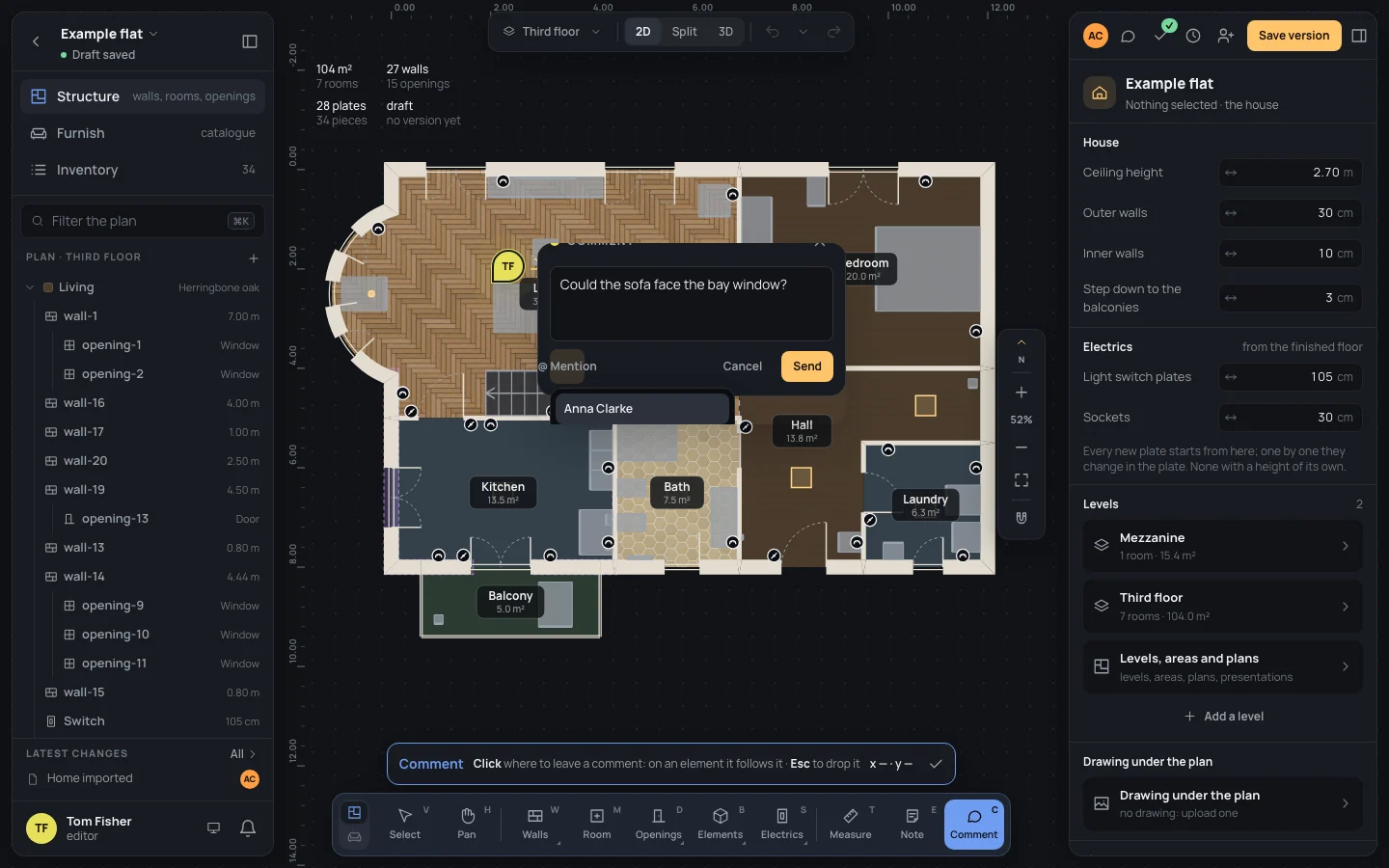
If you delete the name from the text before sending, that person isn’t mentioned. A pin that mentions you, still open, breathes, so you find it on the plan.
Opening a thread
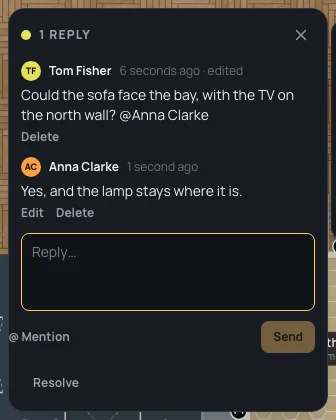
Section titled “Opening a thread”Click a pin: its thread opens beside it, with every message, who wrote it and when (edited if it was changed).
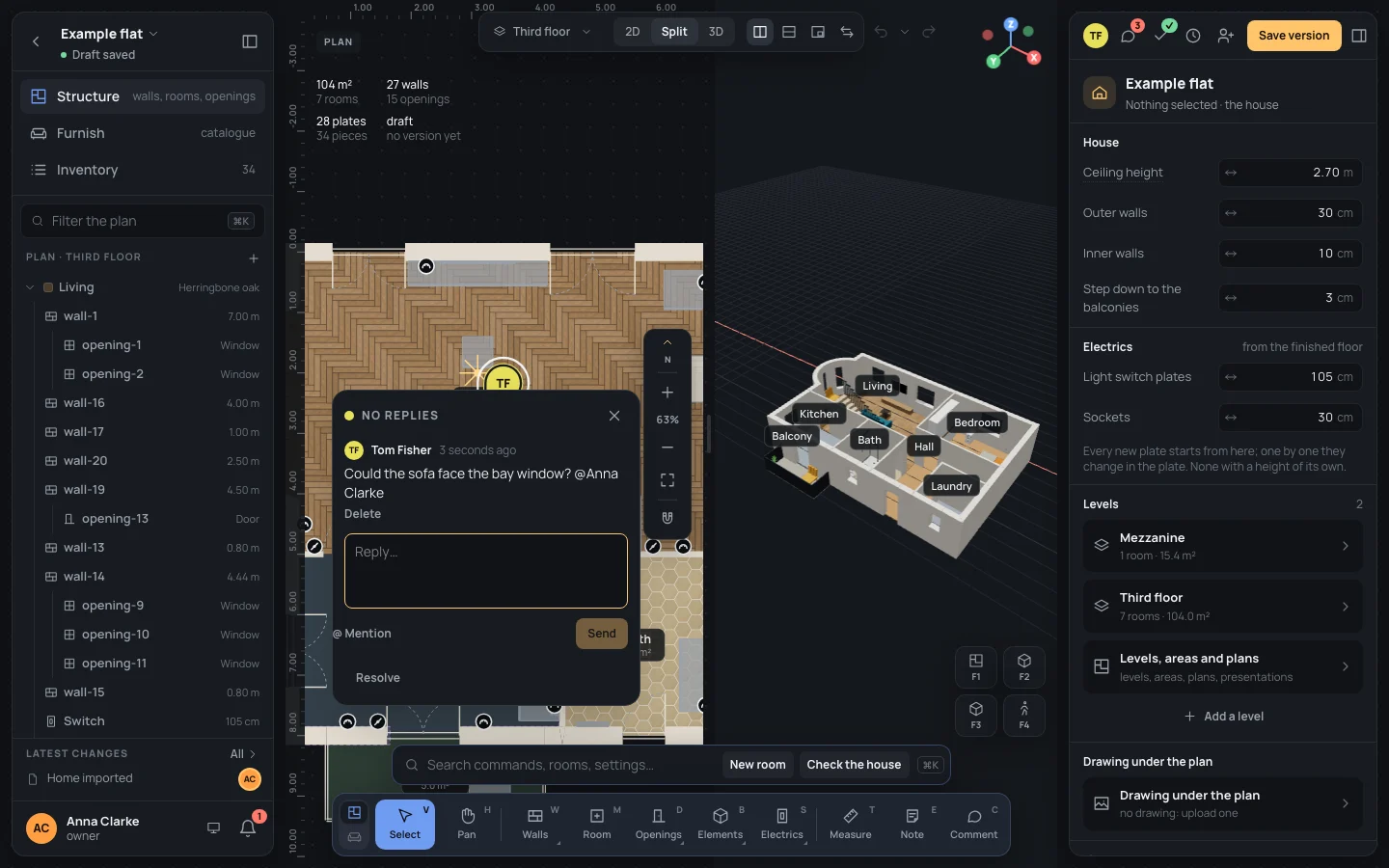
Close it with × (Close), with EscEsc while the reply box is empty, or with another click on its pin.
Replying
Section titled “Replying”A message a connected app wrote for you says so after your name: through Writer app.
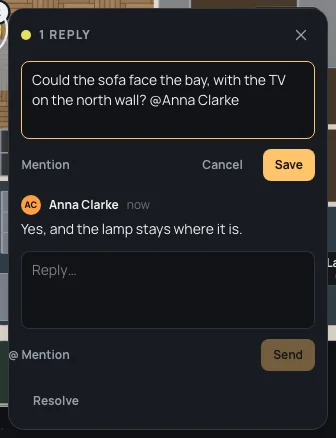
Write in Reply… and click Send, or press ⌘↵Ctrl+↵. Whoever opened the thread is told in their bell: Anna Clarke replied to your conversation in Example flat, and by email in the next morning’s summary, unless they chose otherwise for Conversations (Notifications). For example:
ReplyYes, and the lamp stays where it is.
Editing and deleting a message
Section titled “Editing and deleting a message”Under your own messages: Edit opens the text with Cancel and Save; the message then says edited. Delete deletes it at once.
The project’s owner can also delete anyone else’s message (never edit it). It asks first: Delete Tom Fisher’s message? It goes for everyone and can’t be brought back.
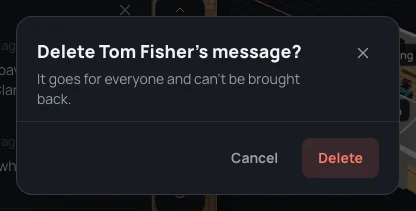
A thread whose last message is deleted goes away, for everyone.
Resolving
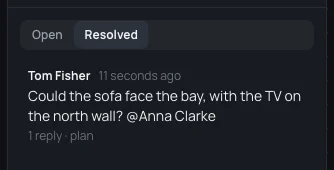
Section titled “Resolving”Resolve, at the bottom of the thread, says the matter is closed: the pin leaves the plan and the thread moves to Resolved in the panel. Reopen brings it back. Everyone who wrote in the thread is told in their bell (Anna Clarke resolved a conversation in Example flat), except whoever did it.
The comments panel
Section titled “The comments panel”The speech bubble at the top of the right panel opens Comments: every thread of the project, newest first. Its badge counts the open ones.
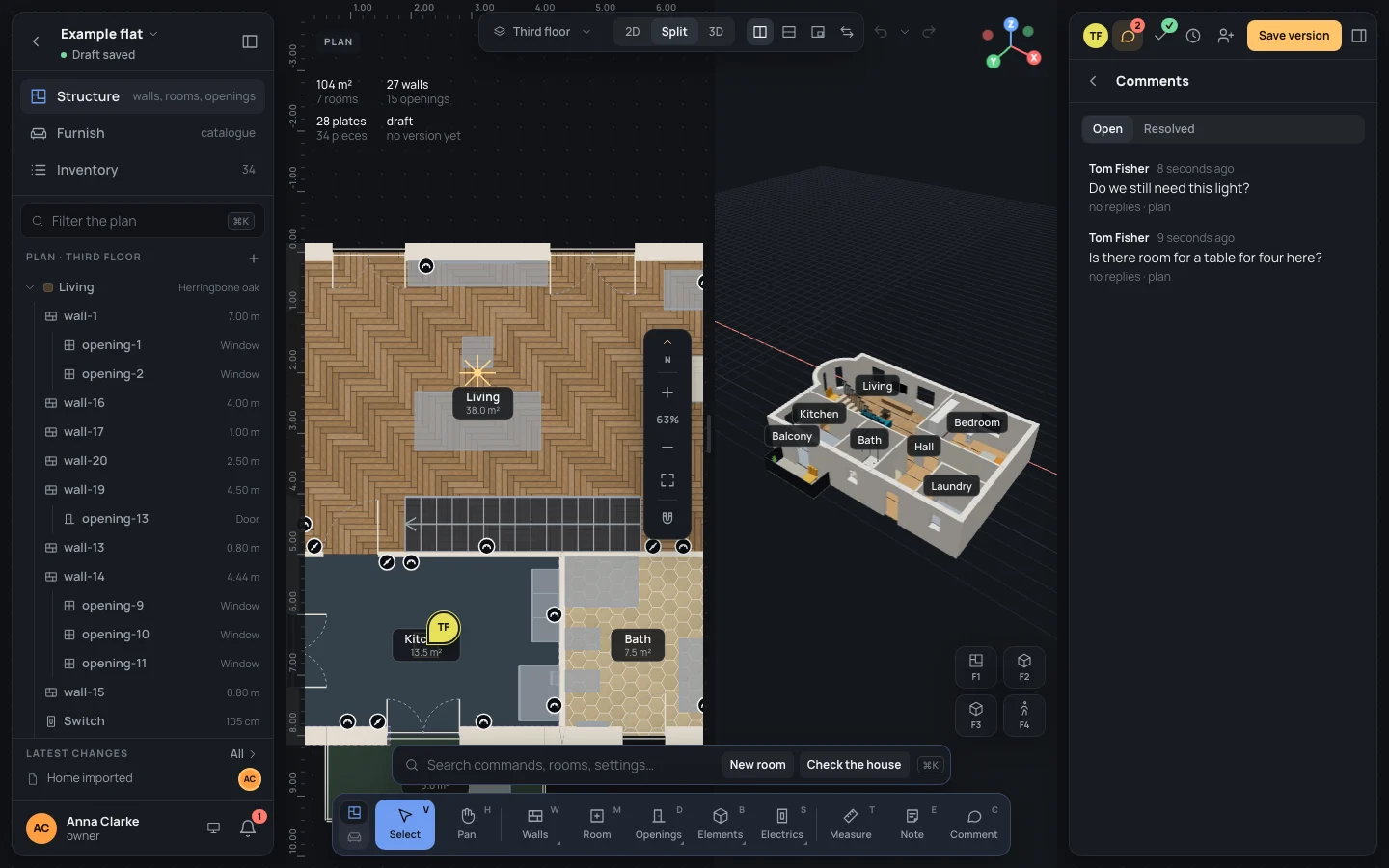
- Open and Resolved choose which threads it lists.
- Each row has who opened the thread, when, its first words, its replies and its plan.
- A click opens the thread’s plan, frames its pin and opens the thread there. A resolved thread opens on the plan too, greyed, until you close it.
With no threads, the panel says how to start one: CC on the plan.
From the bell and the email
Section titled “From the bell and the email”The bell, on the projects page and in the editor beside your name, tells you of mentions, replies and threads resolved, among the rest (Notifications).
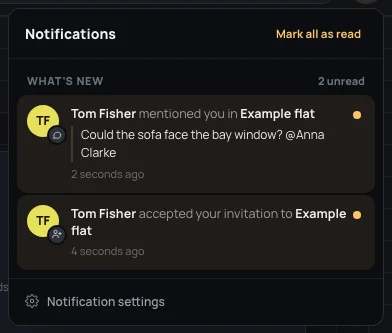
A click on one opens the project with its thread shown (its plan opened, the view framed on the pin) and marks that one as read. The link in the email does the same.
When the element is gone
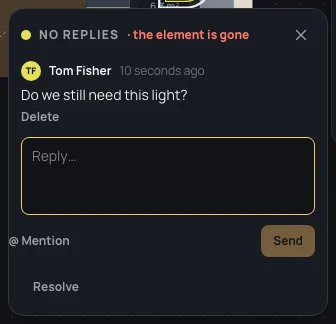
Section titled “When the element is gone”If the element a comment is pinned to is deleted, the pin stays where it last was, and its thread says the element is gone. The conversation is kept: resolve it, or reply to say what happened.
What can go wrong
Section titled “What can go wrong”- The comment was not saved. The connection dropped or the server refused it: your words stay in the box, send again.
- Deleting your own message doesn’t ask, and it can’t be undone. Comments aren’t steps of the draft: ⌘ZCtrl+Z doesn’t bring them back.
- Someone removed from the project: their comments stay.