

Typing and dragging numbers
Blupinta is made to be drawn by its measures. Every number can be typed, in the unit you think in; most can be dragged too; and the measures on the plan can be typed right where you see them.
Typing in a field
Section titled “Typing in a field”Click a field, type, and press ↵↵ or leave the field: the change is made, as one step. EscEsc puts back what was there. A field that can’t take what you typed says why, in red, under it (Type a length, for example 30 or 2.40., Between 0.05 m and 100.00 m.), and changes nothing.
A length is read the way you would say it: 3,45 or 3.45, 345 cm, 3450 mm, 3 m 45, and sums and differences
(2,40+0,15, 3 m - 12 cm). A number with no unit is in your unit (settings, Units). Every form is in
Units and numbers. A few fields keep a unit of their own, written after the field: a
wall’s thickness and a plate’s height in centimetres, angles in degrees.
Dragging a number
Section titled “Dragging a number”A number field with ↔ before its value can be dragged: press on its label (or on the ↔) and move sideways.
- The plan and the 3D show the change as you drag; on release it is made, as one step.
- ⇧Shift held goes ten times faster, ⌥Alt ten times slower.
- EscEsc while dragging puts the value back.
- How far you move for one step is in the settings: Editor, Dragging numbers (higher is slower and more precise).
In the field, ↑↑or↓↓ step the number by one step, ten with ⇧Shift.
Some values are a bar instead (an opacity, a wall’s curvature): drag along it, use the arrow keys on it, or double click it to type the value.
The measures on the plan
Section titled “The measures on the plan”Select something with Select and its measures appear on the plan, each in a pill:
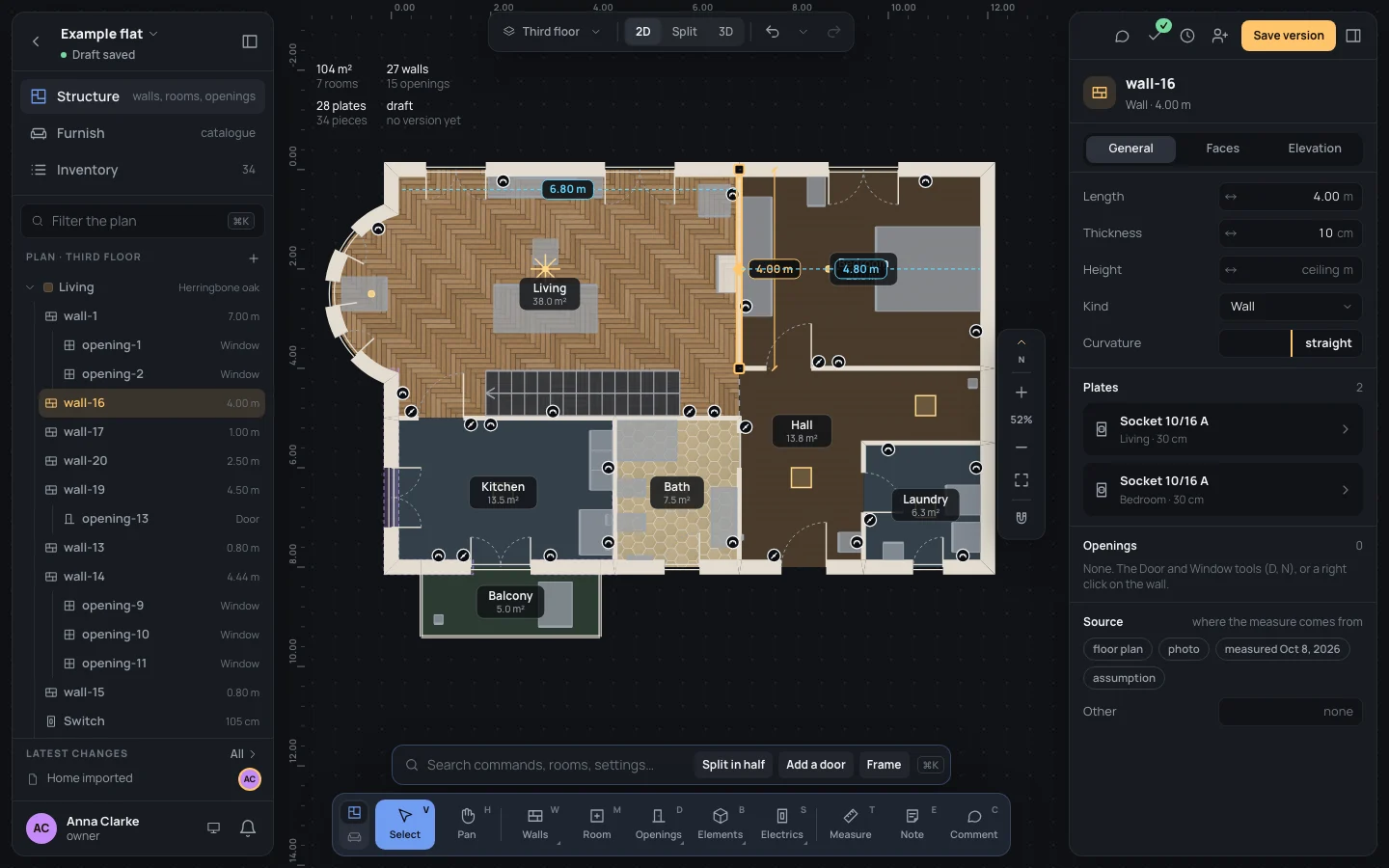
- a straight wall: its length on a dimension line beside it, and in cyan the clearance from its faces to the parallel walls on each side;
- a curved wall: its radius and length at its apex (R 1.80 m · 4.44 m);
- an opening: the free stretch of wall before it, its width, the stretch after it;
- a piece of furniture: its distances to the walls around it.
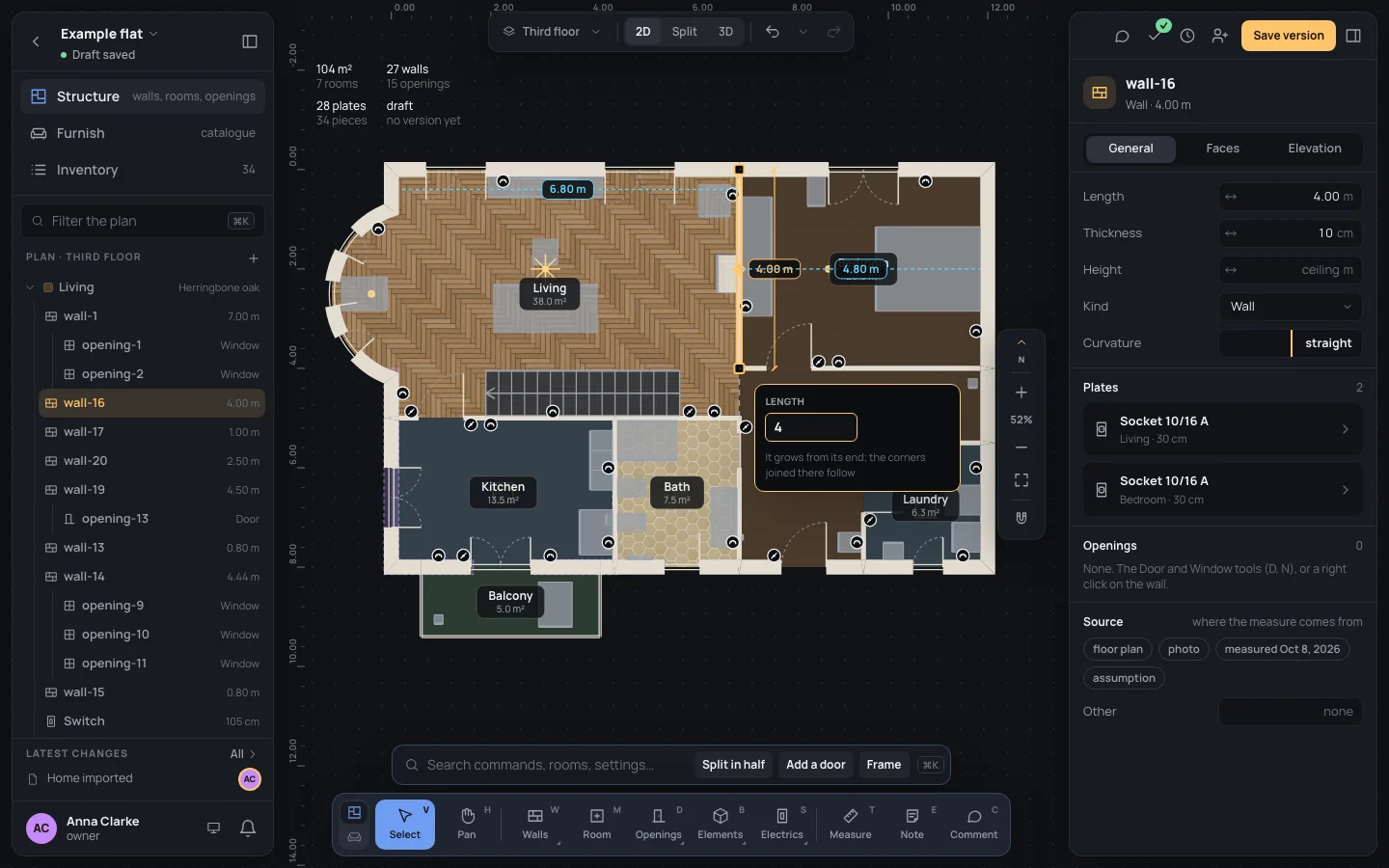
Click a pill to type that measure in a small box beside it:
| Pill | Box | What moves |
|---|---|---|
| A wall’s length | Length | It grows from its end; the corners joined there follow |
| A clearance | Clearance to wall-3 | Face to face: this wall moves |
| Before or after an opening | Distance | The opening slides along the wall |
| An opening’s width | Width | The side towards the wall’s start stays |
| A piece to a wall | Distance | From the wall: the piece moves straight towards it or away from it |
↵↵ applies, EscEsc closes, TabTab goes to the next field. A value the plan can’t take (an opening past the end of its wall) shakes the box and leaves it open, so you can fix it.
With one straight wall selected you don’t even need the pill: type a digit and the Length box opens with it.
-
On the example, select wall-16, the wall between the living room and the bedroom: 4.00 m along it, 6.80 m to the west, 4.80 m to the east.
-
Click 4.80 m: the box says Clearance to wall-3.
-
Type the bedroom’s width you measured, and press ↵↵:
Clearance to wall-34,50 -
The wall moves 30 cm east, face to face, and the living room grows. ⌘ZCtrl+Z puts it back.
The inspector’s heading and tabs
Section titled “The inspector’s heading and tabs”The right panel’s heading says what is selected: its kind’s icon, its name, and a line under it (Wall · arched · 4.44 m, Room · Herringbone oak, Window in wall-14). With nothing selected it is the house’s (Nothing selected · the house).
A wall or a parapet has three tabs, General, Faces and Elevation; a room has General, Finishes and Views. Selecting something else starts again on General.
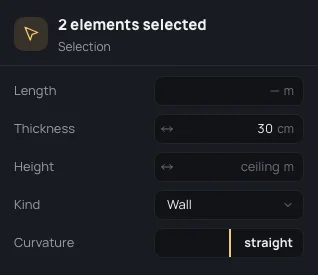
With several things selected the heading says 2 elements selected. Several walls share one inspector: a field with the same value for all shows it, one that differs shows —, and what you type there goes to all of them. Dragging a — adds the same amount to each. Several openings take a type at once (Apply a type, Opening types). Things of different kinds selected together (a wall and a room) can’t be changed there: the inspector says Select one kind of element to change it; together they can be duplicated or deleted.
What can go wrong
Section titled “What can go wrong”- The field stays red: it isn’t a length, or it is out of its limits; the message says which. EscEsc gives up.
- The box shakes: the plan refused that value. Change it, or EscEsc.
- A wall’s length can’t be typed: it is curved (read only), or several walls are selected.
See also
Section titled “See also”- Units and numbers: every form a length field understands.
- Editing walls, Openings.
- Your settings: units, decimals, dragging numbers.